Truv in Encompass® Consumer Connect

Setup Truv within Encompass® Consumer Connect to verify income and employment during loan application.

Overview

Truv Verification of Income and Employment can be enabled in Encompass Consumer Connect, providing a benefit for applicants and lenders. Applicants can automatically import their income and employment data into the loan application to avoid manual stare-and-compare data entry. Once the application is submitted, frontline staff will have verified income and employment data, paystubs, W2s, and a Truv VOIE report for GSE submission - accelerating underwriting and approval for lenders. As the loan approaches closing, the original verification data can be refreshed in Encompass LOS for a 10-day pre-closing verification.


One time Setup Guide

Follow the below guide to set up Truv in Encompass® Consumer Connect. If using Truv in both Encompass® Consumer Connect and Encompass® LOS, we recommend setting up and testing LOS first (https://docs.truv.com/update/docs/enable-truv-in-ice-encompass#/).


Step 1 : Add Truv as a Service

Open Encompass Consumer Connect Admin website ECC Admin , enter your Instance ID and log in as an administrator.

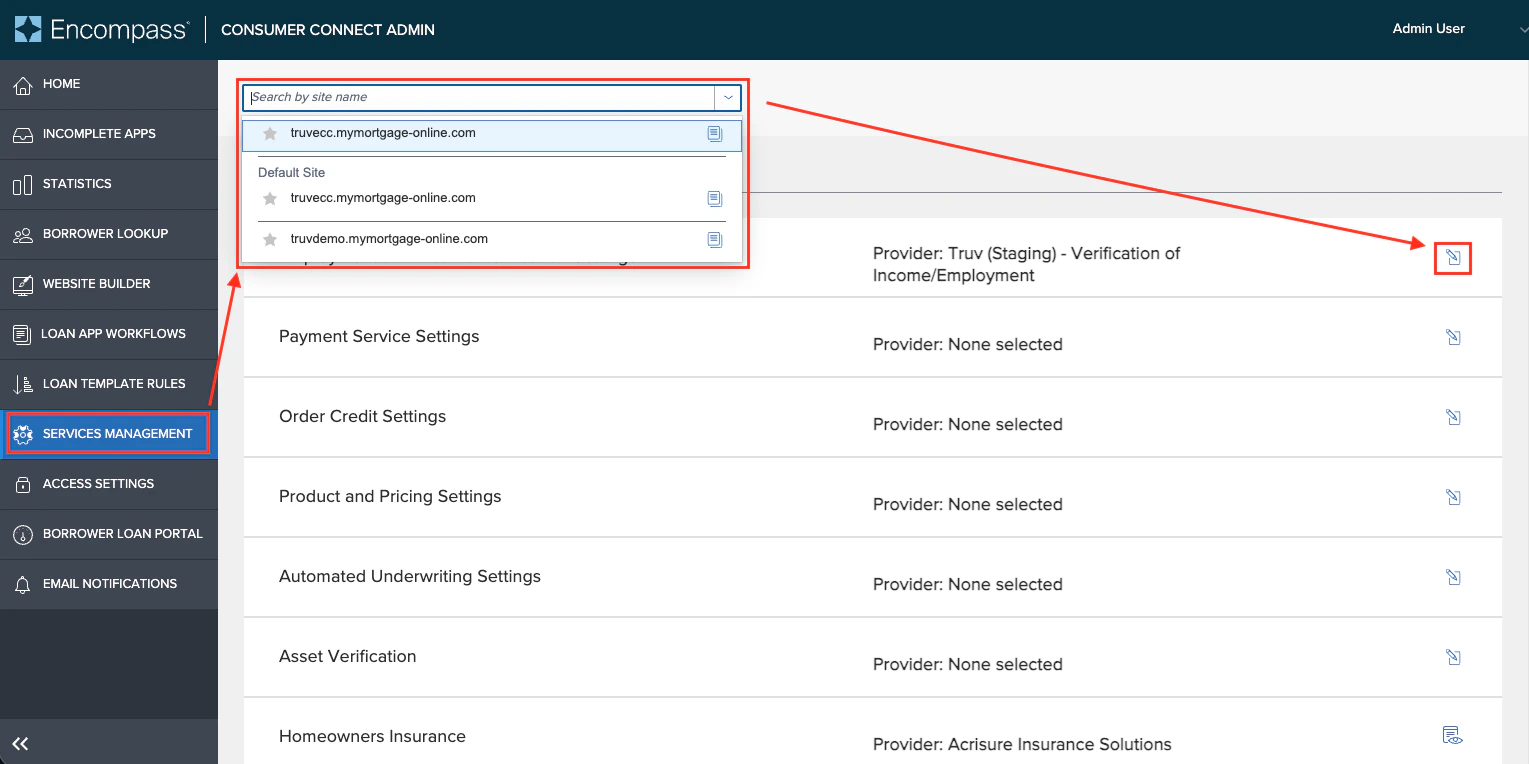
  1. In the Admin page, scroll down and click Services Management from the left sidebar.
  2. Select the correct site name in the dropdown where Truv services will be added.
  3. To configure Truv's Verification of Income and Employment (VOIE) product, select the checkbox in the Employment and Income Verification Settings row.

Step 2: Enter Truv Credentials into Encompass® Consumer Connect

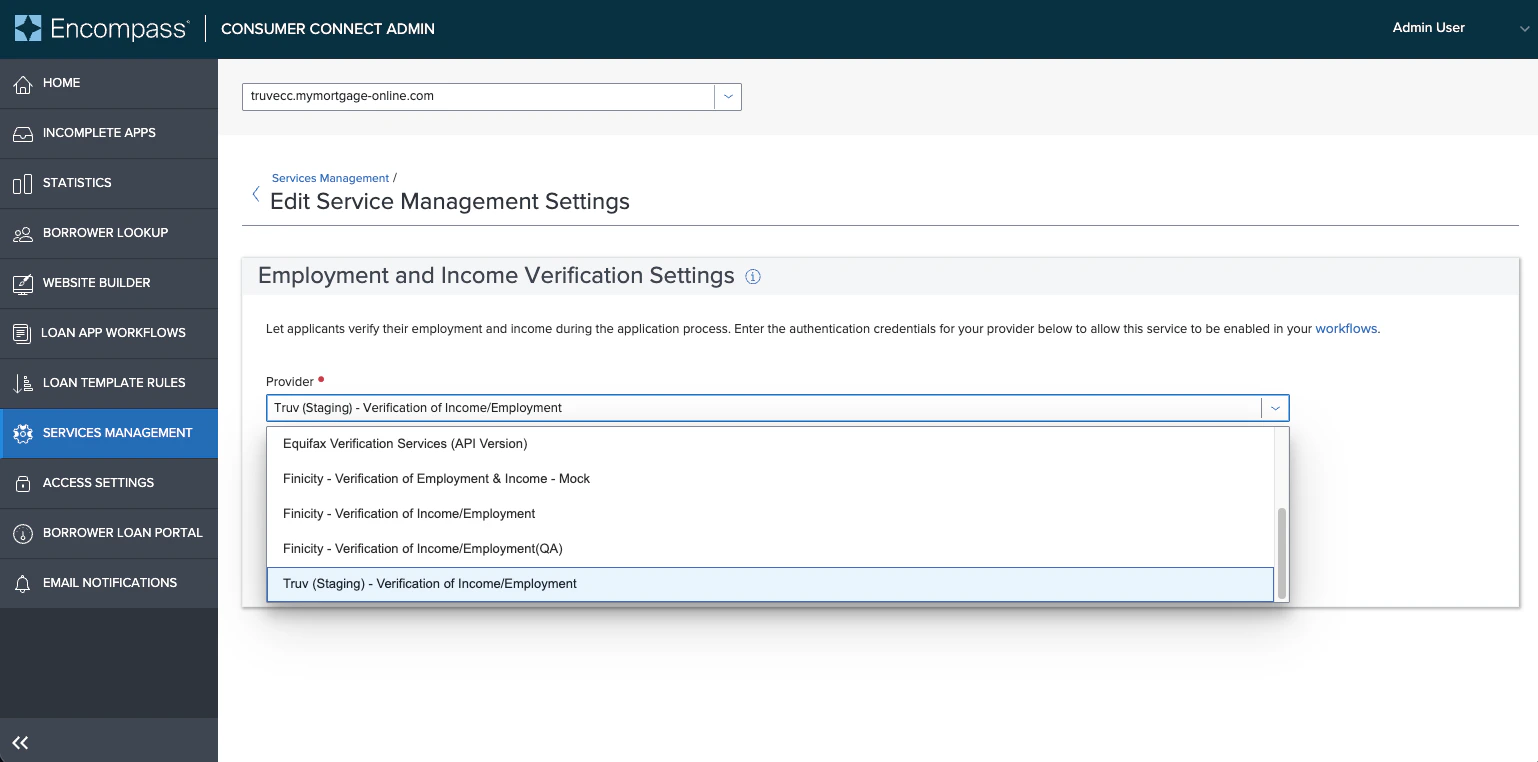
First select Truv as a provider, then add the same Client ID and Secret that are configured in your Encompass LOS. This will ensure that verification data flows seamlessly from ECC to LOS. Additional customization is possible using the Client ID field, which is detailed below.

  1. On the Provider dropdown, select Truv - Verification of Income/Employment/Assets option
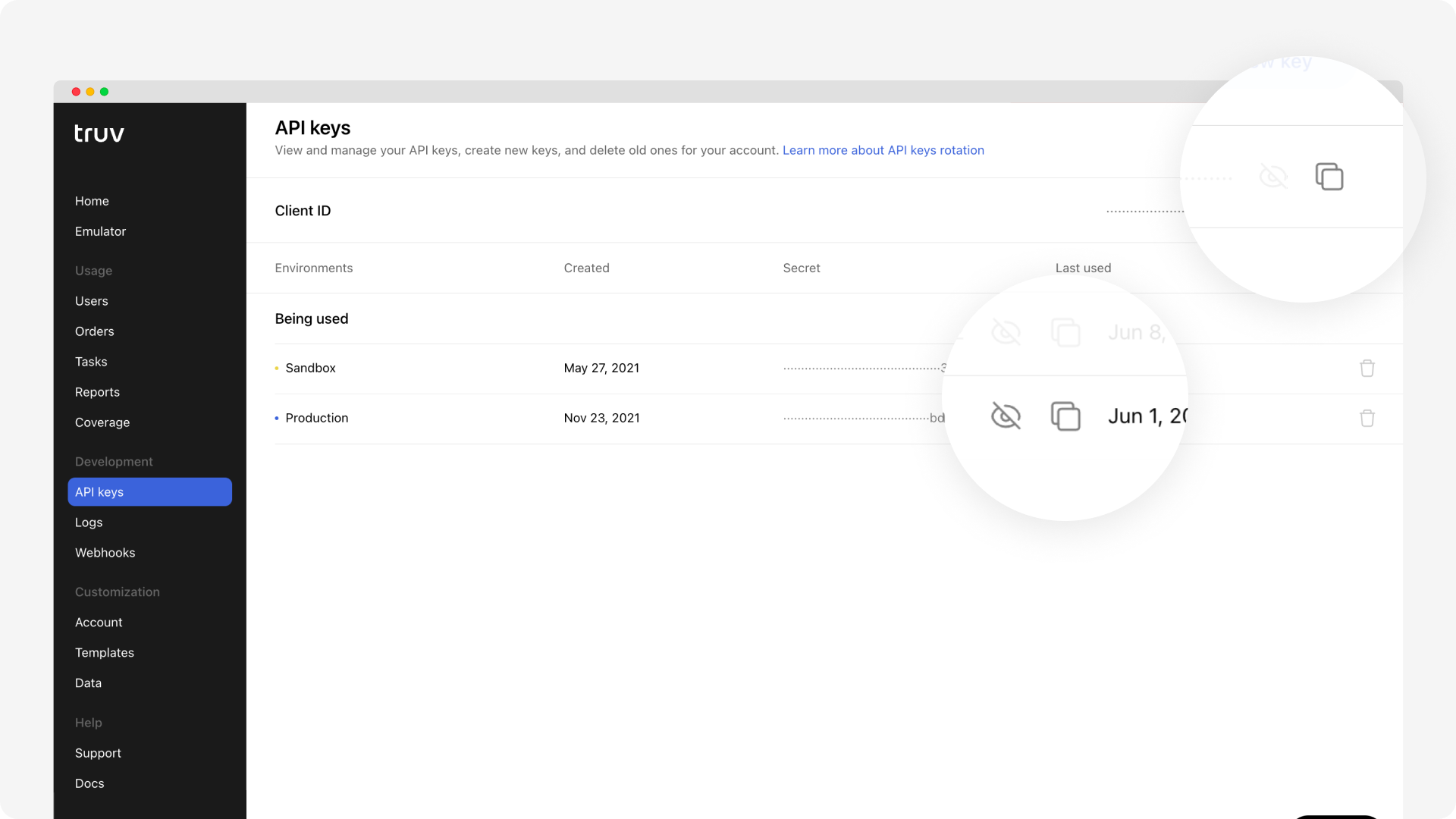
  1. Visit Truv’s API Dashboard as an Owner, Admin or Developer and select API Keys tab.

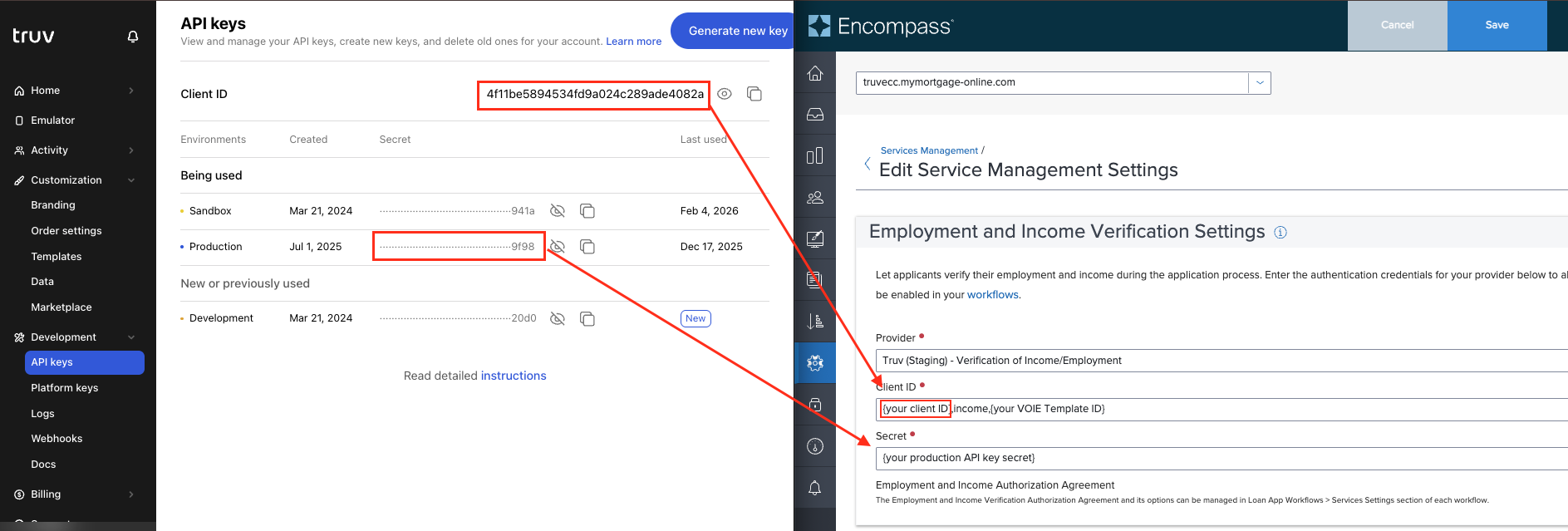
  1. Copy and paste the Client ID and Secret from the API Keys in Truv Dashboard into the corresponding fields in Encompass® Consumer Connect. Add additional required info to the Client ID field.
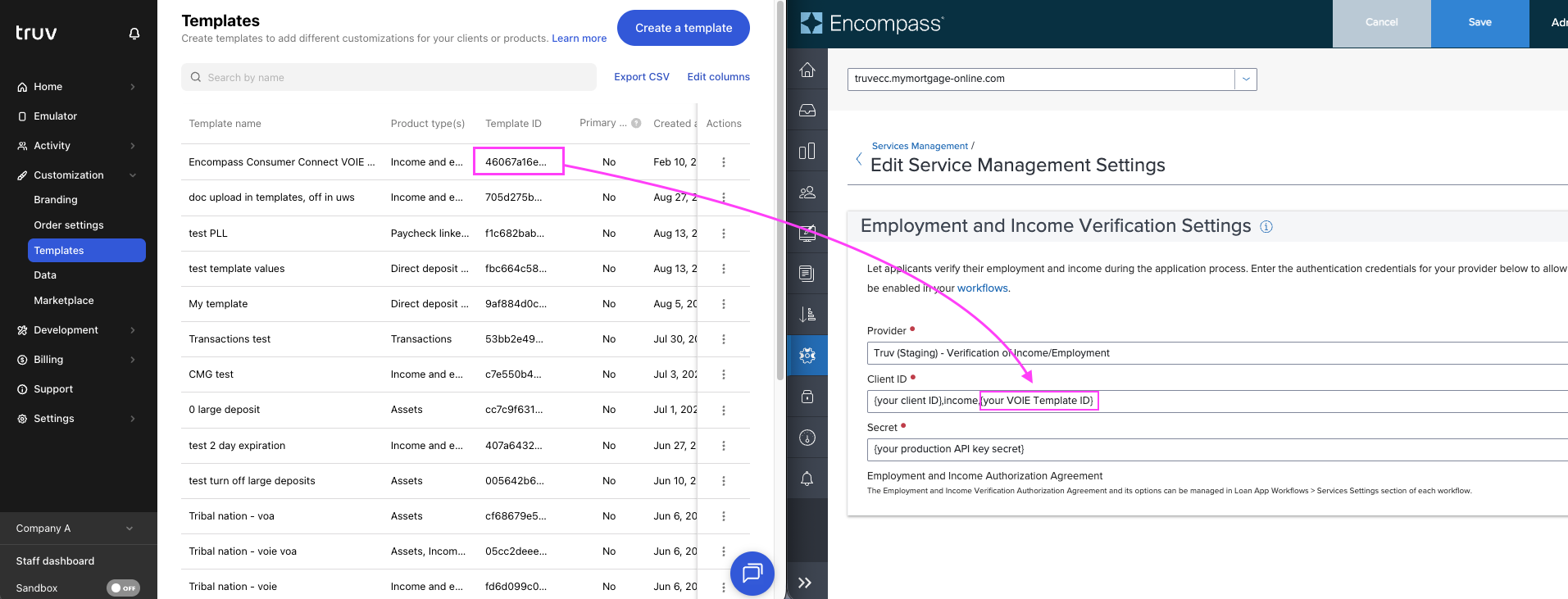
    1. Client ID: The Client ID field in ECC needs three values separated by commas: (1) Client ID from API Keys, (2) the word "income" to distinguish the product type, (3) a Template ID to control customization.
      1. Client ID can be copied directly from Development -> API keys tab.
      2. "income" should just be typed into the field after Client ID and a comma.
      3. Template ID can be copied for the template that should be used in ECC from the Customization -> Templates tab of Truv Dashboard.
      4. Example Client ID for the below screenshots would be: 4f11be5894534fd9a024c289ade4082a,income,46067a16e38b4b8c8c83b7fbe911b23a

    2. Secret: The Secret can be copied directly from API Keys and added to the Secret field
  2. After setting the fields, press Save.
  1. Check Encompass LOS to confirm the Client ID and Secret configured in the Truv service there match the Client ID and Secret that was pulled from Truv Dashboard and entered into ECC.
    1. See how to access Encompass LOS credentials in our Enable Truv in ICE Encompass guide
🚧

Note

Adding "income" and the Template ID into the Client ID field is a requirement for ECC only and should not be added to the Client ID field in Encompass LOS setup. In the example above, for Encompass LOS the Client ID would be 4f11be5894534fd9a024c289ade4082a only.


Step 3: Add Truv to the Active Loan App Workflow

After adding the Truv credentials in the Services Management tab, we need to now add the product to the active Loan App Workflow.

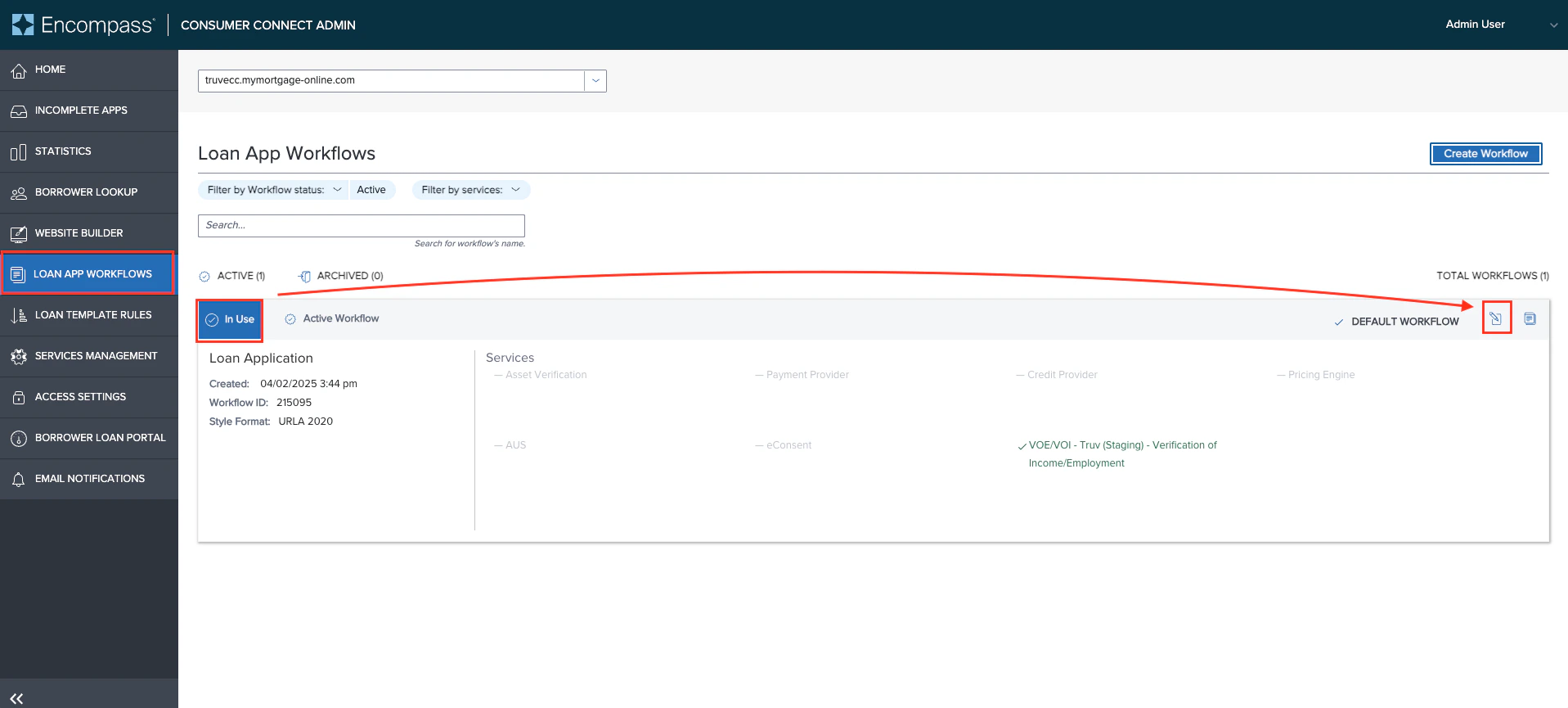
  1. Navigate to the Loan App Workflows tab. Then find the In Use workflow, and click the edit checkbox icon on the right side.
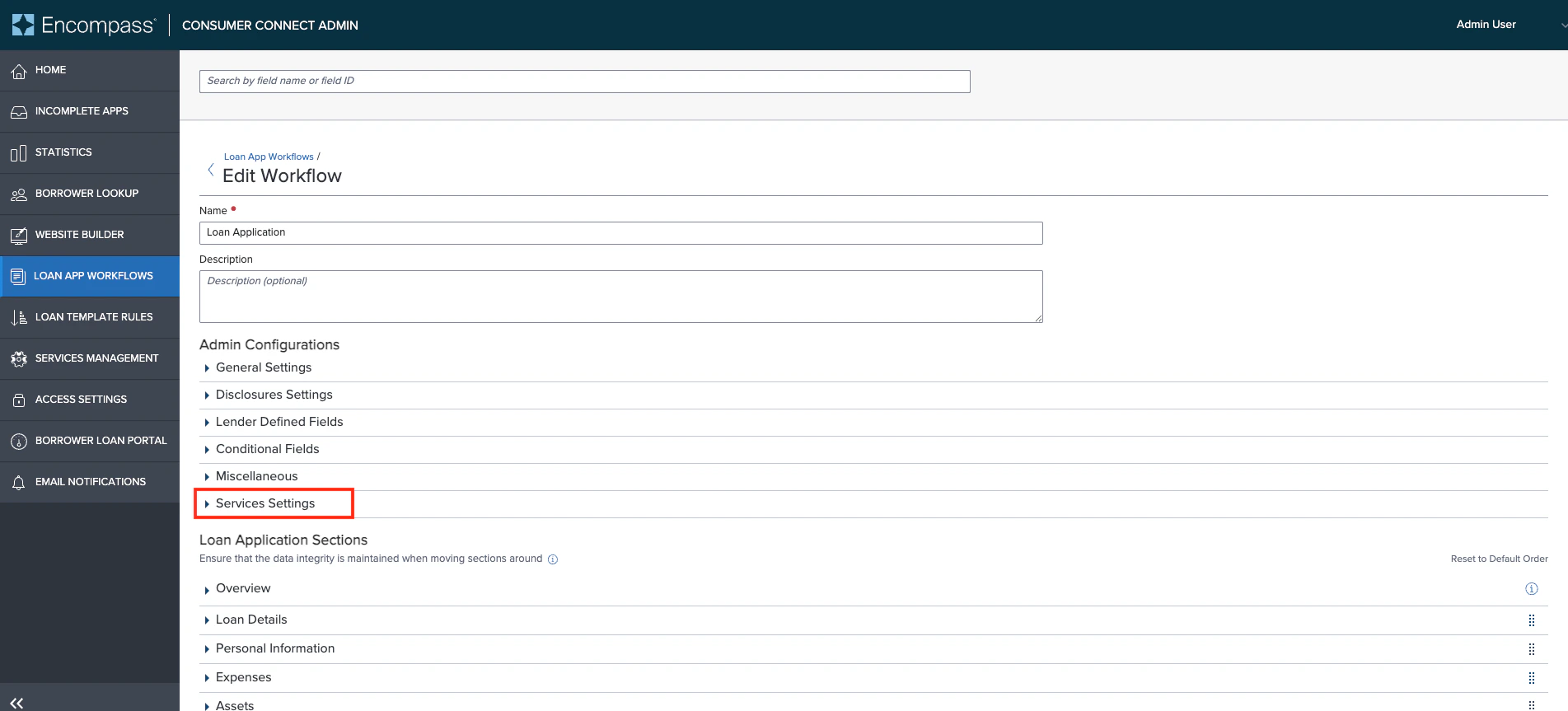
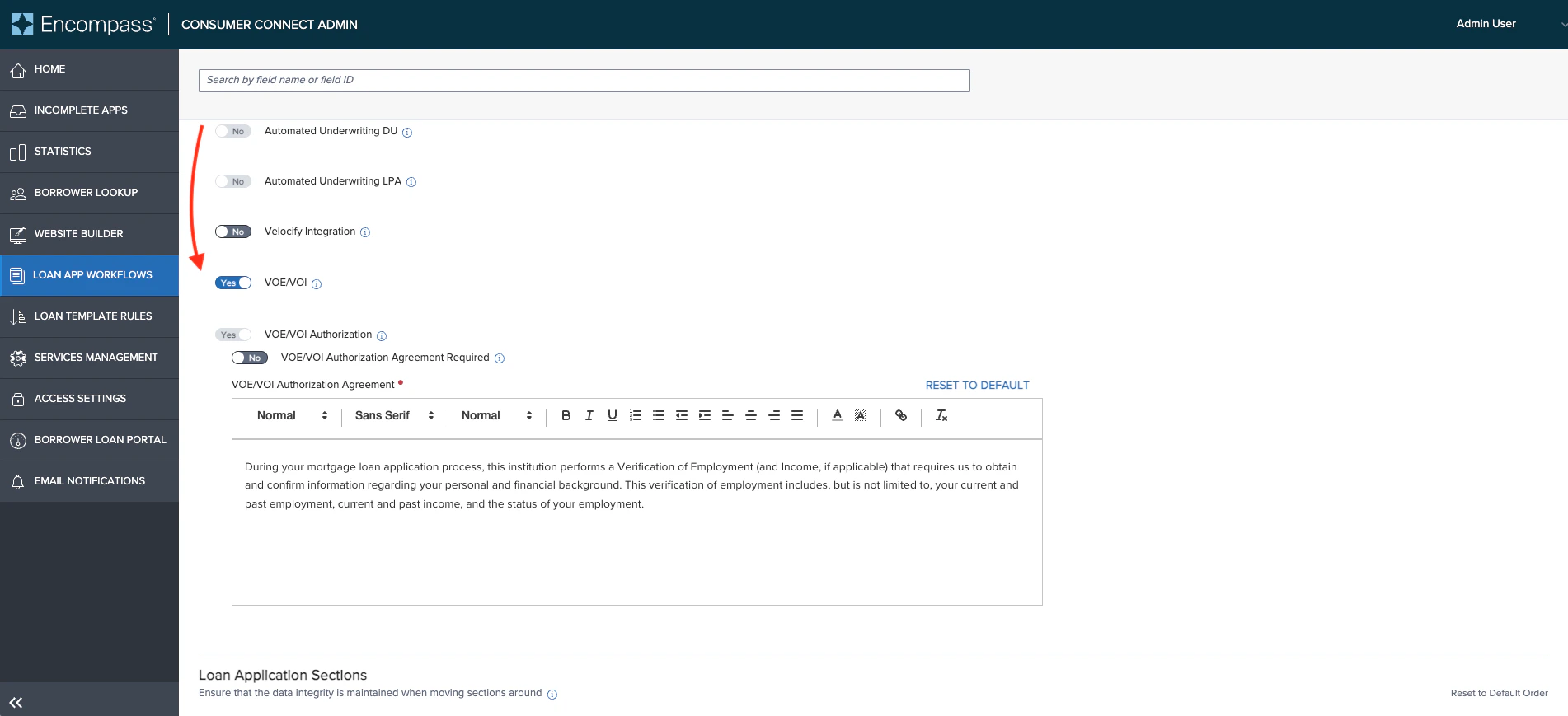
  1. Scroll down to the Services Management tab and expand it. Then scroll down through the options until you reach VOE/VOI and enable it. This will enable Truv's Verification of Income and Employment option in the active Loan App Workflow.
    1. The VOE/VOI Authorization is mandatory when the VOE/VOI product is enabled. The VOE/VOI Authorization Agreement Required setting is optional, we suggest keeping it disabled to avoid additional friction, but adhere to your own guidelines as to whether this is required.
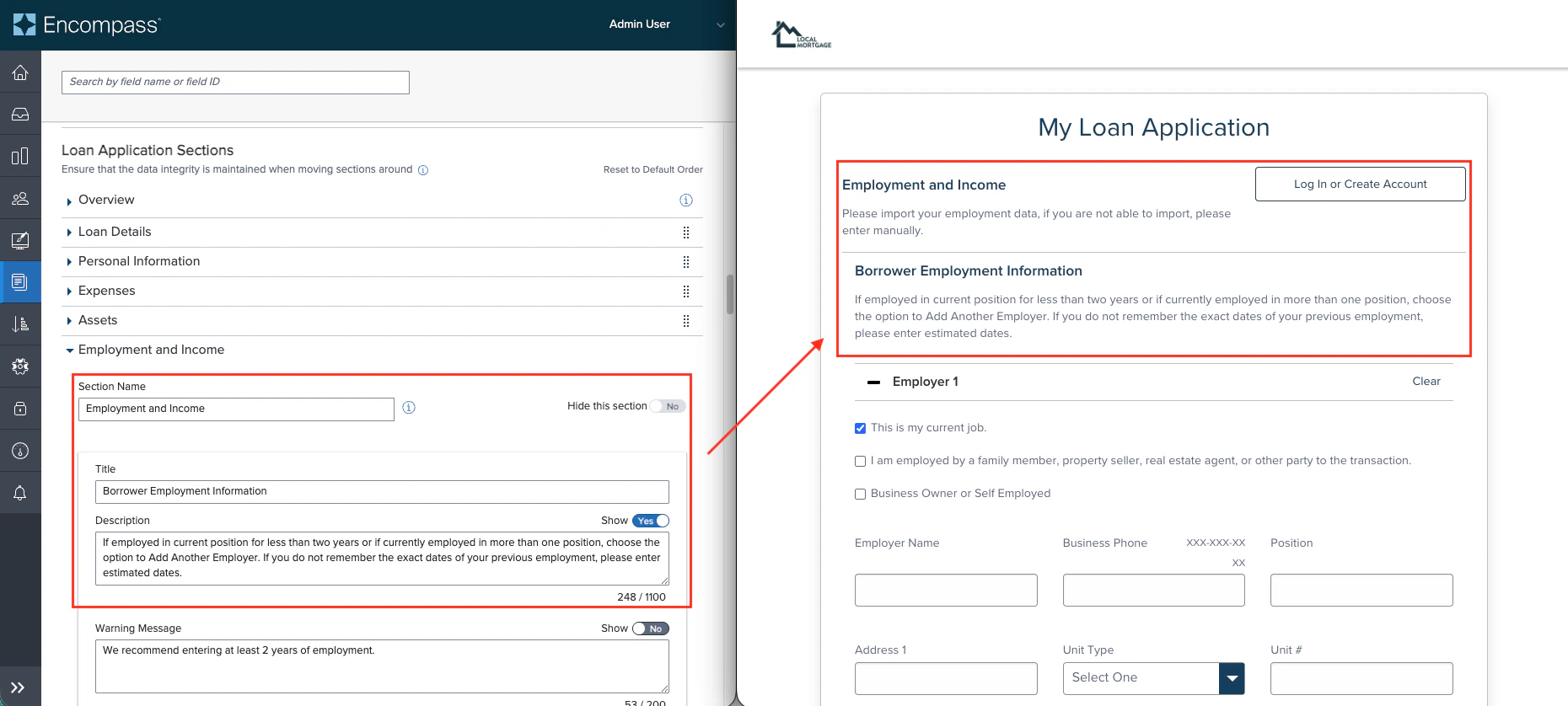
  1. [Optional] Configure the header and body text on the Employment and Income page in the application flow.
    1. Scroll down to the Employment and Income tab in Loan Application Sections.
    2. Text in the header and description sections can be modified to guide users through the Truv verification or manual data entry options and how many years of employment history is required.

Step 4: Customize the Truv Template configured in ECC

For the Truv Template ID that was added during service configuration in Step 2, we highly recommend adding the below configurations to ensure the Truv verification looks best.

  1. Navigate to Truv Dashboard -> Customization -> Templates tab, or open the following link https://dashboard.truv.com/app/customization/templates
  2. Open the template that was configured in Step 2.
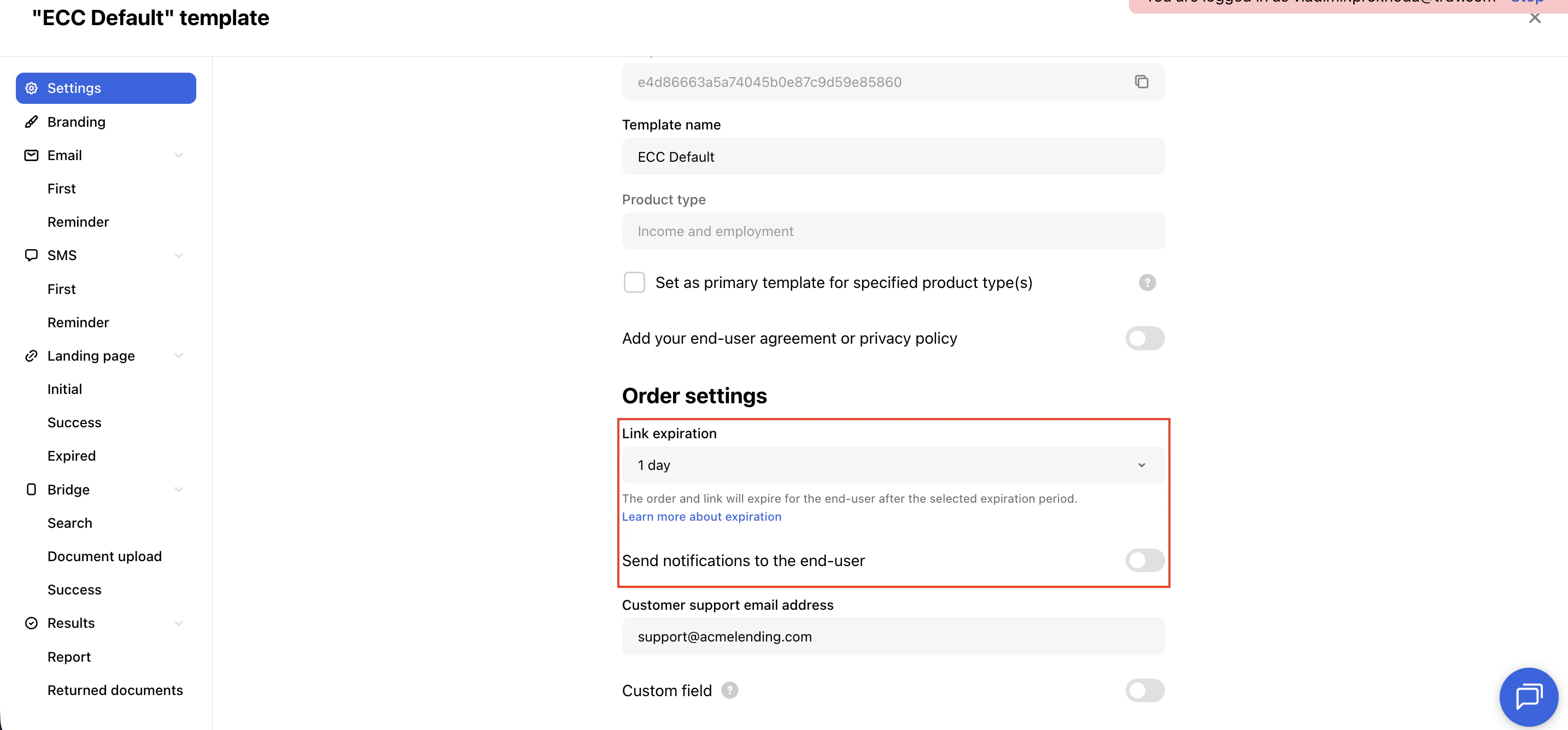
  3. On the first tab Settings
    1. Set Link expiration to 1 day
    2. Set Send notifications to the end-user to disabled
  1. On the second tab Branding

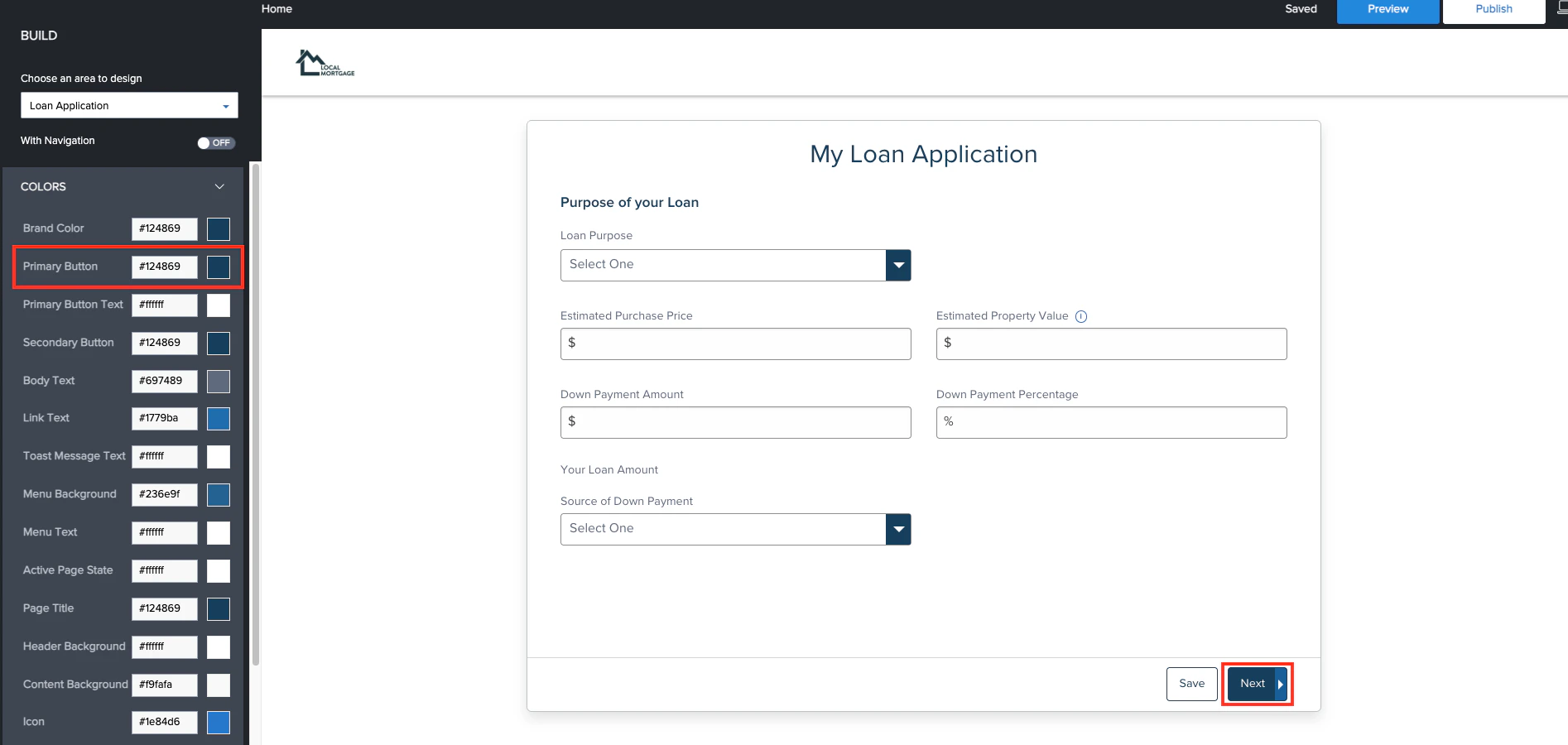
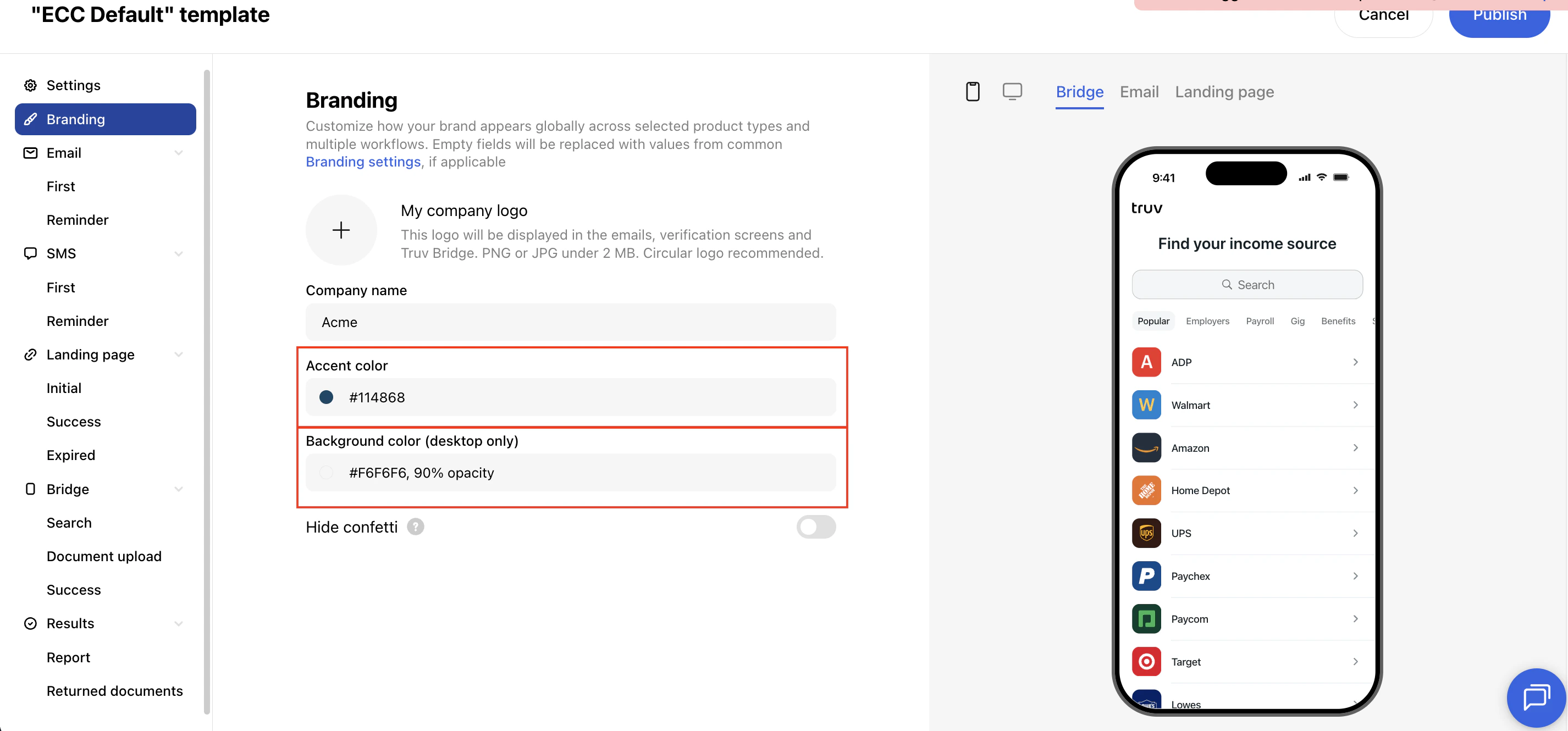
    1. Set the Accent color to whatever color is used in your ECC Application flow for the Primary Button color. This will ensure the buttons have a consistent look and feel throughout the application flow. This color can be found on the Admin site on the Website Builder tab when editing the Loan Application.

    1. Set the Background color to white and increase the opacity to 0.9, if configuring in the color editor the values are R: 246, G: 246, B: 246, A: 0.9

👍

Success!

You've activated Truv for Encompass® Consumer Connect!

Need help? Email [email protected] or contact your Truv Customer Success Manager.


See below for a demo of the Borrower experience