

Reporting
The Reporting tab shows performance metrics for all verifications in the selected period.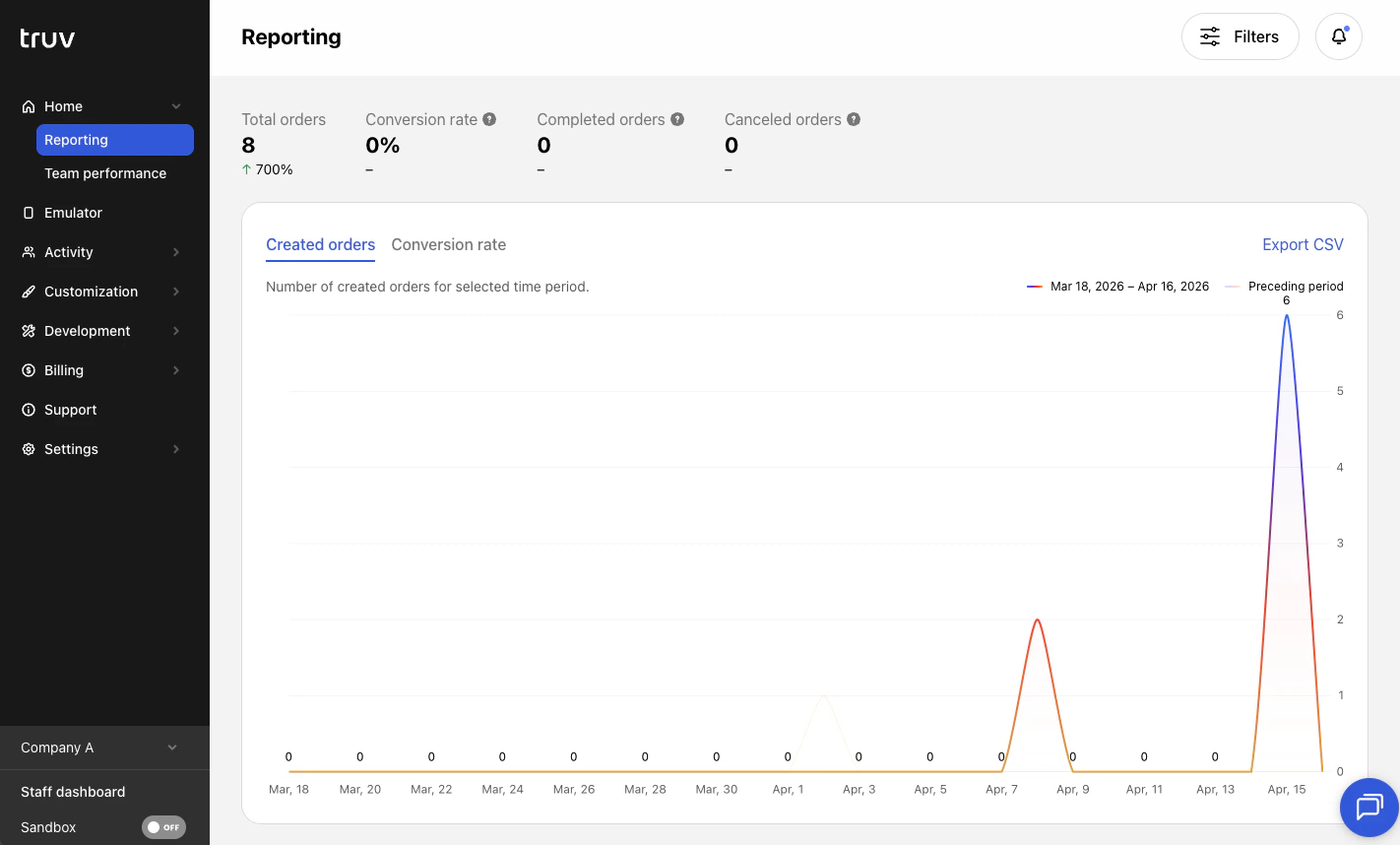
Filters
Use the filter bar to slice the data:Charts and tables
Export
Click Export CSV in the top-right corner of any chart to download the underlying data.Notifications
The bell icon in the top navigation shows in-app notifications in three categories:- Order updates — Order completed, canceled, expired, or moved to another terminal status
- Team updates — A team member requires approval to access the account
- API updates — A new API key was issued or rotated
Team Performance
The Team Performance tab shows orders created and conversion rate broken down by individual team members.- Filter by template to see per-template performance for each member
- Export the table as a CSV
Next steps
Activity
View individual users, orders, and tasks
Customization
Configure templates to brand your experience