

Users
The Users tab shows every applicant created in your company and all of their connections.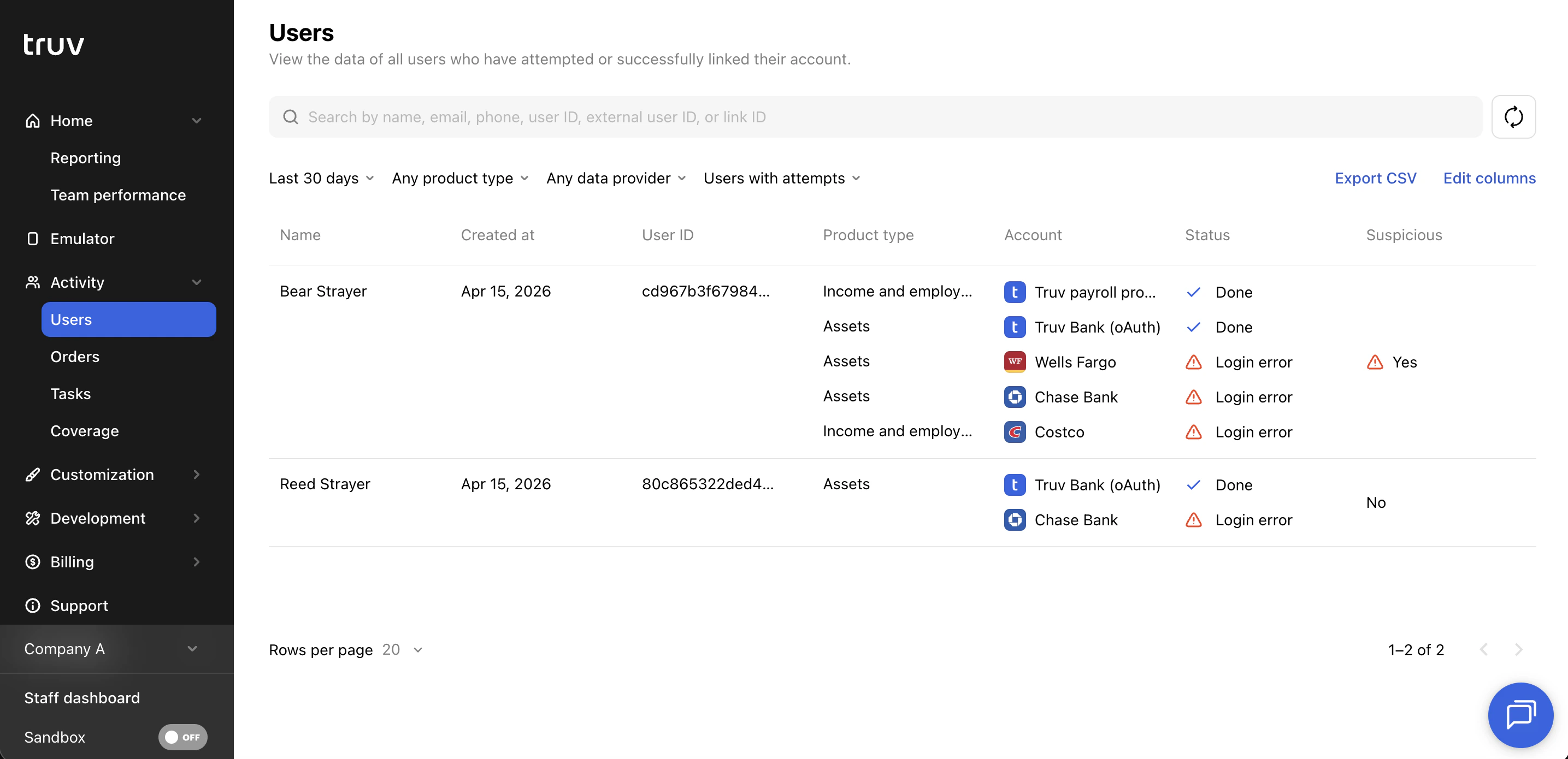
Table columns
Search and filters
Open a user
Click any user to see all reports returned across their links. Reports can be downloaded as PDFs or viewed in the Dashboard UI. Paystubs and W-2s can be downloaded directly from the report view. Additional connection details or errors can be reviewed under the Connections tab.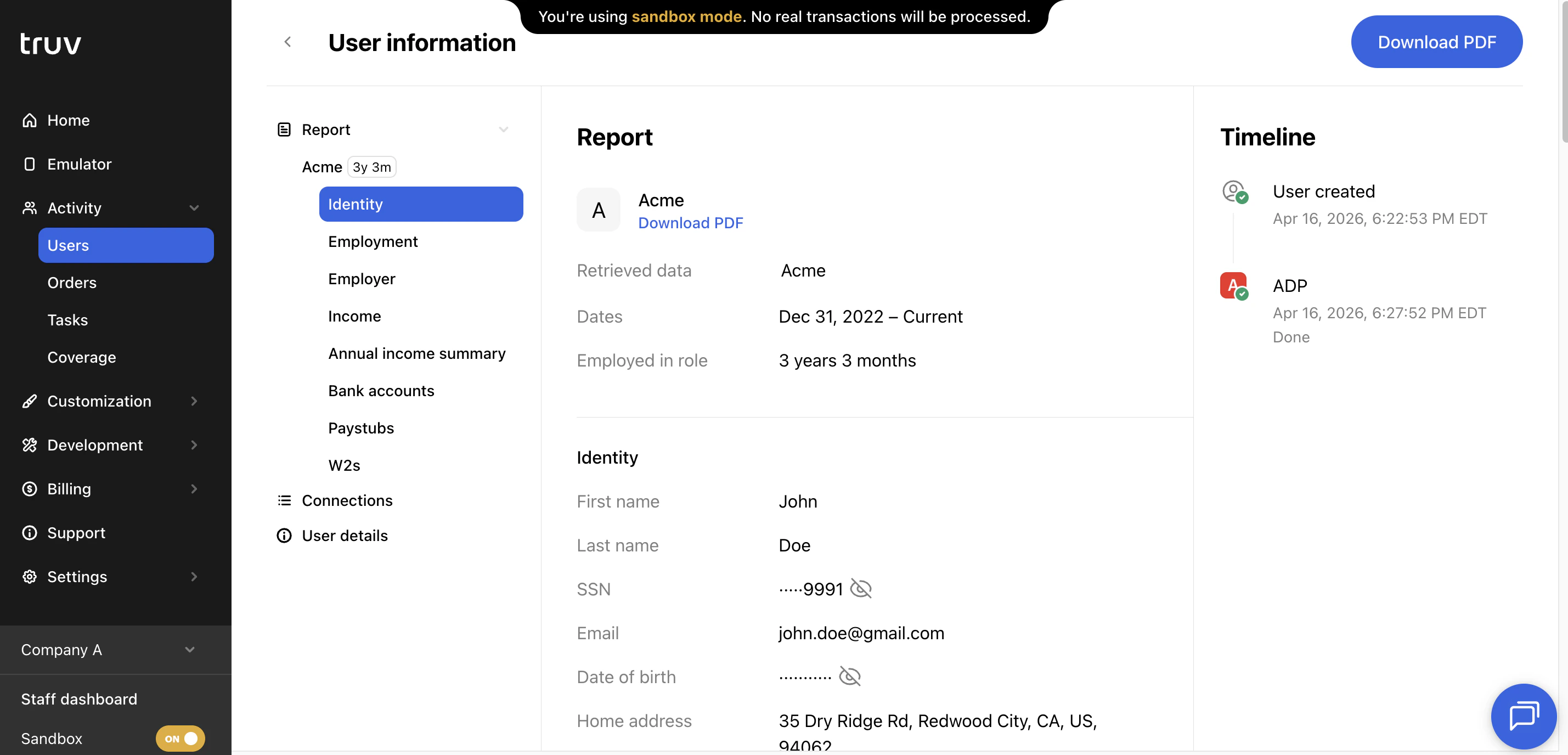
Orders
The Orders tab shows every Truv verification order in your account.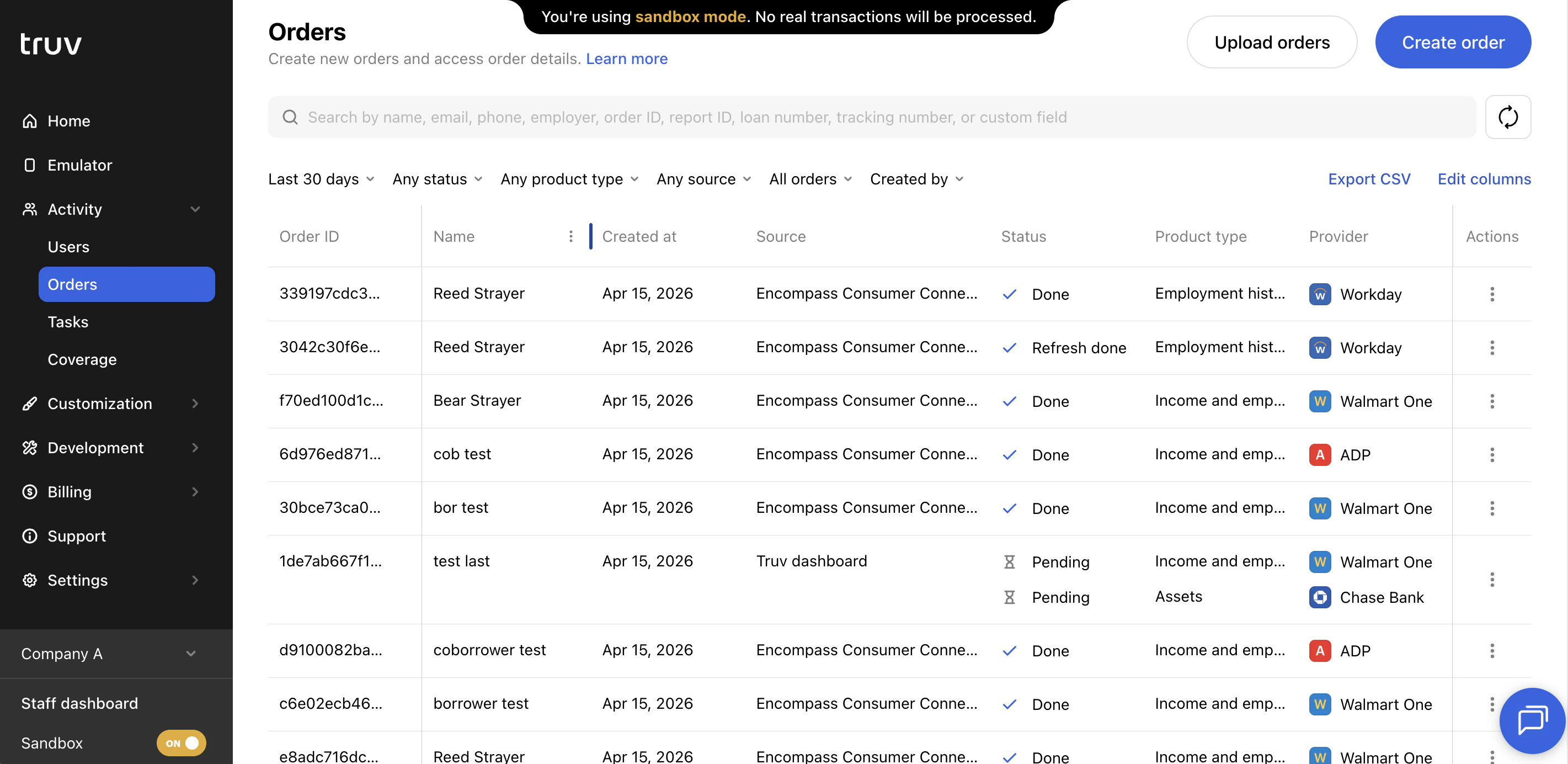
Table columns
Column customization is per-user and does not affect other team members’ views.
Search and filters
Open an order
Click any order to see all associated reports. Reports can be downloaded as PDFs or viewed in the Dashboard UI. Paystubs, W-2s, and order invoices can be downloaded directly from the report view. End-user interaction can be viewed in the timeline and additional connection details or errors can be reviewed under the Connections tab. A new refresh order can also be triggered from the top right.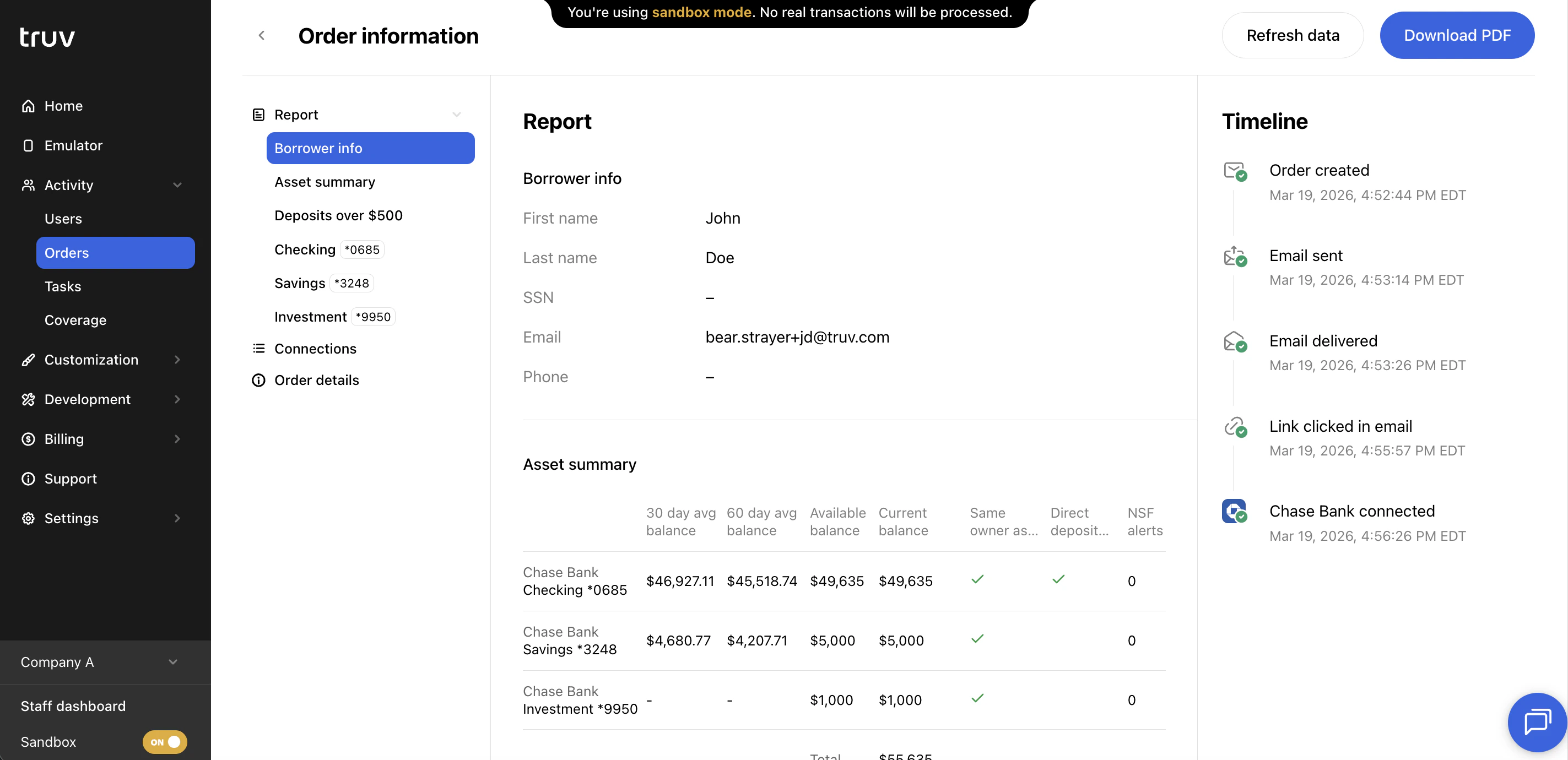
Create an order
1
Log into the Dashboard
Go to dashboard.truv.com and sign in.
2
Open the Orders tab
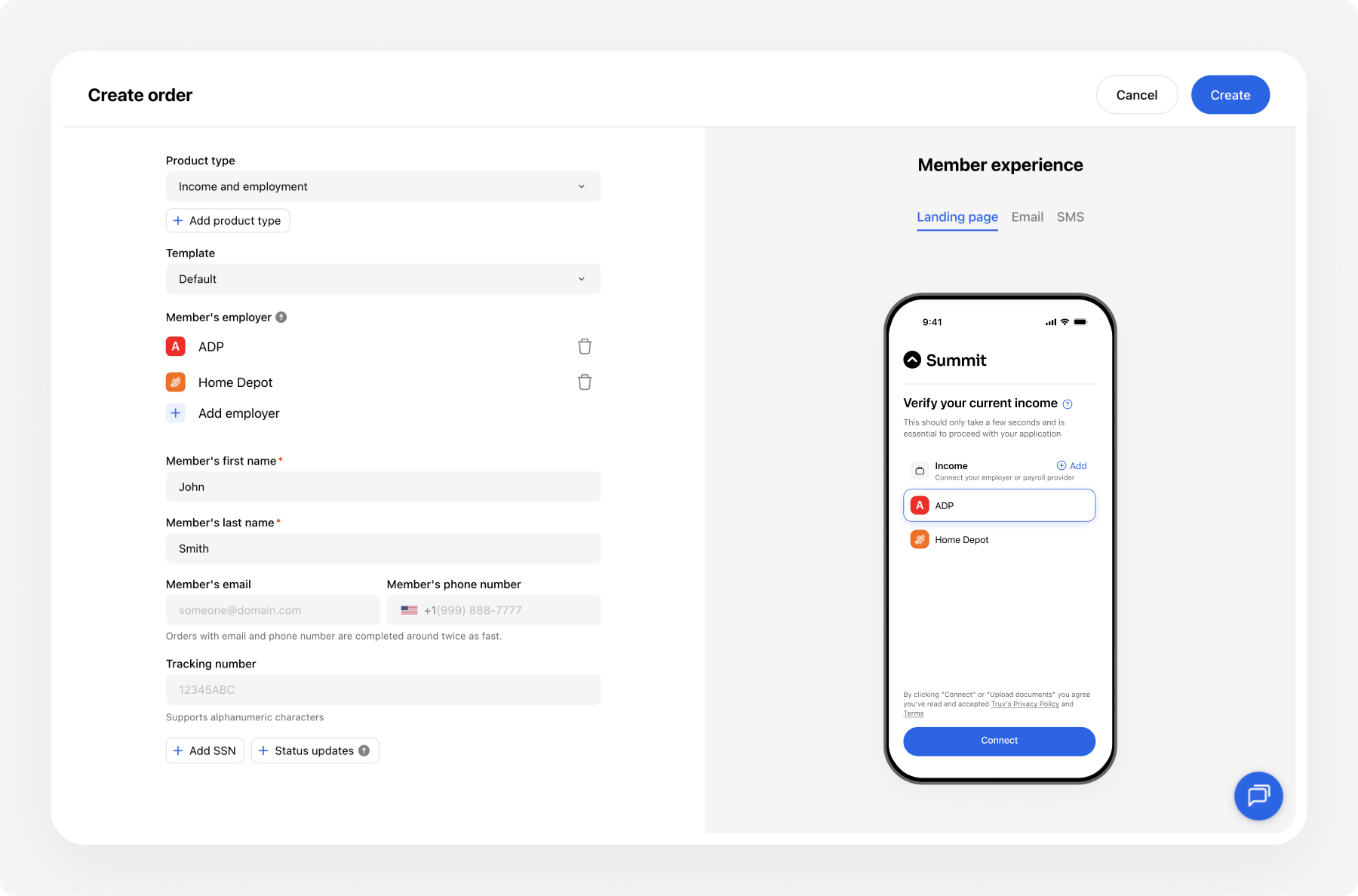
Navigate to Activity > Orders and click Create Order.
3
Enter applicant details
Provide the applicant’s name and email. Add their SSN if you need it — the field takes a full nine digits.
4
Select product types
Choose from the products enabled for your account — Income & Employment, Employment, Assets, and Education among them.
5
Send the verification link
Deliver the link to your applicant via email or SMS.
6
Applicant completes verification
The applicant connects through Truv Bridge.
7
View results
Open the order to view the report, download a PDF, or export as needed.
Configure webhooks to receive automatic notifications when an order completes, then fetch the data via API to sync results to your LOS or internal tools.
Export
Click Export CSV to download the current table with all active filters and selected columns applied.Tasks
The Tasks tab is the most granular view. Every time an applicant attempted to connect to a provider, it appears as a unique task row.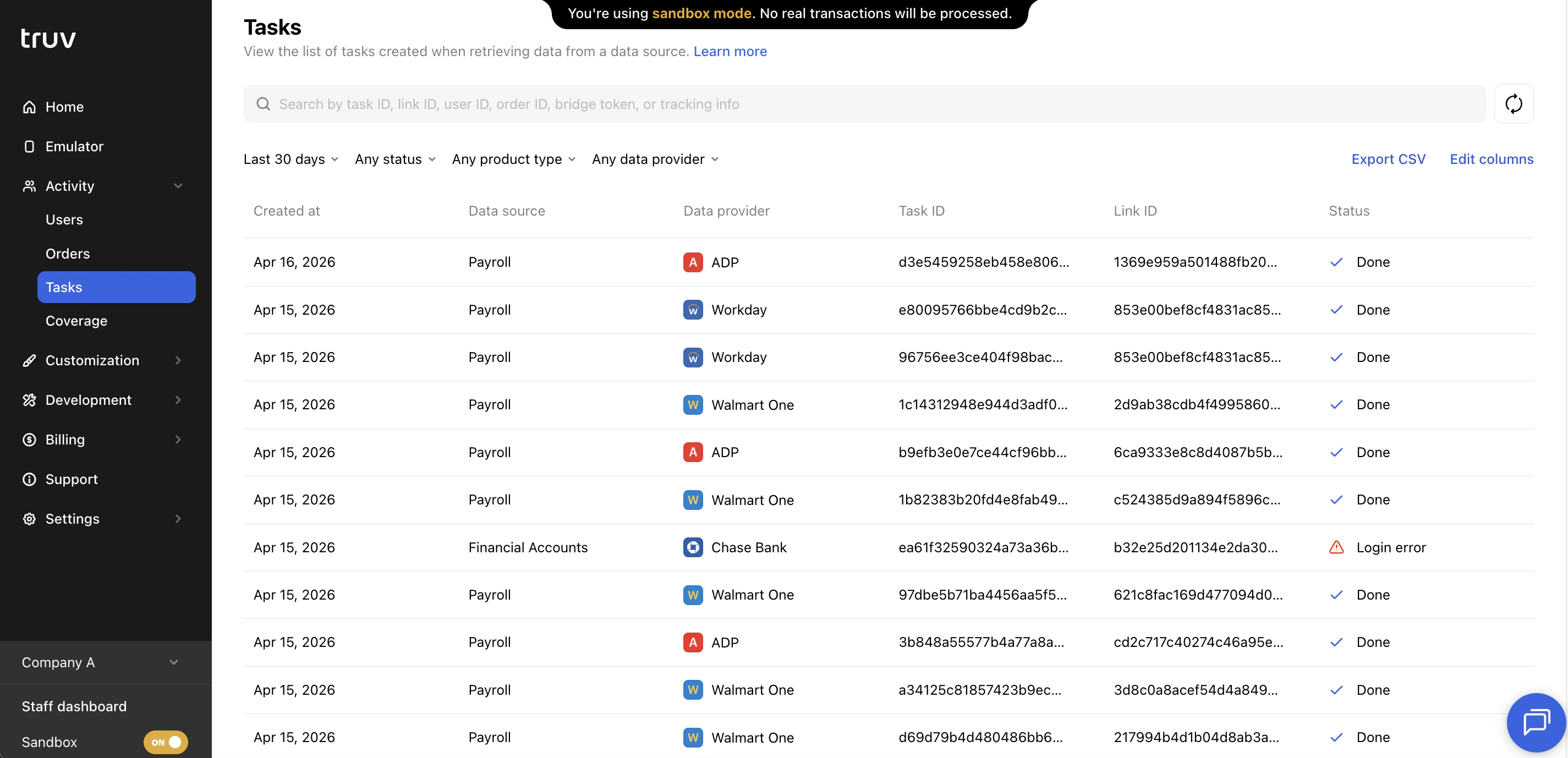
Table columns
Search and filters
Open a task
Click any task row to open the task detail. The detail view shows: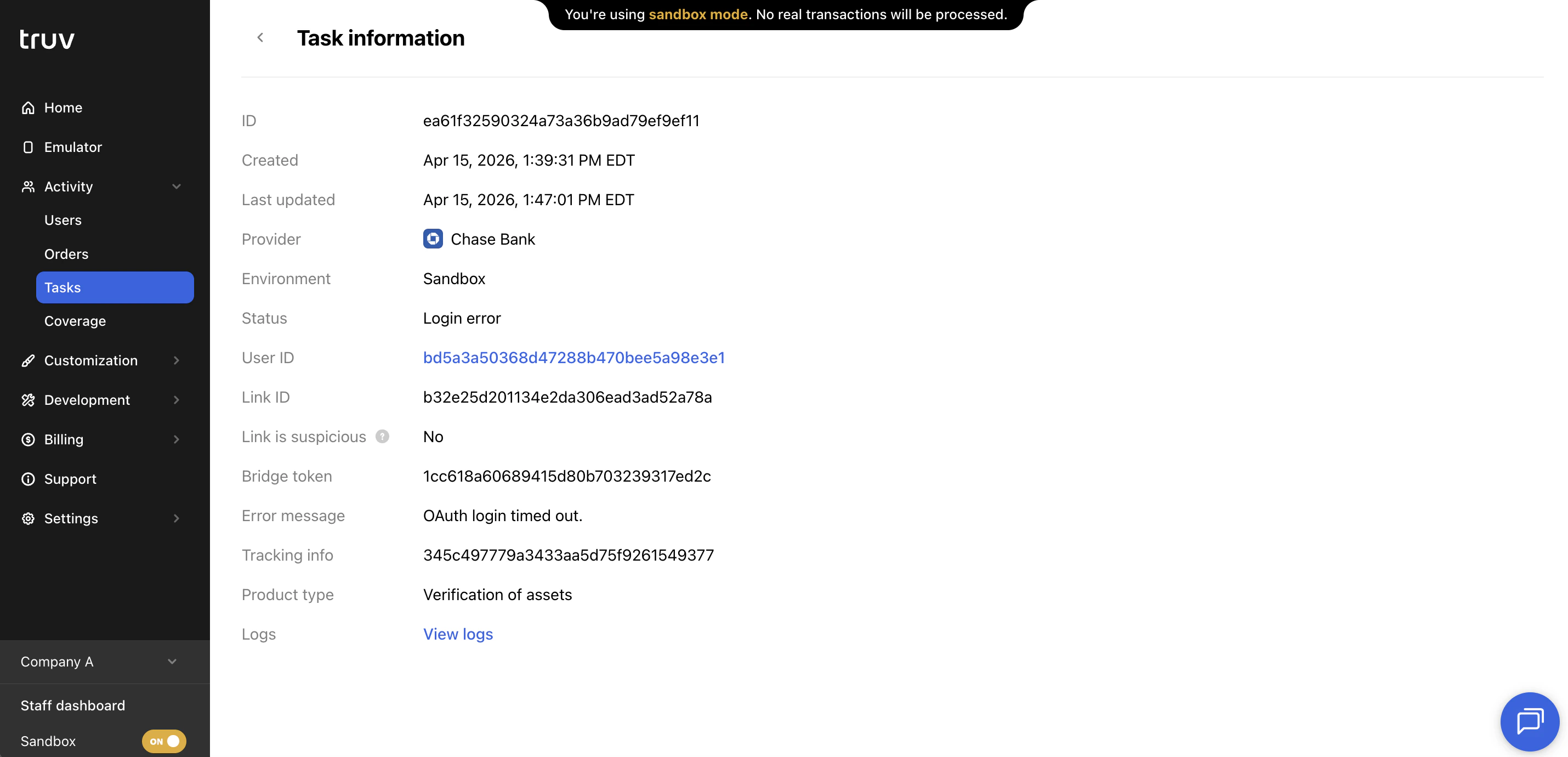
Export
Like Users and Orders, the Tasks table can be exported as a CSV with all active filters and columns applied.Coverage
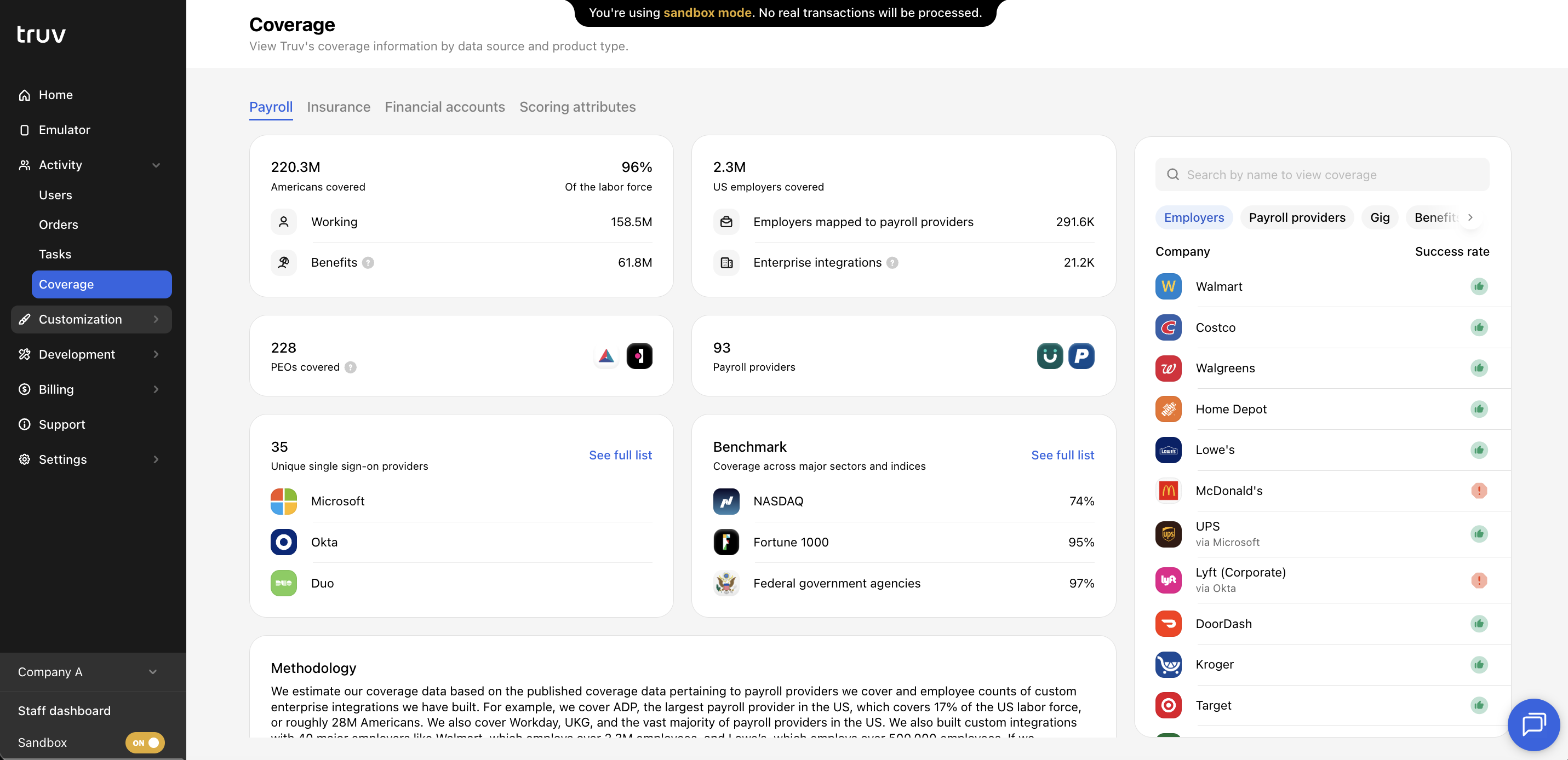
The Coverage tab shows Truv’s provider coverage across four product categories:- Payroll
- Insurance
- Financial Accounts
- Scoring Attributes
Provider search
In the Payroll and Financial Accounts categories, search for a specific employer, payroll provider, or financial institution to see:- Whether the provider is covered by Truv
- The historical connection success rate for that provider
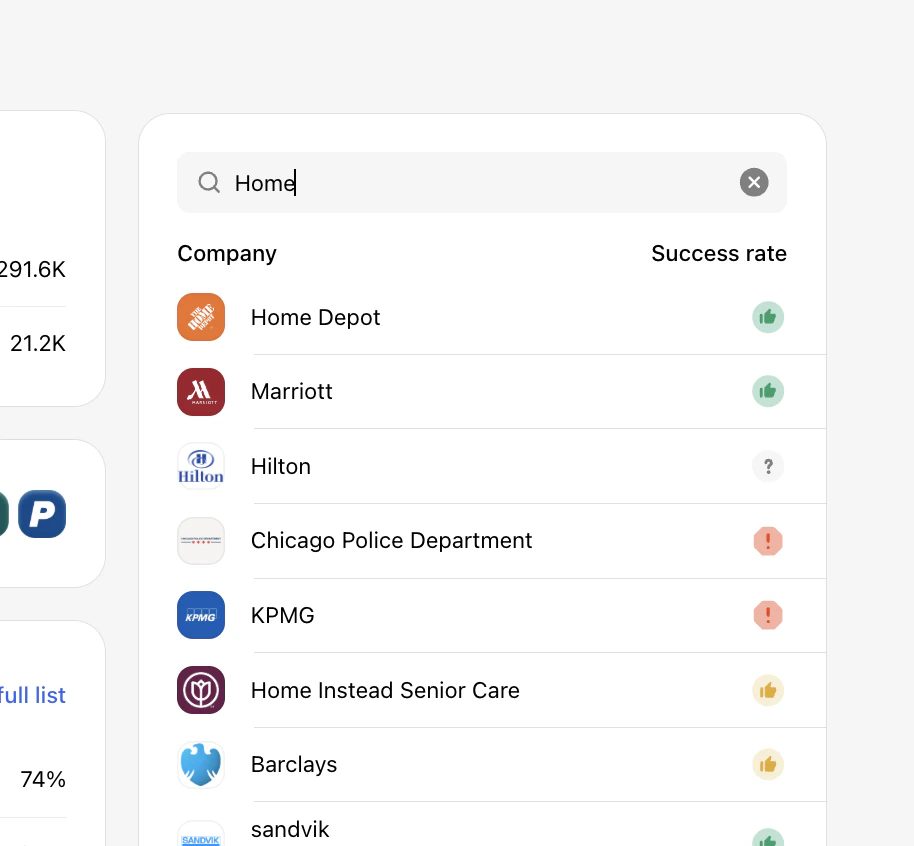
| Icon | Rating | Payroll | Financial accounts |
|---|---|---|---|
 | High | Expected to succeed, send the verification order. | Expected to succeed, send the verification order. |
 | Low | May succeed, send if the user knows their payroll provider and is confident. | May succeed, send if the user is confident and knows their login credentials. |
 | Unsupported | Verification via payroll is not feasible. Try Truv’s Document Upload solution or the next step in your waterfall as an alternative. | Verification with this financial institution is not supported, use an alternative method. |
 | Unknown | Not enough attempts to determine success. May succeed if the user knows their payroll provider and it’s supported by Truv. | Not enough attempts to determine success. Likely to succeed based on other financial institutions. |
Next steps
Orders API
Manage orders programmatically via the API
Tasks API
Retrieve task details and statuses
Coverage — Payroll
Full payroll provider coverage list
Coverage — Financial Accounts
Full financial institution coverage list