

Manage templates
Truv automatically creates default templates in your account tailored to your products and use case. Adjust them in the Dashboard or via the API below.API
Manage templates programmatically for automated workflows.
Pass a
template_id when creating an order to apply a specific template.
In a multi-tenancy setup, each company has its own set of templates. Make sure you’re editing templates in the correct company context.
Settings
Configure the template’s core identity and order behavior.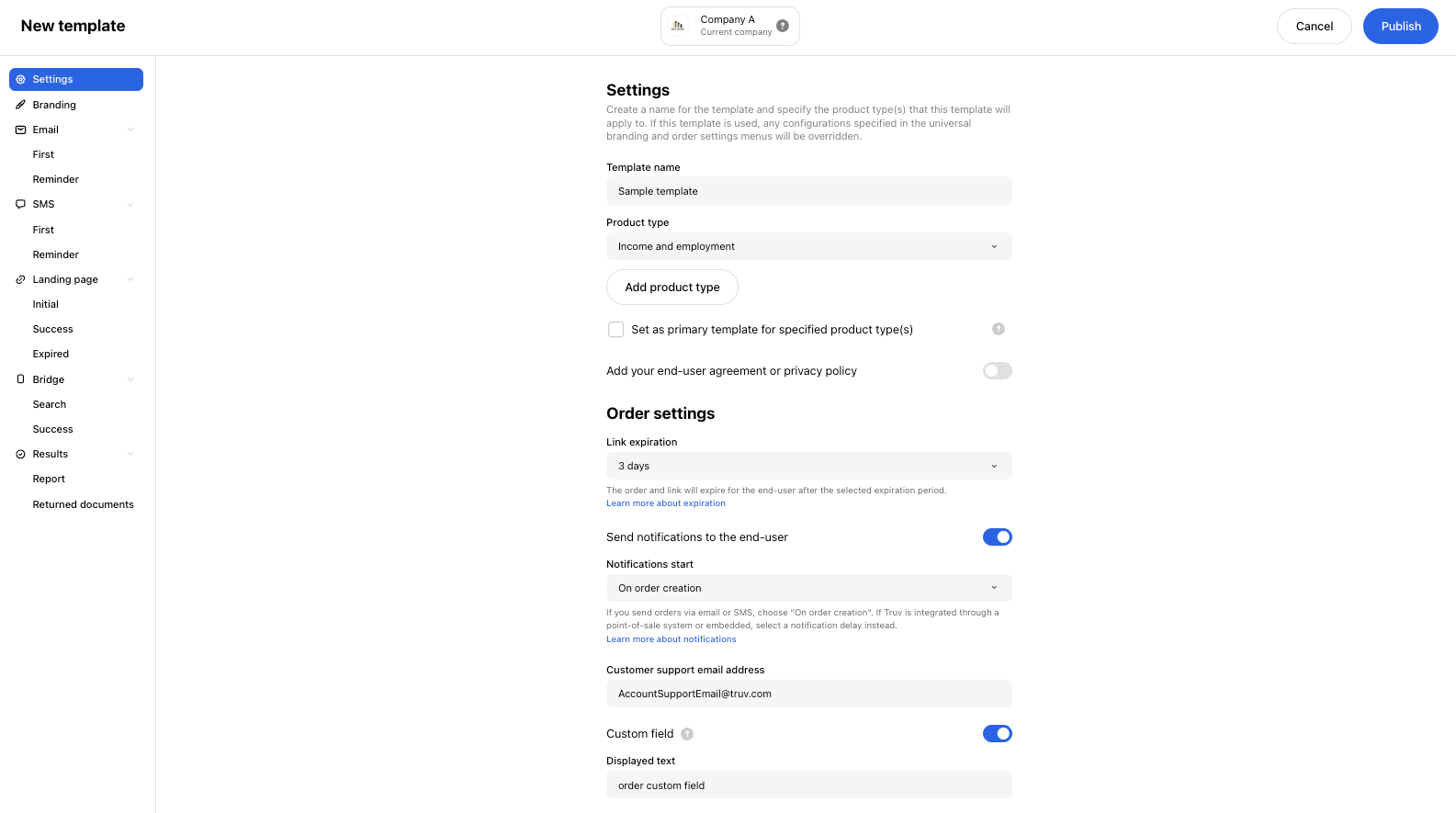
Company branding
Configure the visual identity that appears across all touchpoints. If not specified, these will be inherited from the Branding settings set at the Dashboard level.Customize Bridge
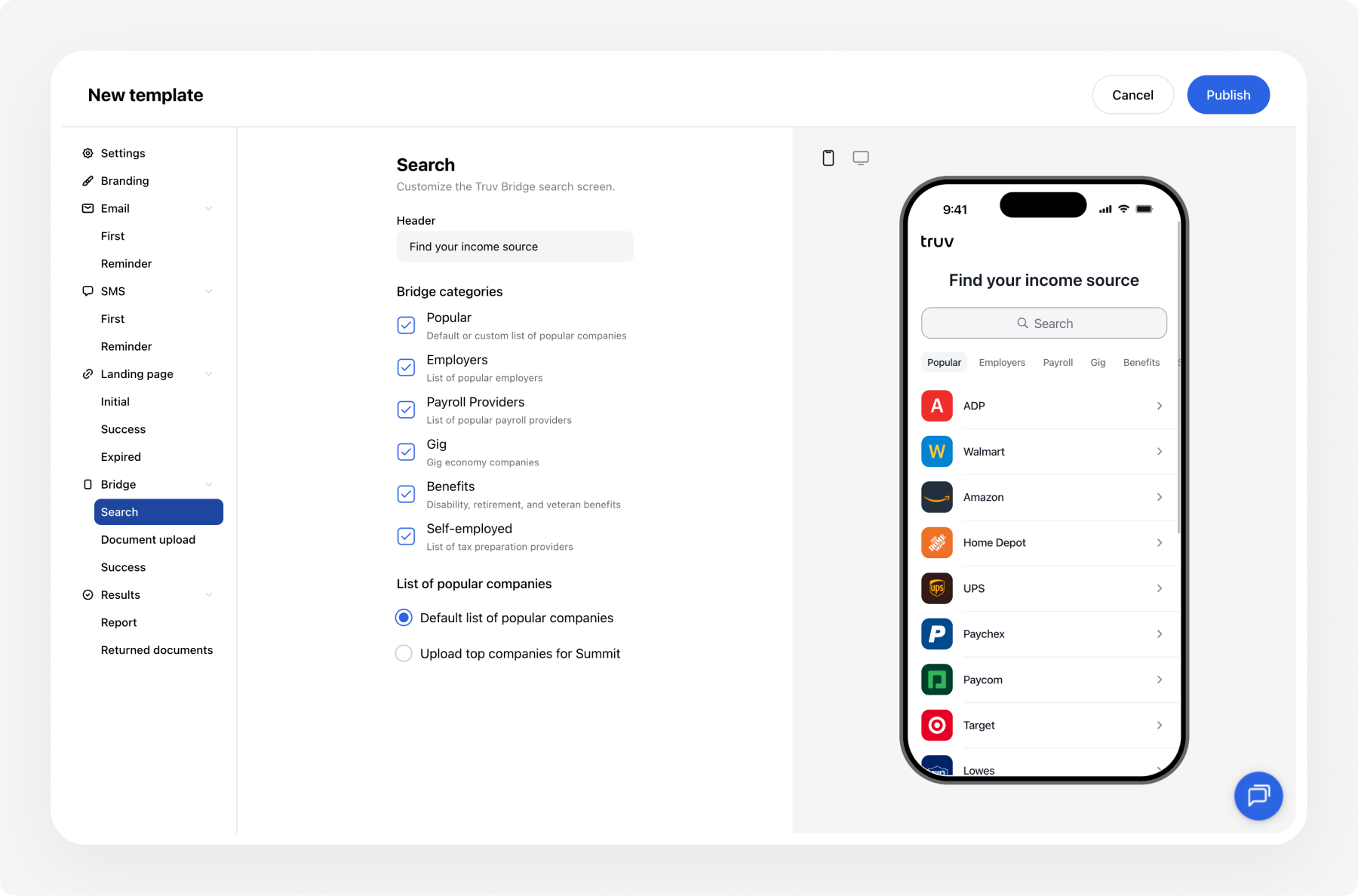
Search
Configure the search header for each product and data source combination:Popular companies
Set the list shown to users before they search:Document upload
Configure which document types are accepted:Success screen
Customize what the end user sees after a successful connection:Customize the order flow
Customize the communication and landing pages users see when they receive an order via Hosted Orders or Manual Orders.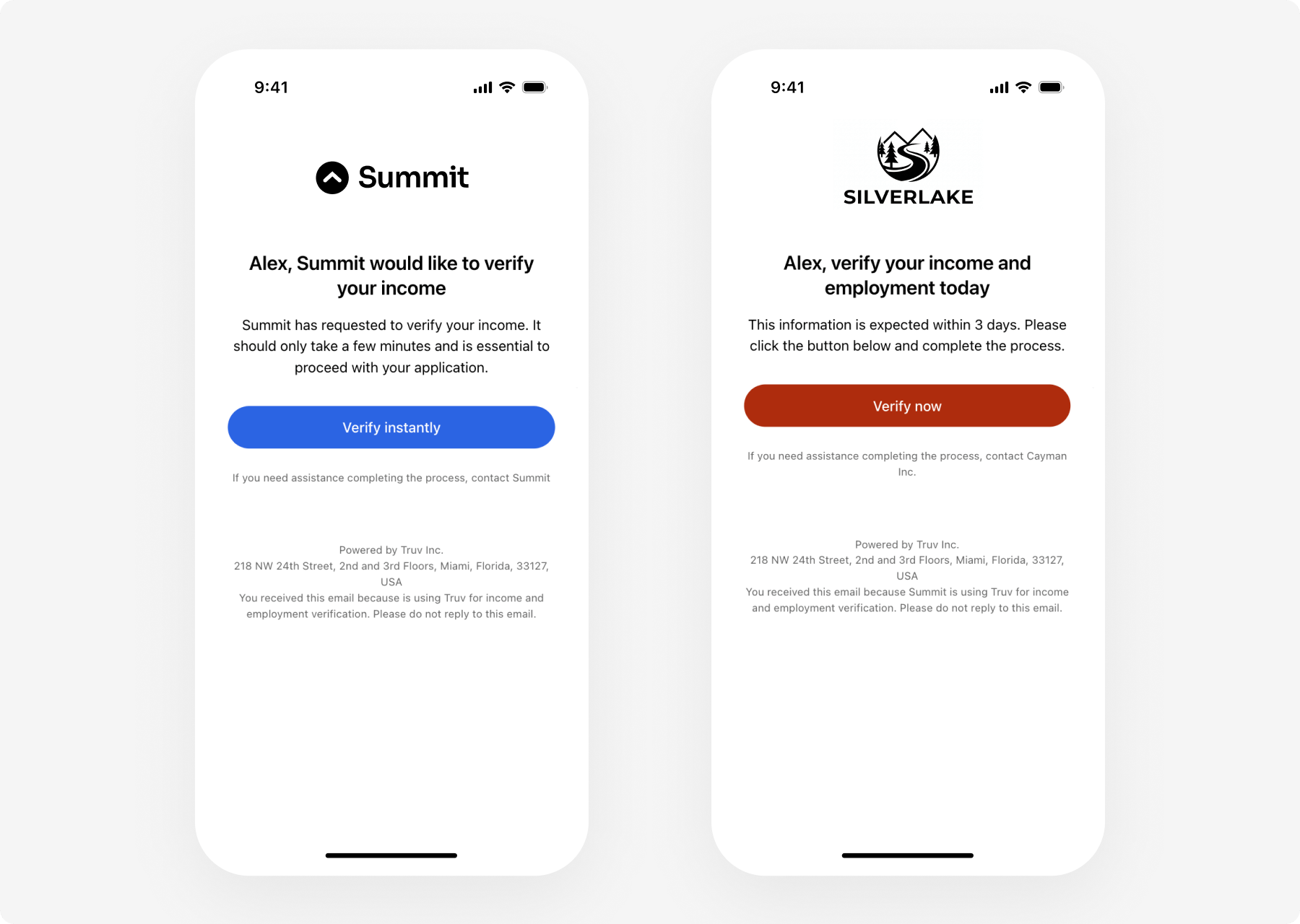
SMS
- Custom message text within a 120-character limit
- Configurable follow-up SMS timing
- The
{link}variable is required and must be included in the message
SMS reminders are only sent between 10am–6pm ET. Contact support@truv.com to enable SMS for your account.
Landing Pages
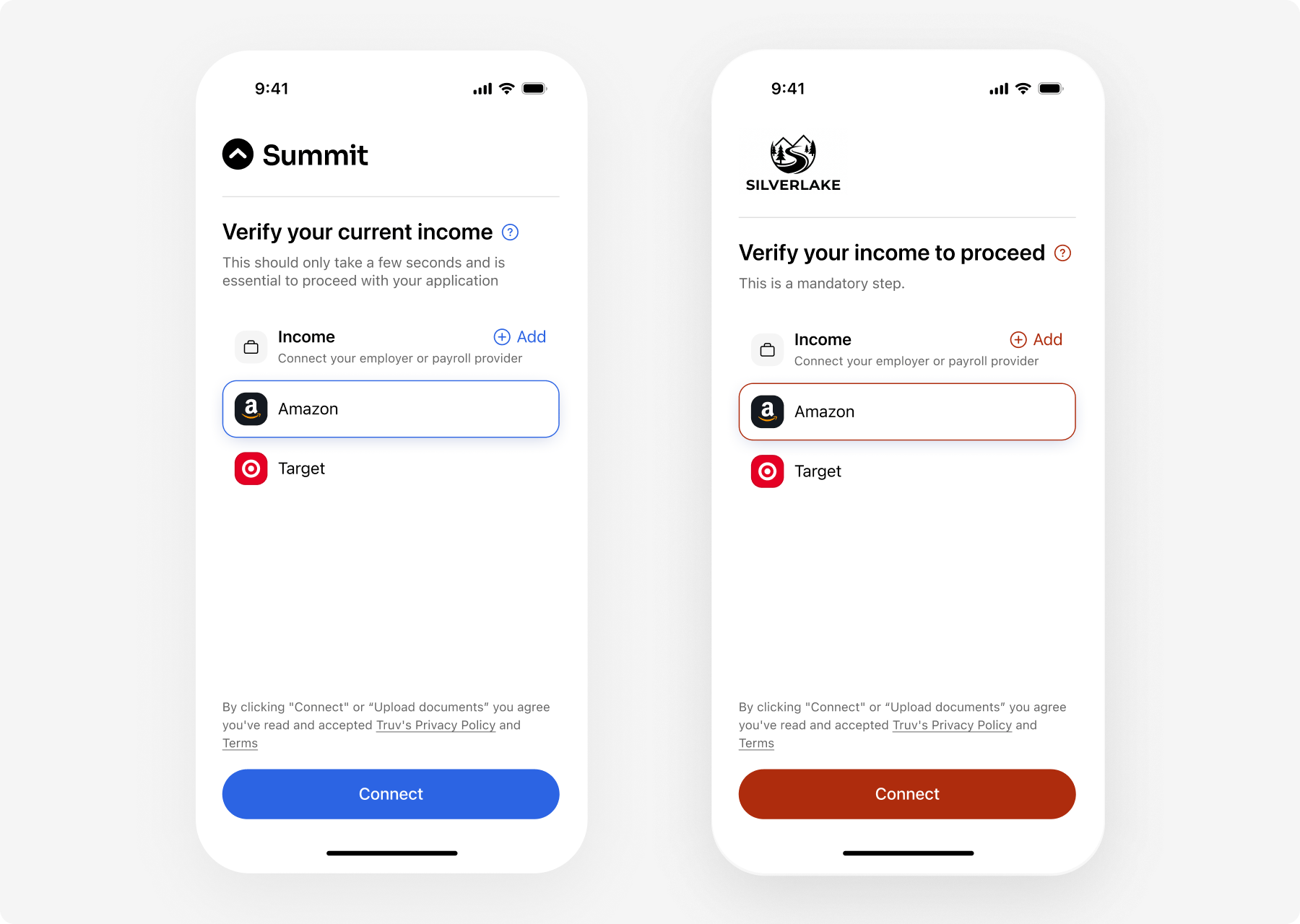
Initial landing page
Shown before the applicant starts verification:
Set the call-to-action button labels through the Templates API under
orders.landing.buttons.
Labels render on one line and longer text is truncated, so keep them short. The upload button label is set per document type under Document upload.
Success landing page
Shown after a successful connection:Expired landing page
Shown when the verification link has expired:Dynamic text variables
Use variables in emails, SMS, and landing pages to personalize messages with order-specific data.Results
Control what data is returned and displayed in reports. Fields vary by product type.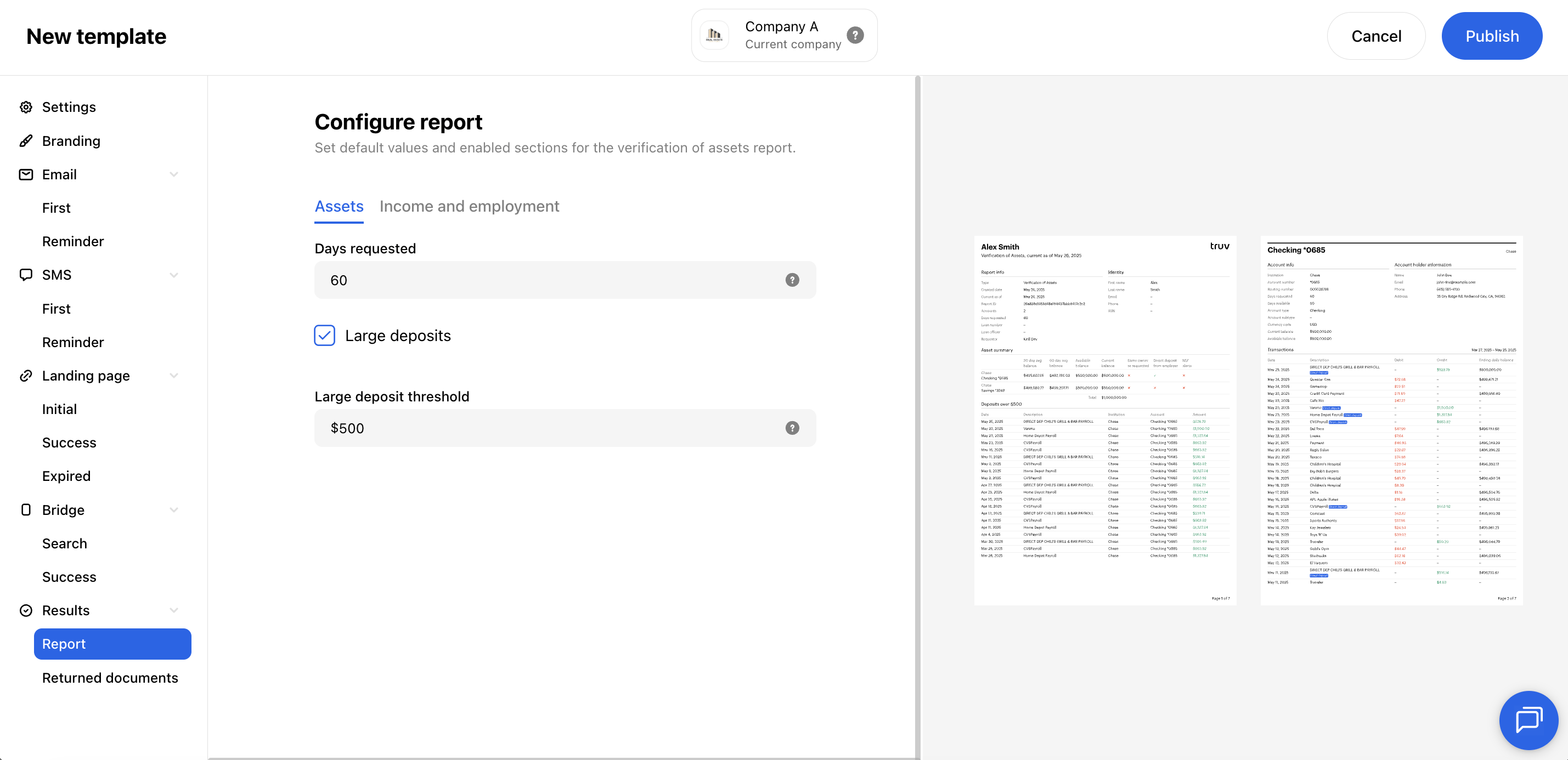
Assets:
Next steps
Templates API
Full API reference for template management
Create Order
Apply templates when creating orders
Truv Bridge
The widget you’re customizing
Dashboard
Manage templates in the Dashboard UI