

Create an order
- Go to Activity > Orders in the Dashboard and click Create Order
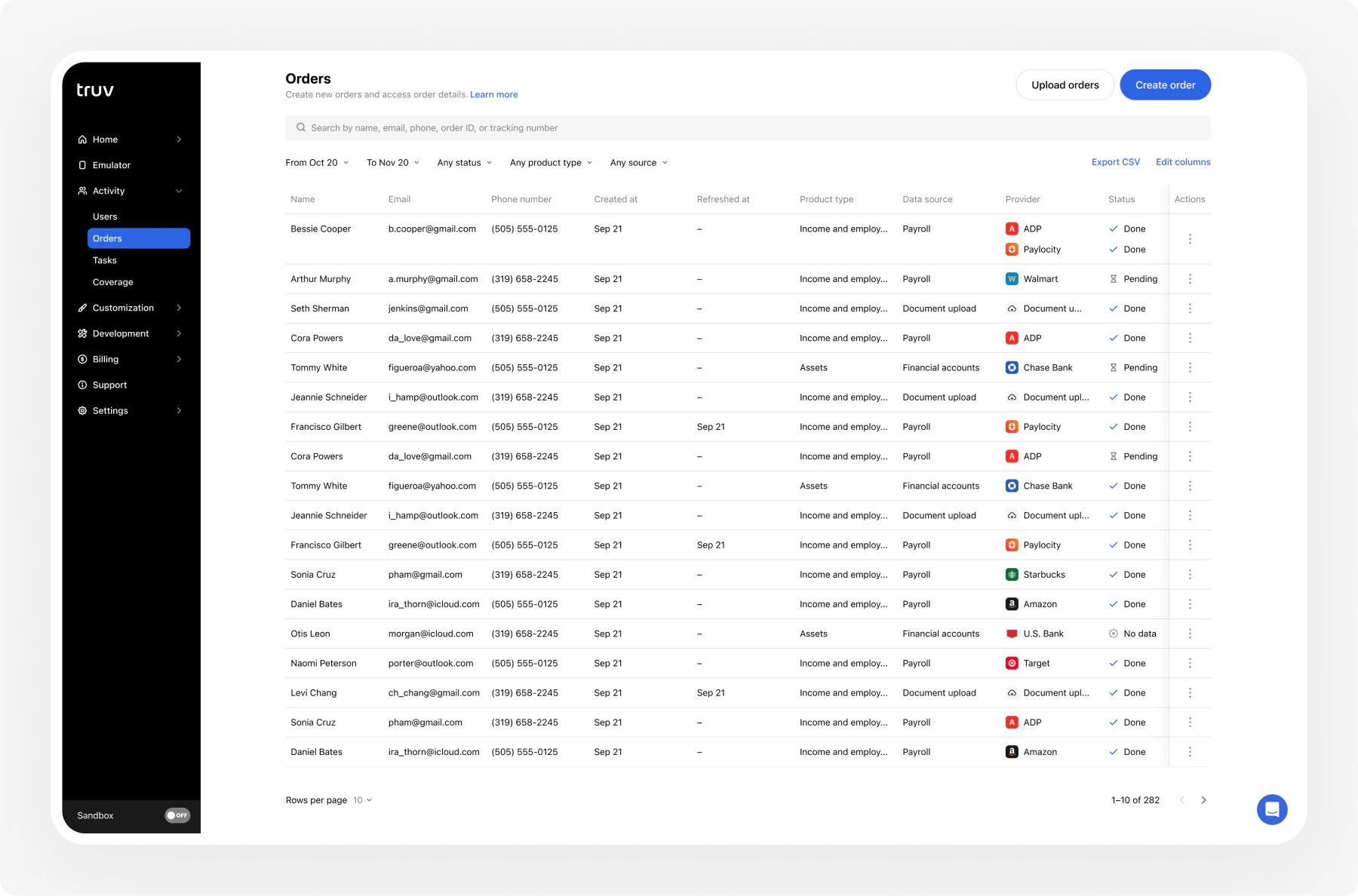
- Select the product type (income, employment, assets)
- Enter applicant details. First and last name are required.
- Choose how to reach the user: send via email, SMS, or generate a shareable link
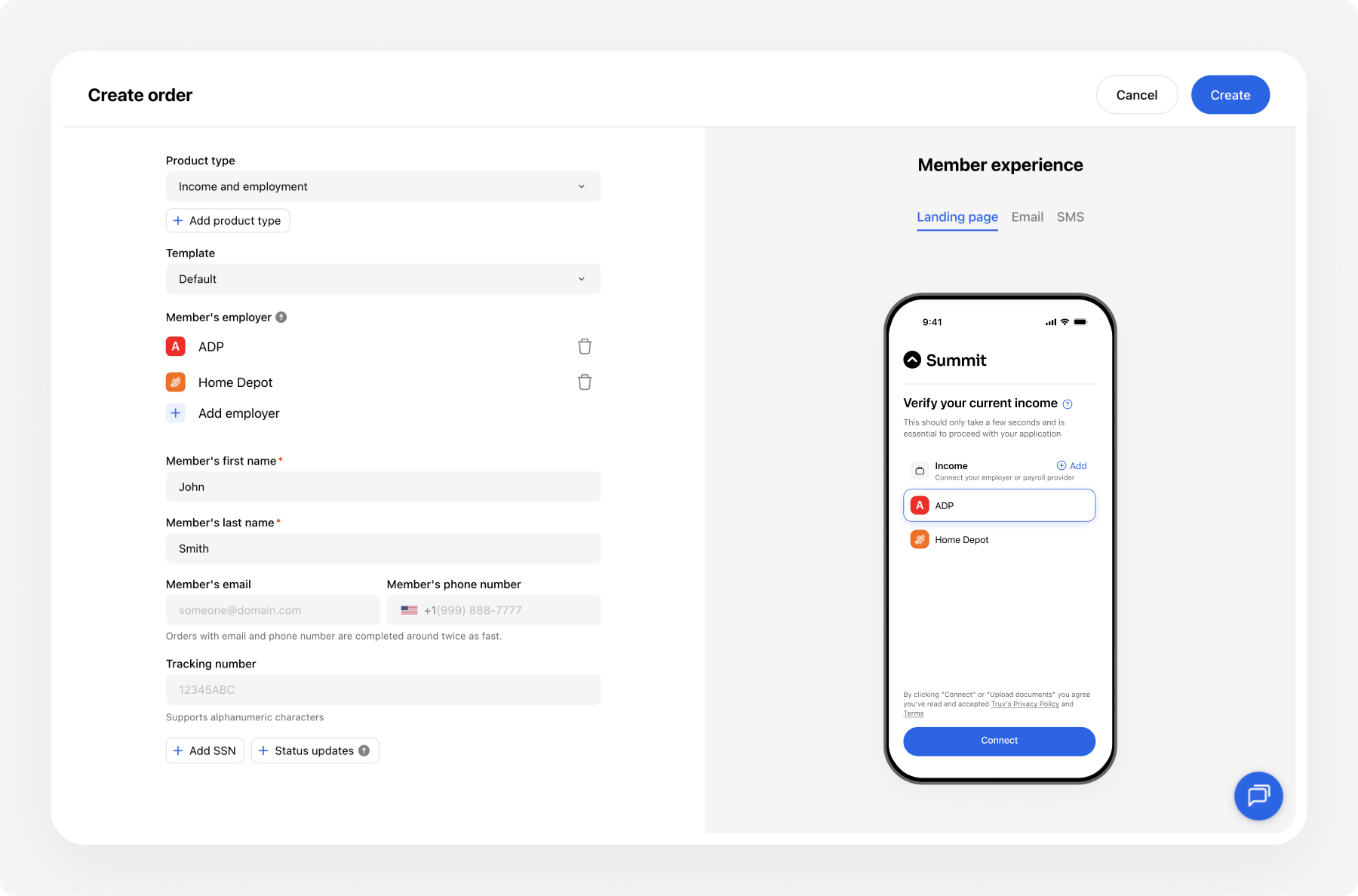
- Click Create. Truv sends the notification automatically.
Required fields
Recommended fields
If both email and phone are left blank, Truv cannot send notifications. Retrieve the verification link from the order details and share it manually.
Track order status
After creating an order, track its progress directly in the Dashboard. The order card shows the current status, notification history, and connection results.Set expiration and reminders
The default expiration window is 72 hours, configurable from 1 day to 12 weeks. Expiration periods do not count weekends. Configure expiration and automatic reminders in the Dashboard under Customization.View results
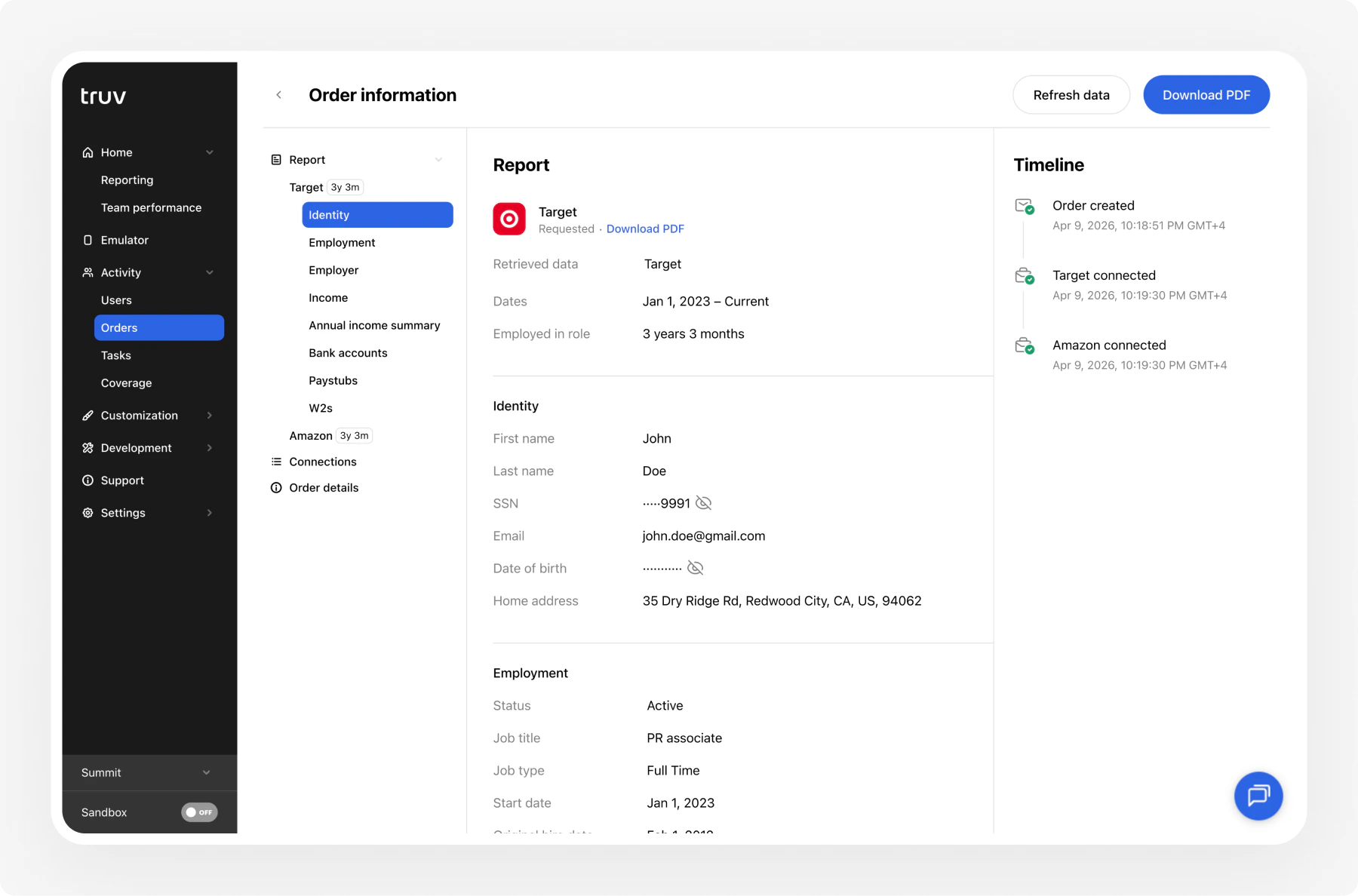
Once the user completes verification:- Open the order in Activity > Orders
- View employer data, income, and employment details
- Download PDF reports for each verified employer
- Export data as needed
Next steps
Manage Orders
Filter, search, and export order data
CSV Upload
Create orders in bulk via CSV
Dashboard
Full Dashboard overview and backend integration