

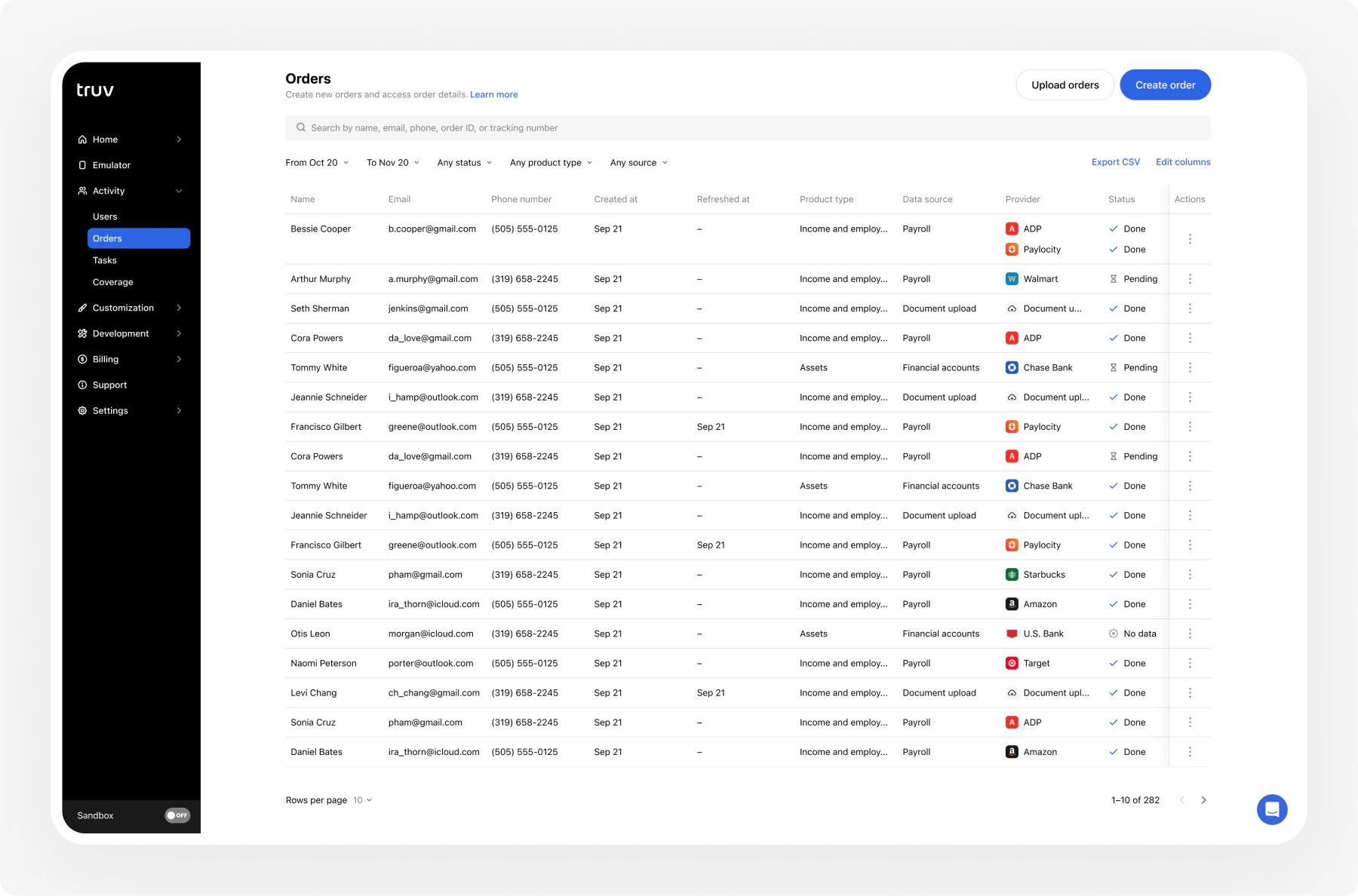
Filter orders
Narrow the orders table using these filters:Search orders
Search across multiple fields to find specific orders:Export orders
Export filtered order data as a CSV file.- Apply your desired filters
- Click Export CSV
- The file downloads with all visible columns
Large exports (10,000+ rows) may take a few minutes to generate.
Customize columns
Control which columns appear in the orders table.- Click Edit Columns above the table
- Toggle columns on or off
- Drag to reorder columns
Order statuses
Expiration & reminders
Expiration
The default expiration window is 72 hours, configurable in your account settings from 1 day to 12 weeks.Expiration periods do not count weekends. An order created on Friday with a 2-day expiration expires on Tuesday, not Sunday.
Automatic reminders
Truv automatically sends an initial notification and up to three reminders via email and/or SMS. Each reminder includes the original order link. Reminders are distributed evenly from order creation until expiration. Once an order reaches a terminal status (completed, canceled, expired), reminders stop.SMS reminders require account-level enablement. Contact support@truv.com to activate. SMS reminders are only sent between 10am–6pm ET.
Order expiration periods exclude weekends, but reminders continue being sent during weekends. Customize expiration times and reminder schedules in the Truv Dashboard.
Cancel an order
Cancel an active order from the Dashboard when it’s no longer needed. Open the order and click Cancel. If the order is partially completed, previously verified data remains accessible.Once canceled, the verification link is deactivated. The user can no longer complete the order.
Next steps
CSV Upload
Create orders in bulk via CSV
New Order
Create a single order through the Dashboard
Dashboard
Full Dashboard overview and backend integration