

Direct Account Connection
Borrowers connect payroll providers and financial institutions inline during the loan application. No separate portal.
Automated Task Follow-Up
nCino automatically generates follow-up tasks if borrowers skip verification during the application
Automatic Document Delivery
Truv delivers VOIE and VOA reports with supporting documents (pay stubs, W-2s) directly to the loan file
LOS Field Mapping
Verification data automatically maps into major LOS platforms (including Encompass®) for accurate 1003 URLA population
Integration workflows
Two integration approaches are available:Application
Borrowers connect payroll accounts and financial institutions inline during the pre-application stage. No separate step or page required. Truv verification is part of the borrower’s standard nCino application experience.Follow-up
Borrowers complete the pre-application first, then receive email/SMS notifications prompting them to complete verification separately. Products and templates are configured in the Truv Dashboard.Go Live with Truv in nCino
1
Contact nCino Customer Success
Reach out to nCino at mortgagehelp@ncino.com for one-time admin setup or issue resolution.
2
Create templates for VOIE and VOA
Set up separate templates in the Truv Dashboard for each product type.
3
Enable Truv via Integration Self Service
Complete the self-service setup in nCino Settings (recommended) using the steps below.
4
Test in Sandbox
Use “Truv Payroll Provider” and “Truv Bank” test login scenarios to ensure the integration is working.
5
Go Live
Enable Truv in production across all regions and branches.
nCino Setup Guide
Step 1: Navigate to Integration Self Service
In nCino, go to Settings → Integration Self Service and click the + Add button in the top right corner.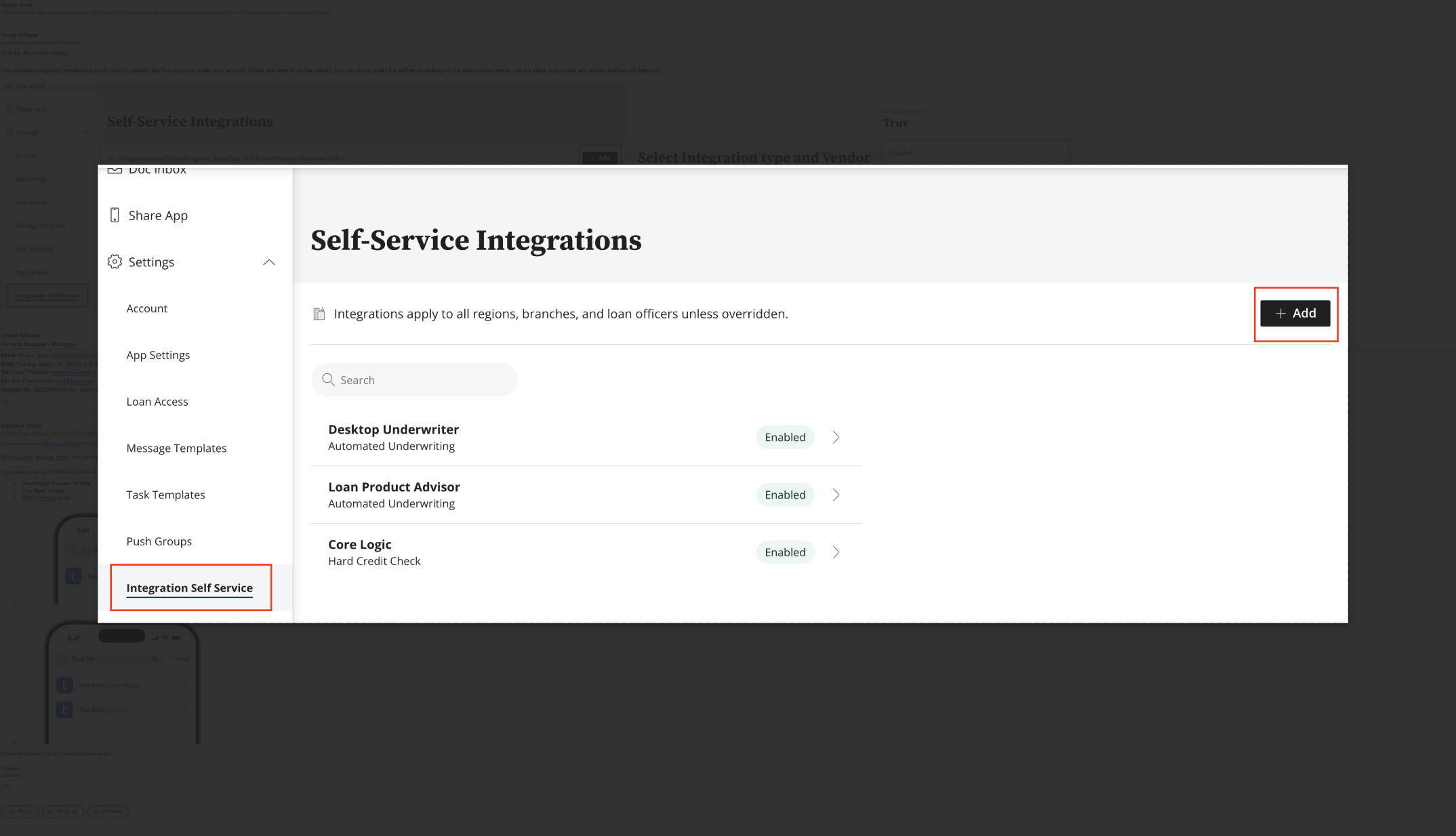
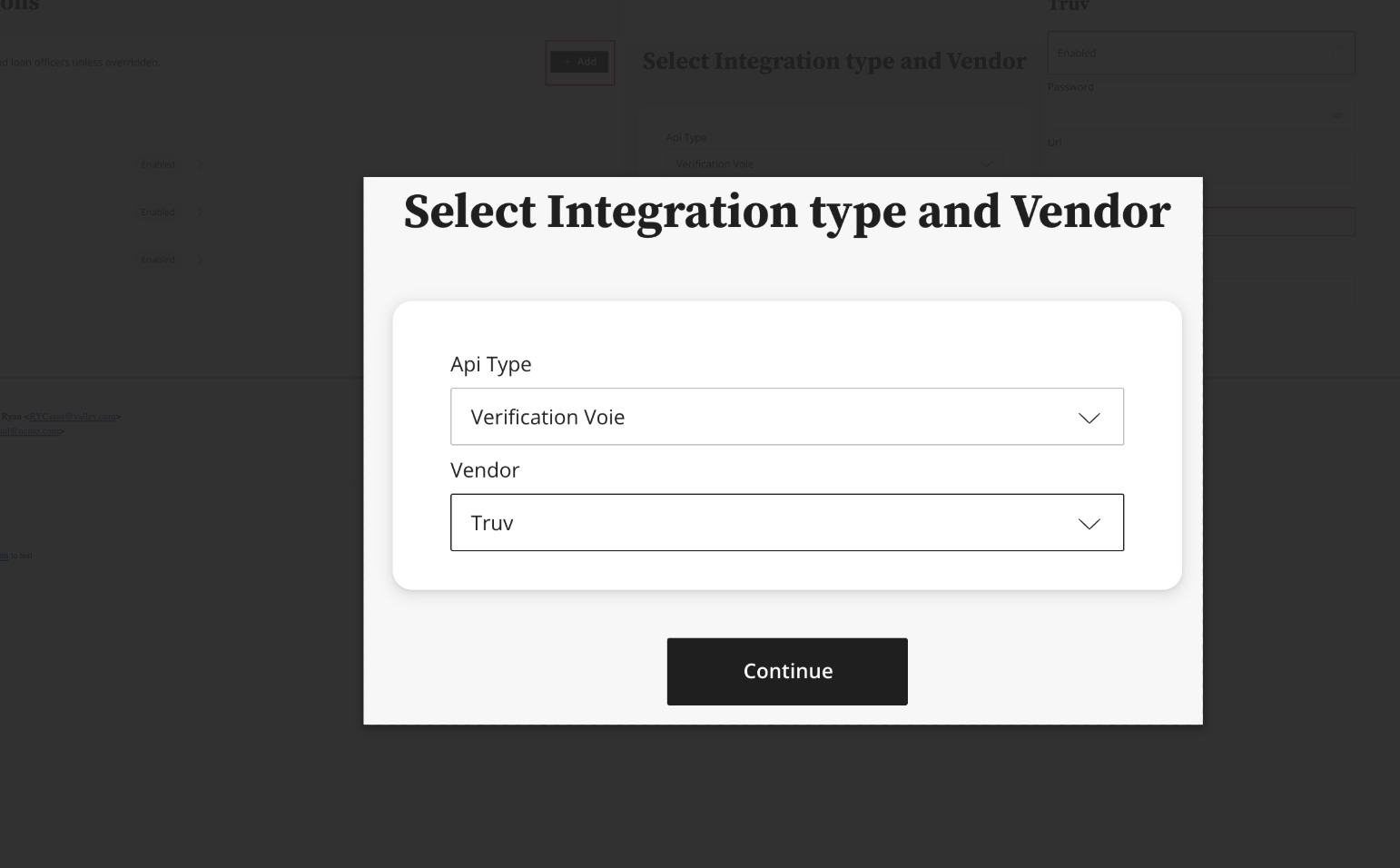
Step 2: Select Integration Type and Vendor
- API Type: Verification VoIE
- Vendor: Truv
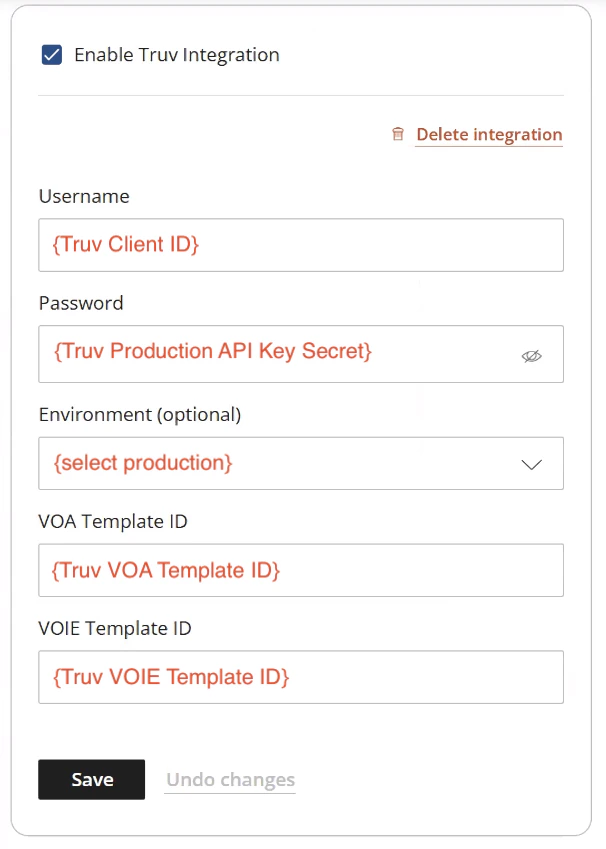
Step 3: Configure Credentials
Enter the following fields:- Username: Client ID from Truv Dashboard → API Keys
- Password: Secret from Truv Dashboard → API Keys
- Environment: Select production
- VOA Template ID: Template ID from Truv Dashboard → Templates
- VOIE Template ID: Template ID from Truv Dashboard → Templates
Customization
Truv within nCino can be enabled at multiple levels:- Company-wide: applies to all teams and branches
- Region level: scoped to a specific region
- Branch level: scoped to specific branches using matching template names
- Loan Officer level: scoped to specific loan officers
Branch-Level Customization
- In nCino, navigate to Regions and create or modify a region
- Go to Region Details → Region Info → Branches
- Under Branch Settings → Branch Info → Cost Centers, input the cost center name and save
- In the Truv Dashboard, navigate to Templates and create a template with a name matching the branch cost center
- The template’s customizations automatically apply to borrowers in that branch
Borrower workflow
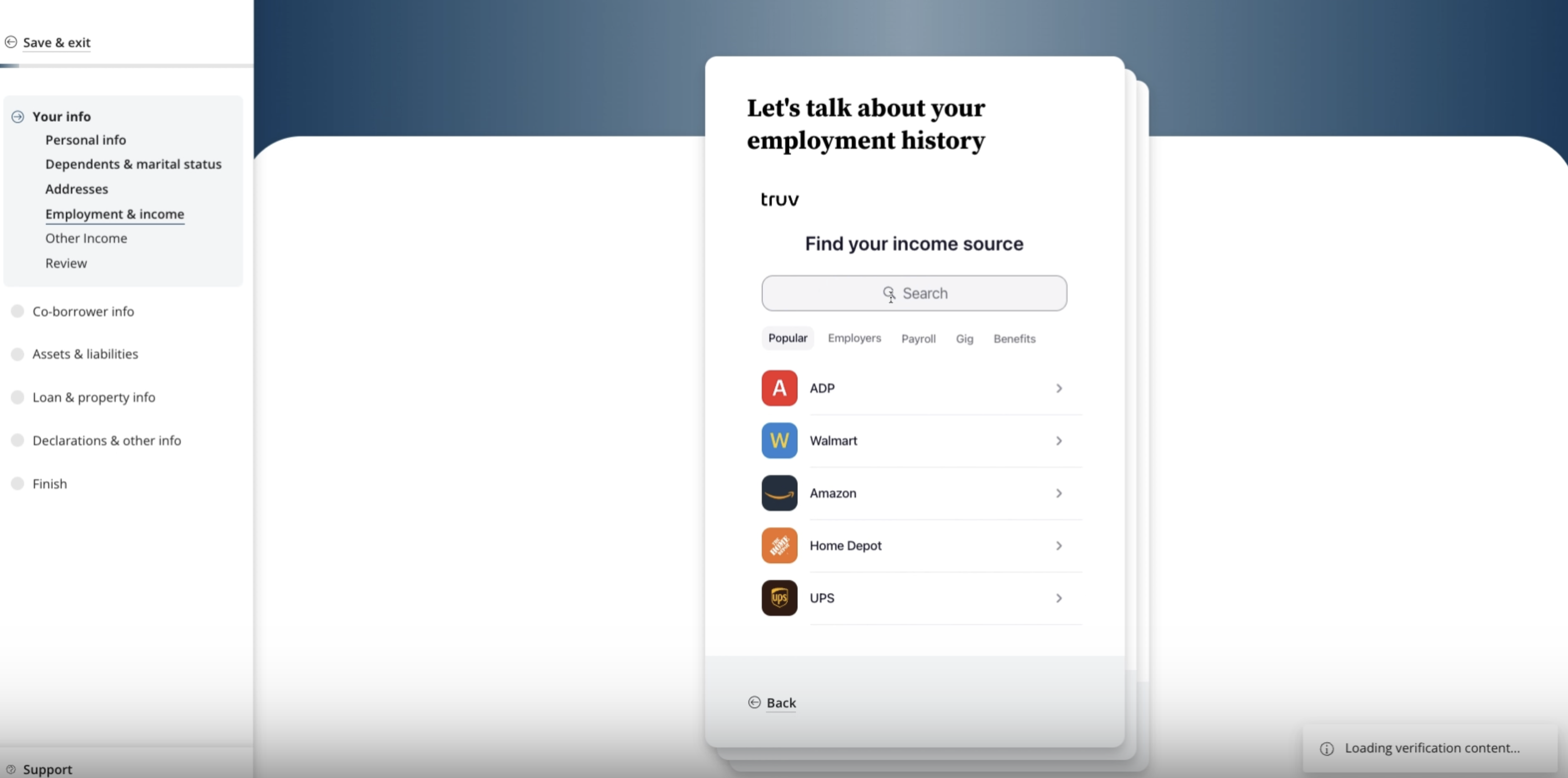 Step 1: Borrowers enter basic personal, dependent, and residence information.
Step 2: Borrowers and co-borrowers are prompted to connect employers with Truv directly in the loan application. No separate navigation required.
Step 1: Borrowers enter basic personal, dependent, and residence information.
Step 2: Borrowers and co-borrowers are prompted to connect employers with Truv directly in the loan application. No separate navigation required.
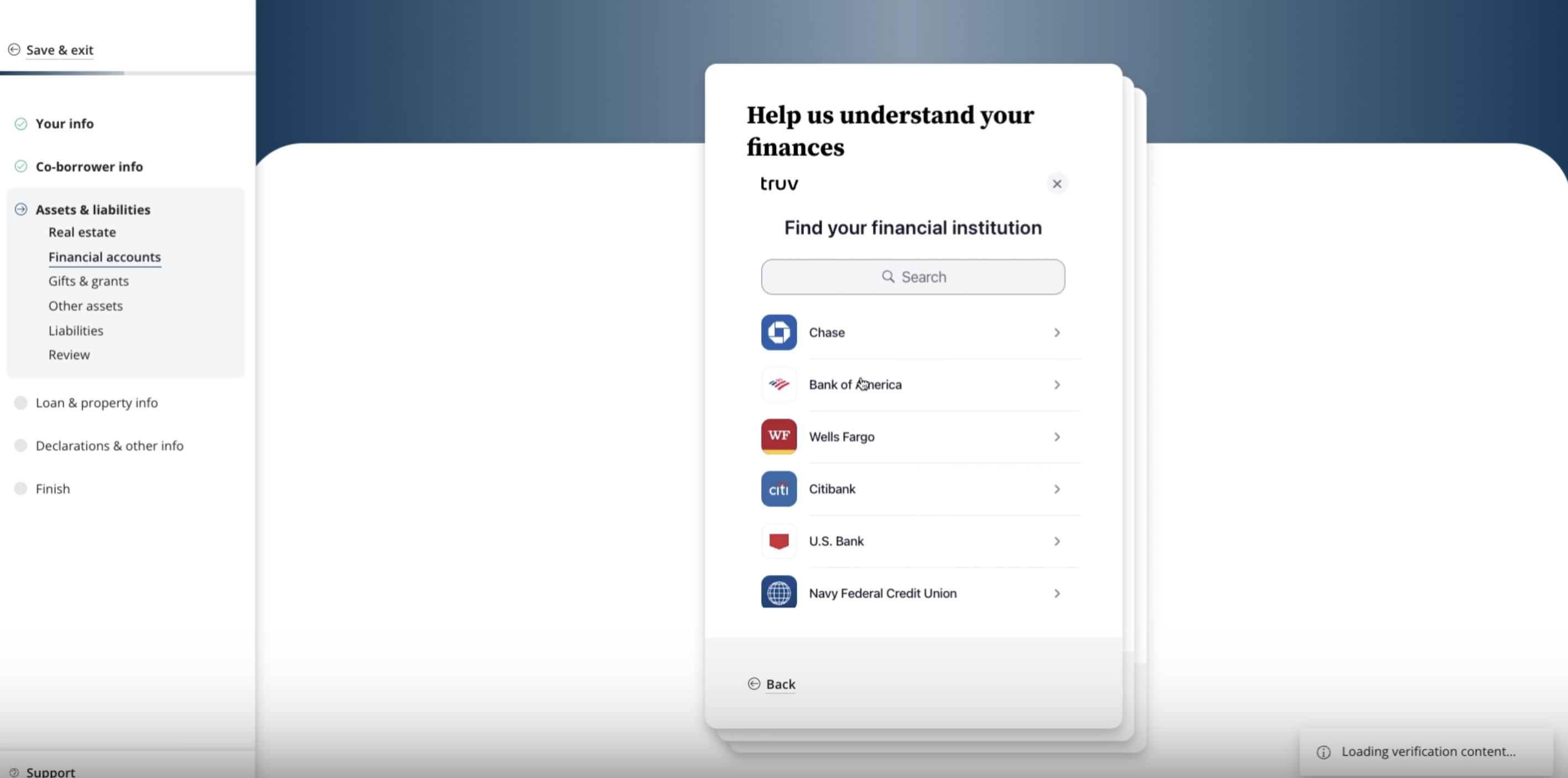 Step 3: Borrowers can connect financial institutions in the Assets and Liabilities section of the application.
Step 4: Once verifications complete and the application is submitted, lenders navigate to Loan Application → Documents tab to access:
Step 3: Borrowers can connect financial institutions in the Assets and Liabilities section of the application.
Step 4: Once verifications complete and the application is submitted, lenders navigate to Loan Application → Documents tab to access:
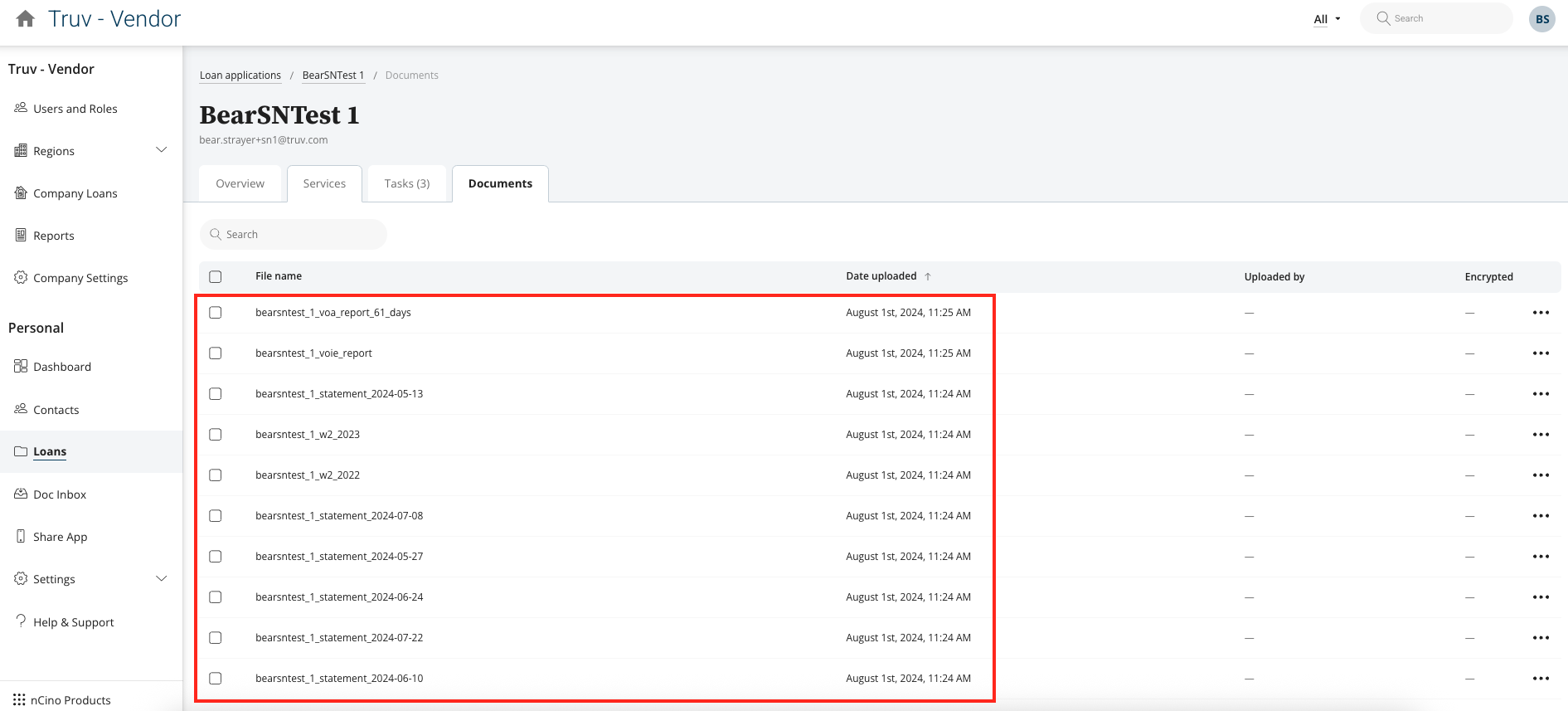
- VOIE PDF report: includes up to 6 most recent pay stubs and up to 3 years of W-2s per connected employer
- VOA PDF report: asset balances and transaction history
Next steps
POS Integrations
View all POS integration options
Sandbox Testing
Test your integration in sandbox