

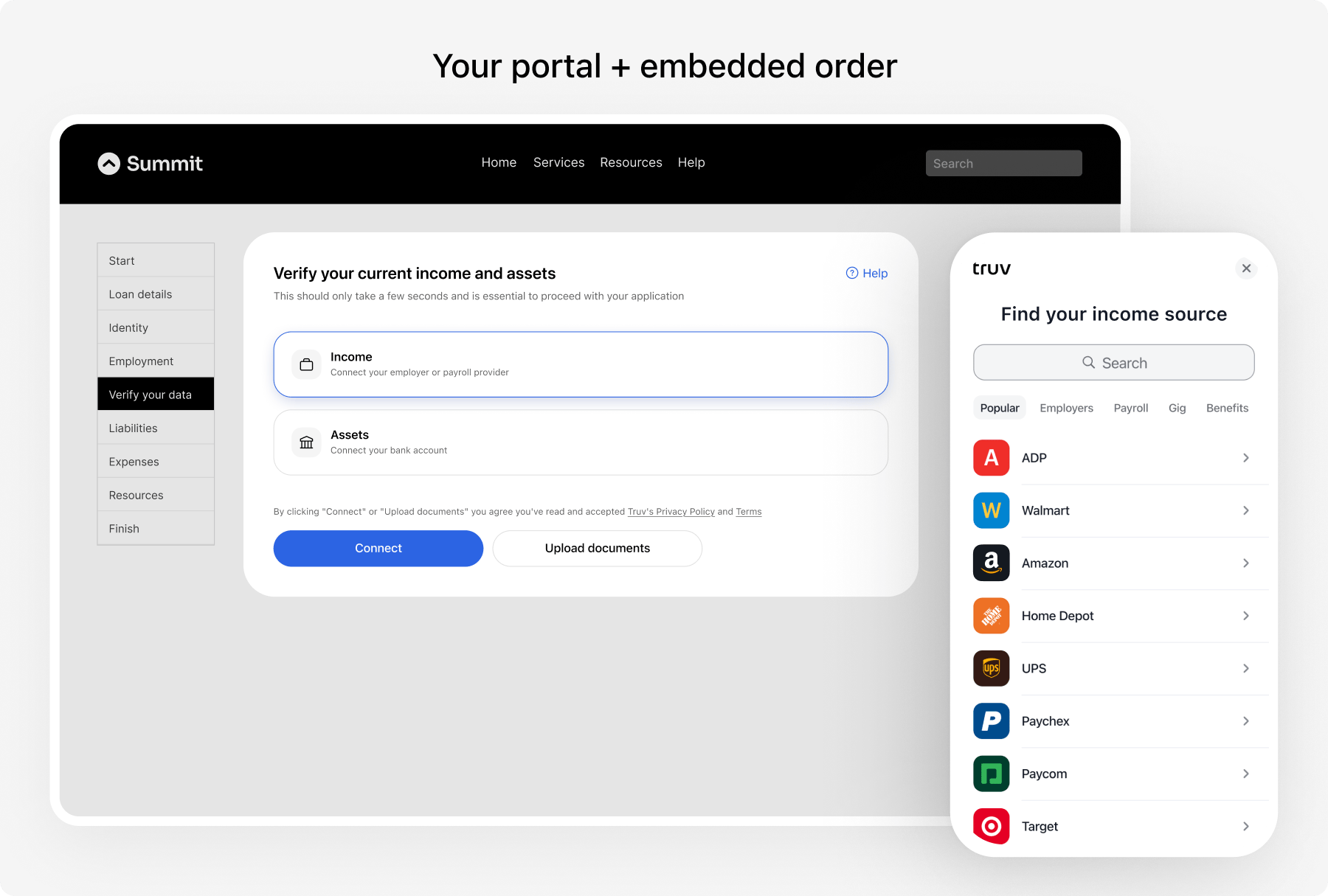
If you already know the user’s employer or provider, use deeplinking to skip the search screen and go directly to the login flow.
How it works
- Create an order via API with desired products
- User opens the widget using the bridge token
- User connects accounts (payroll, banks)
- Receive data via webhook notifications
- Retrieve results using the order ID
Implement
Step 1: Create an order [Server-side]
Create an Order to link different data providers. The response includes abridge_token to initialize Truv Bridge.
- Income
- Assets
- Income & Assets
When you include
income in the products array, employment data is automatically included. You do not need to pass both income and employment.Optional request fields
Optional request fields
The create order endpoint accepts additional fields to customize the verification:
Explore the full request schema →
Open vs closed order configuration
Open vs closed order configuration
Orders can be configured in two modes that control how users interact with pre-populated employers:
Within open orders, two skip behaviors are available:
- Require attempt, then allow skip — User must try connecting before they can skip
- Allow skip without attempting — User can skip immediately
bridge_token from the response.
Step 2: Initialize widget [Client-side]
Load Truv Bridge and pass thebridge_token from Step 1.
Callbacks
Display modes
By default the widget opens as a centered dialog. To embed it inline inside your own container, see Display Modes.Step 3: Test in sandbox
Test your implementation with sandbox credentials.
See Test Credentials for all scenarios.
Step 4: Monitor webhooks [Server-side]
Webhooks notify you when task and order statuses change. Useuser_id to match events to a specific order.
Task-level webhook, fires as each connection progresses.
Step 5: Retrieve data [Server-side]
Fetch order details using theorder_id. The response includes employer data, employment history, income statements, and report IDs.
Content Security Policy (CSP)
If your application uses a Content Security Policy, you must allow these domains for the embedded widget to load and function correctly:Demo apps
Application Demo
Applicant verifies income, employment, or assets through Bridge in a single session.
Follow-up Demo
Applicant returns to complete multiple verification tasks tied to one file.
Next steps
Add Employer
Add additional employers to an existing order
Data Refresh
Pull updated data without user re-authentication
Deeplinking
Skip employer search for higher conversion