> ## Documentation Index
> Fetch the complete documentation index at: https://docs.truv.com/llms.txt
> Use this file to discover all available pages before exploring further.
# nCino (fka SimpleNexus) Integration
> Income, employment, and asset verification embedded in nCino's point-of-sale platform
Truv's Verification of Income and Employment (VOI/E) and Verification of Assets (VOA) integrates with nCino's point-of-sale system to verify borrower data directly. The integration captures verified income, employment, and asset data in real time, directly within the nCino loan application flow.
Borrowers connect payroll providers and financial institutions inline during the loan application. No separate portal.
nCino automatically generates follow-up tasks if borrowers skip verification during the application
Truv delivers VOIE and VOA reports with supporting documents (pay stubs, W-2s) directly to the loan file
Verification data automatically maps into major LOS platforms (including Encompass®) for accurate 1003 URLA population
***
## Integration workflows
Two integration approaches are available:
### Application
Borrowers connect payroll accounts and financial institutions inline during the pre-application stage. No separate step or page required. Truv verification is part of the borrower's standard nCino application experience.
### Follow-up
Borrowers complete the pre-application first, then receive email/SMS notifications prompting them to complete verification separately. Products and templates are configured in the Truv Dashboard.
***
## Go Live with Truv in nCino
Reach out to nCino at [mortgagehelp@ncino.com](mailto:mortgagehelp@ncino.com) for one-time admin setup or issue resolution.
Set up separate templates in the Truv Dashboard for each product type.
Complete the self-service setup in nCino Settings (recommended) using the steps below.
Use "Truv Payroll Provider" and "Truv Bank" test login scenarios to ensure the integration is working.
Enable Truv in production across all regions and branches.
***
## nCino Setup Guide
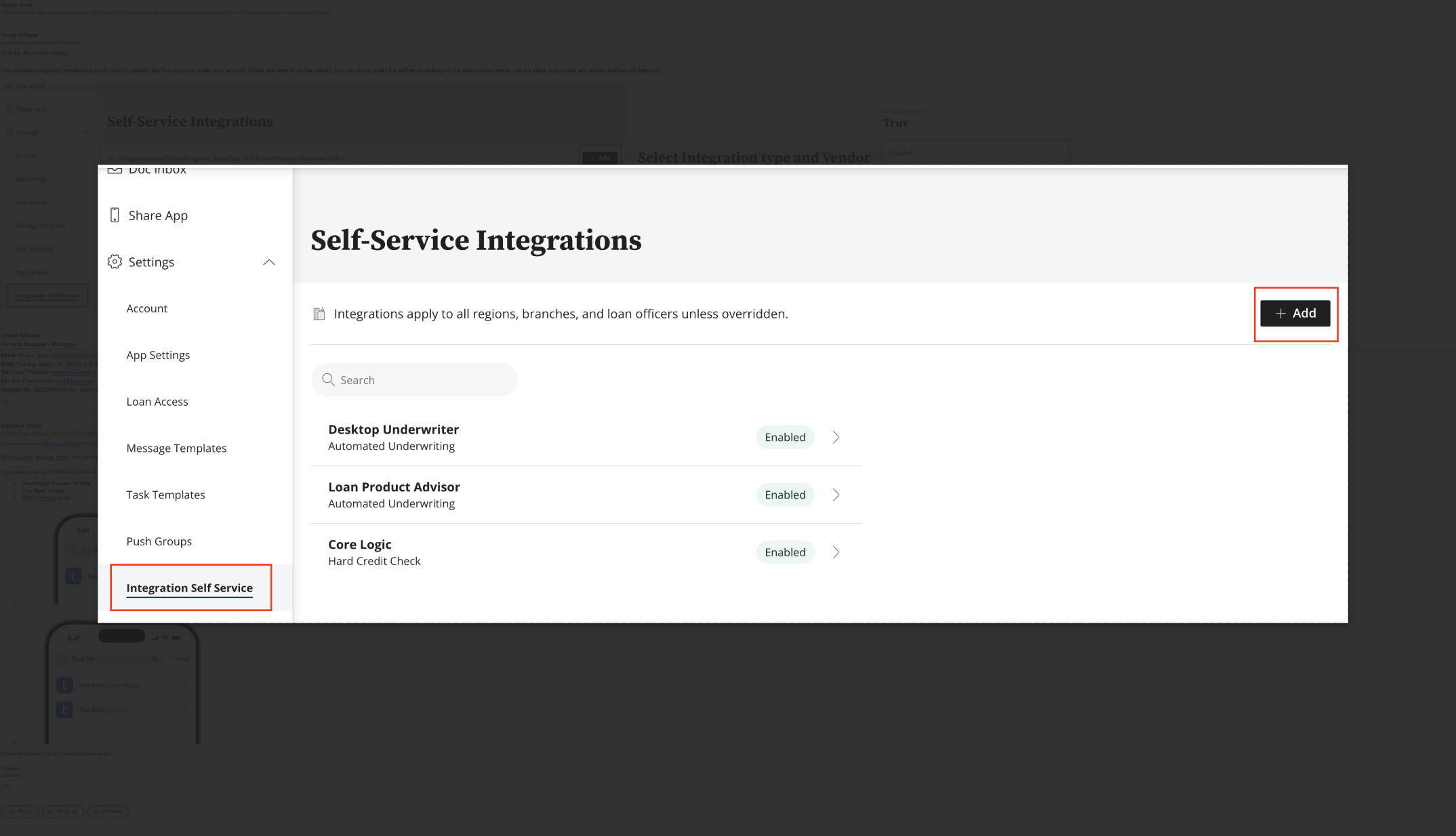
### Step 1: Navigate to Integration Self Service
In nCino, go to **Settings → Integration Self Service** and click the **+ Add** button in the top right corner.
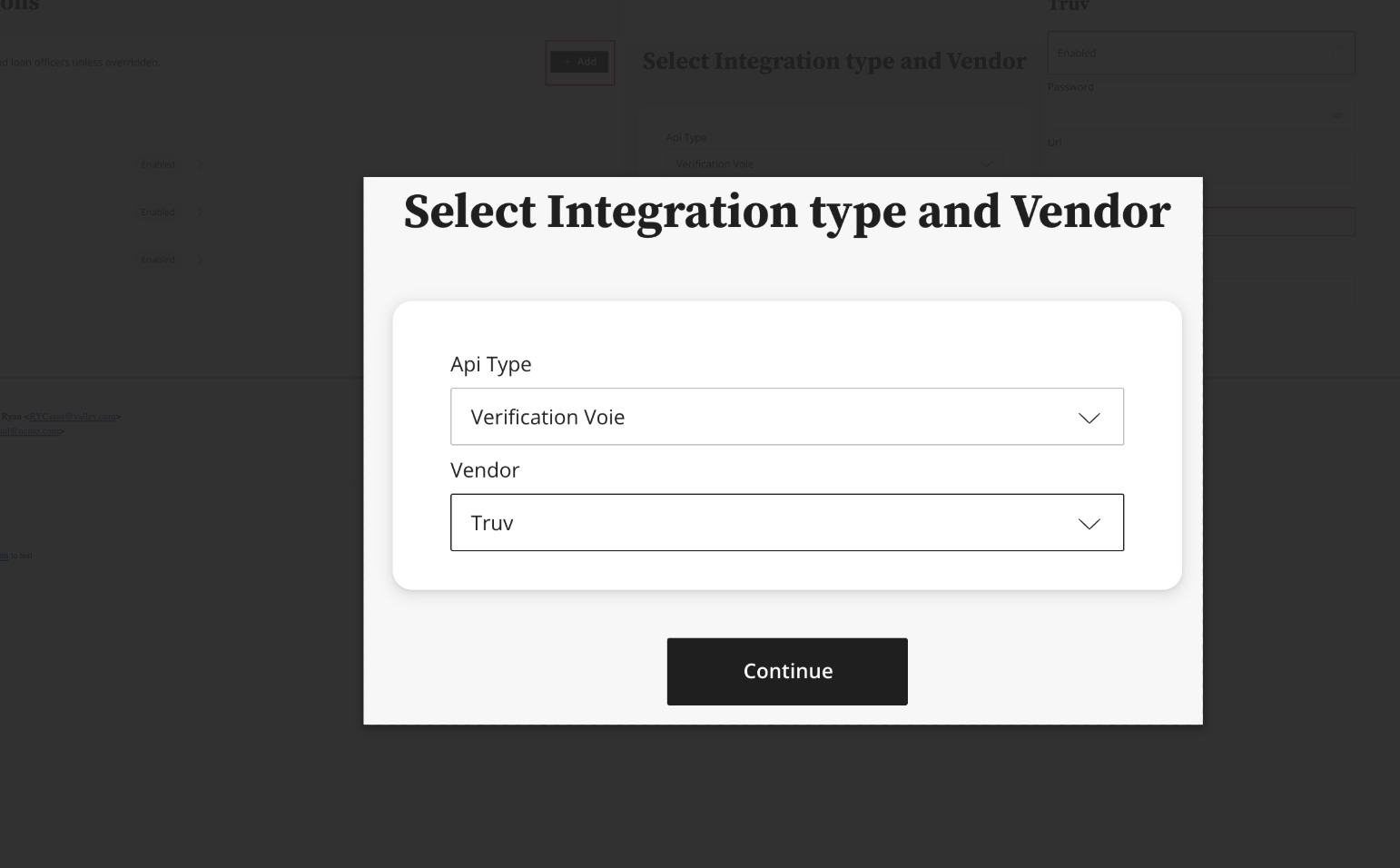
### Step 2: Select Integration Type and Vendor
* **API Type:** Verification VoIE
* **Vendor:** Truv
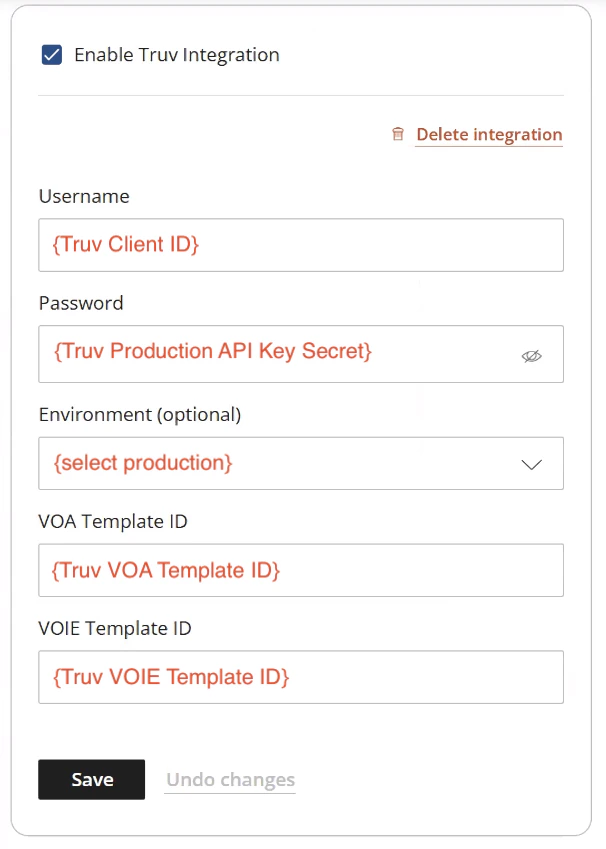
### Step 3: Configure Credentials
Enter the following fields:
* **Username:** Client ID from Truv Dashboard → [API Keys](https://dashboard.truv.com/app/development/keys)
* **Password:** Secret from Truv Dashboard → [API Keys](https://dashboard.truv.com/app/development/keys)
* **Environment:** Select production
* **VOA Template ID:** Template ID from Truv Dashboard → [Templates](https://dashboard.truv.com/app/customization/templates)
* **VOIE Template ID:** Template ID from Truv Dashboard → [Templates](https://dashboard.truv.com/app/customization/templates)
Save and enable the integration.
***
## Customization
Truv within nCino can be enabled at multiple levels:
* **Company-wide**: applies to all teams and branches
* **Region level**: scoped to a specific region
* **Branch level**: scoped to specific branches using matching template names
* **Loan Officer level**: scoped to specific loan officers
### Branch-Level Customization
1. In nCino, navigate to **Regions** and create or modify a region
2. Go to **Region Details → Region Info → Branches**
3. Under **Branch Settings → Branch Info → Cost Centers**, input the cost center name and save
4. In the Truv Dashboard, navigate to **Templates** and create a template with a name matching the branch cost center
5. The template's customizations automatically apply to borrowers in that branch
***
## Borrower workflow
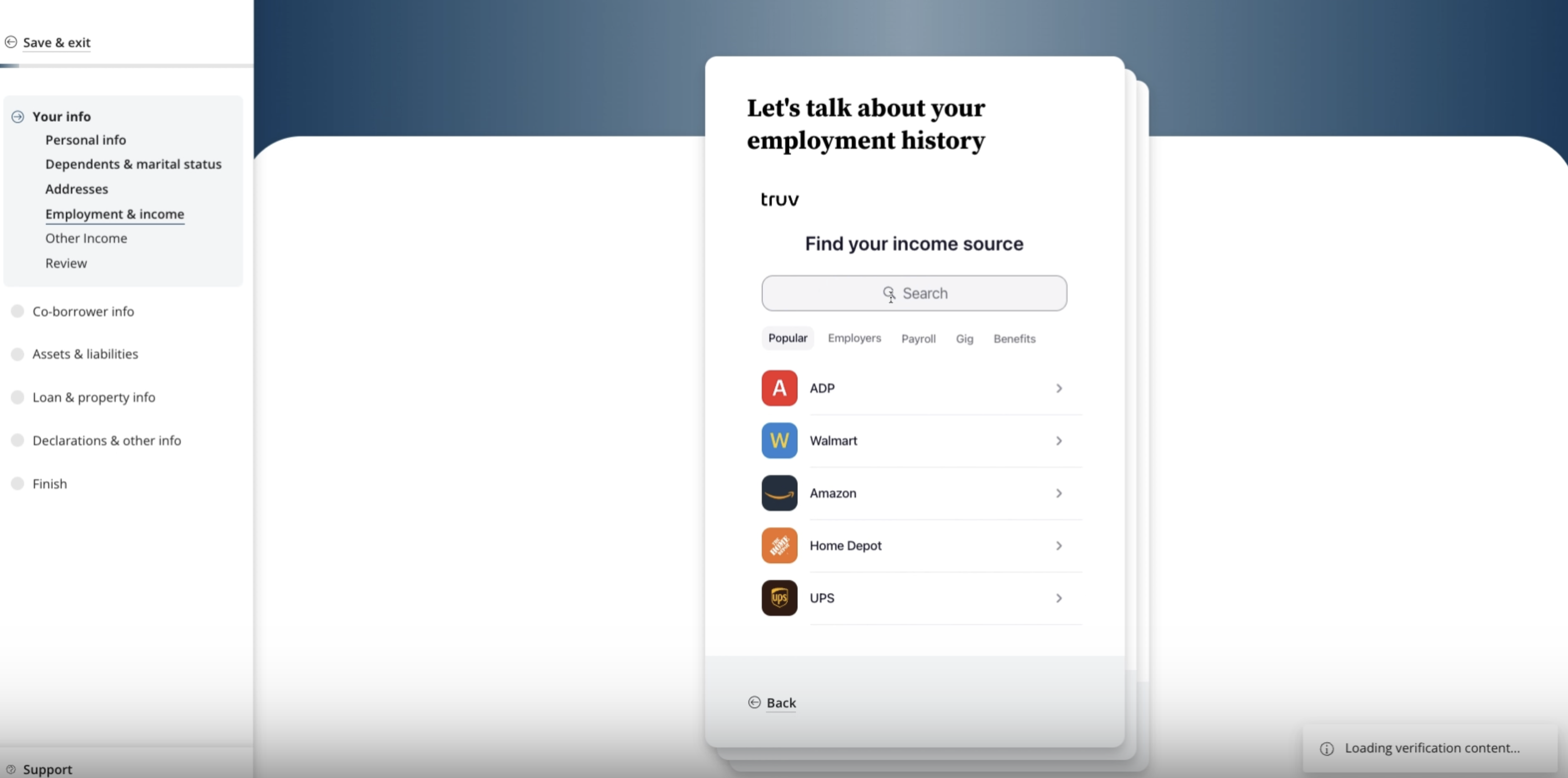
**Step 1:** Borrowers enter basic personal, dependent, and residence information.
**Step 2:** Borrowers and co-borrowers are prompted to connect employers with Truv directly in the loan application. No separate navigation required.
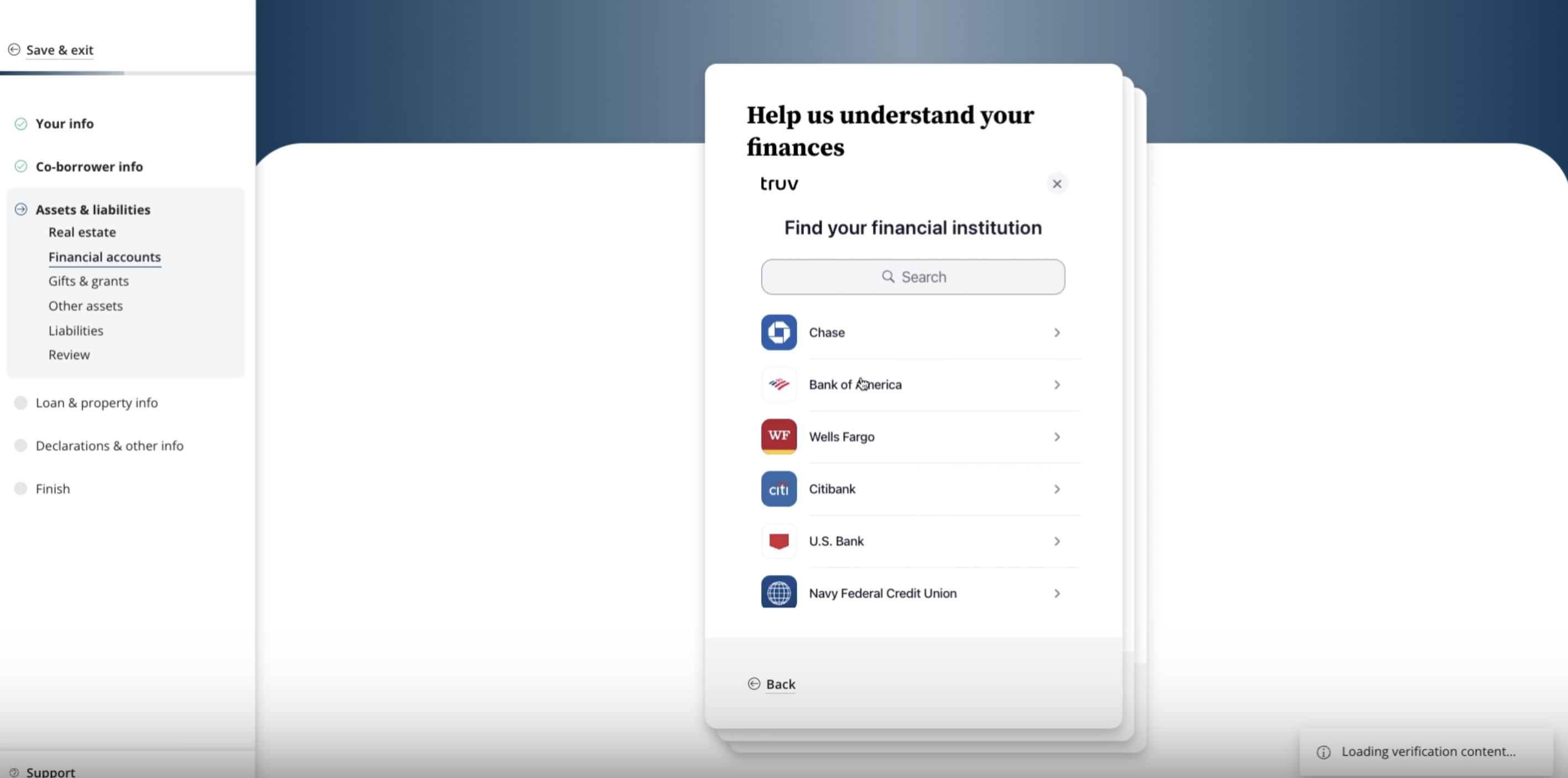
**Step 3:** Borrowers can connect financial institutions in the **Assets and Liabilities** section of the application.
**Step 4:** Once verifications complete and the application is submitted, lenders navigate to **Loan Application → Documents** tab to access:
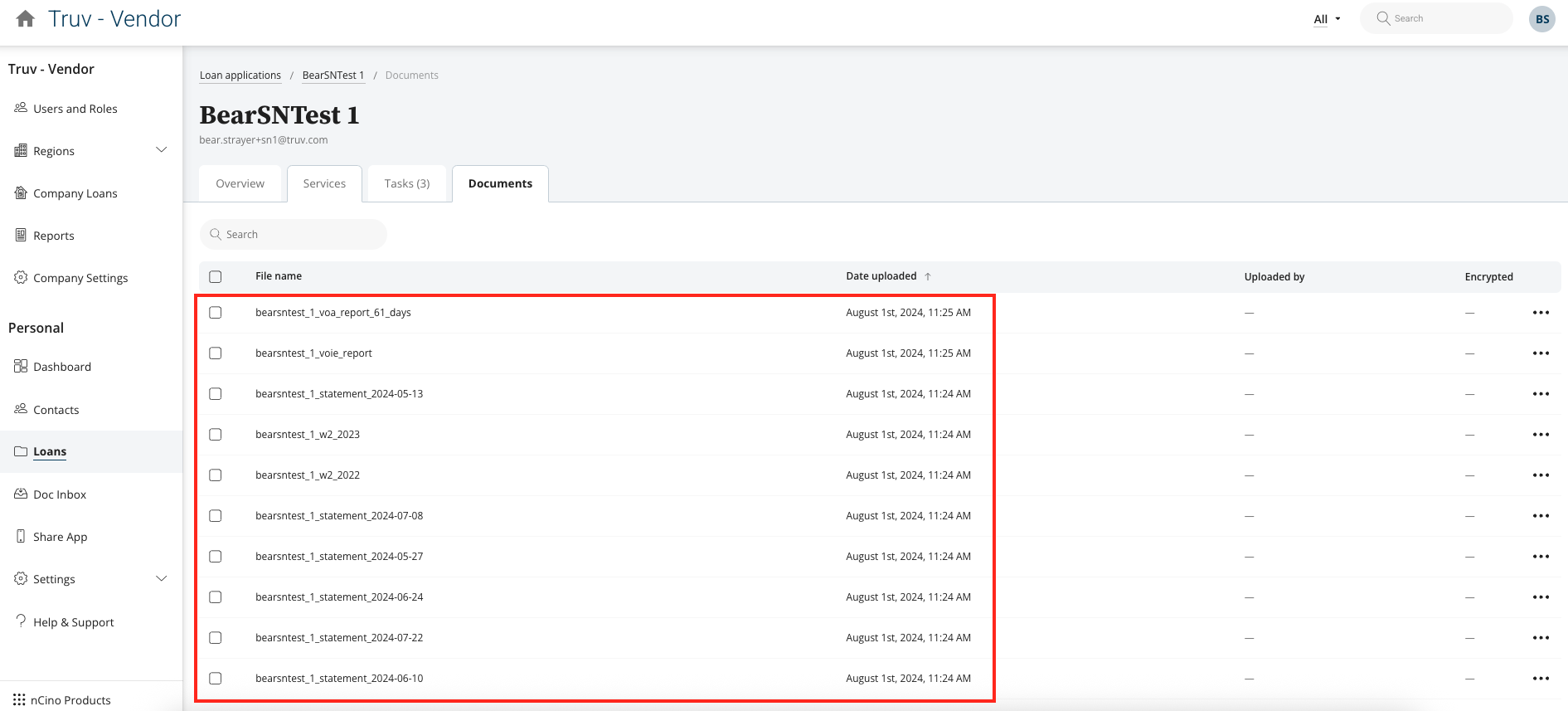
* **VOIE PDF report**: includes up to 6 most recent pay stubs and up to 3 years of W-2s per connected employer
* **VOA PDF report**: asset balances and transaction history
***
## Next steps
View all POS integration options
Test your integration in sandbox
***
## Support
[support@truv.com](mailto:support@truv.com)
[mortgagehelp@ncino.com](mailto:mortgagehelp@ncino.com)