> ## Documentation Index
> Fetch the complete documentation index at: https://docs.truv.com/llms.txt
> Use this file to discover all available pages before exploring further.
# Automated Service Ordering (ASO)
> Automatically trigger Truv verification orders in ICE Encompass when loan conditions are met
Automated Service Ordering (ASO) allows lenders to define rules that automatically place Truv verification orders when a loan meets configured conditions — no manual intervention required.
**Key benefits:**
* **Higher success rates** — orders are placed at the right moment in the loan lifecycle
* **Increased productivity** — eliminates repetitive manual ordering for loan officers and processors
* **Faster closings** — earlier, automated data retrieval reduces turnaround time
***
## Implementation Options
| | Initial Order | Refresh Order |
| -------------------- | ------------------------------------------------------------------------------ | ---------------------------------------------------------------------- |
| **What it does** | Automatically places a verification order when a loan meets defined conditions | Automatically places a refresh order for previously connected accounts |
| **Best for** | Reducing manual ordering and turnaround time at loan start | Automating 10-day PCV and pre-closing re-verification |
| **Trigger examples** | Loan creation, LO assignment, milestone completion | Estimated closing date within 10 days, milestone completion |
***
## Setup Guide
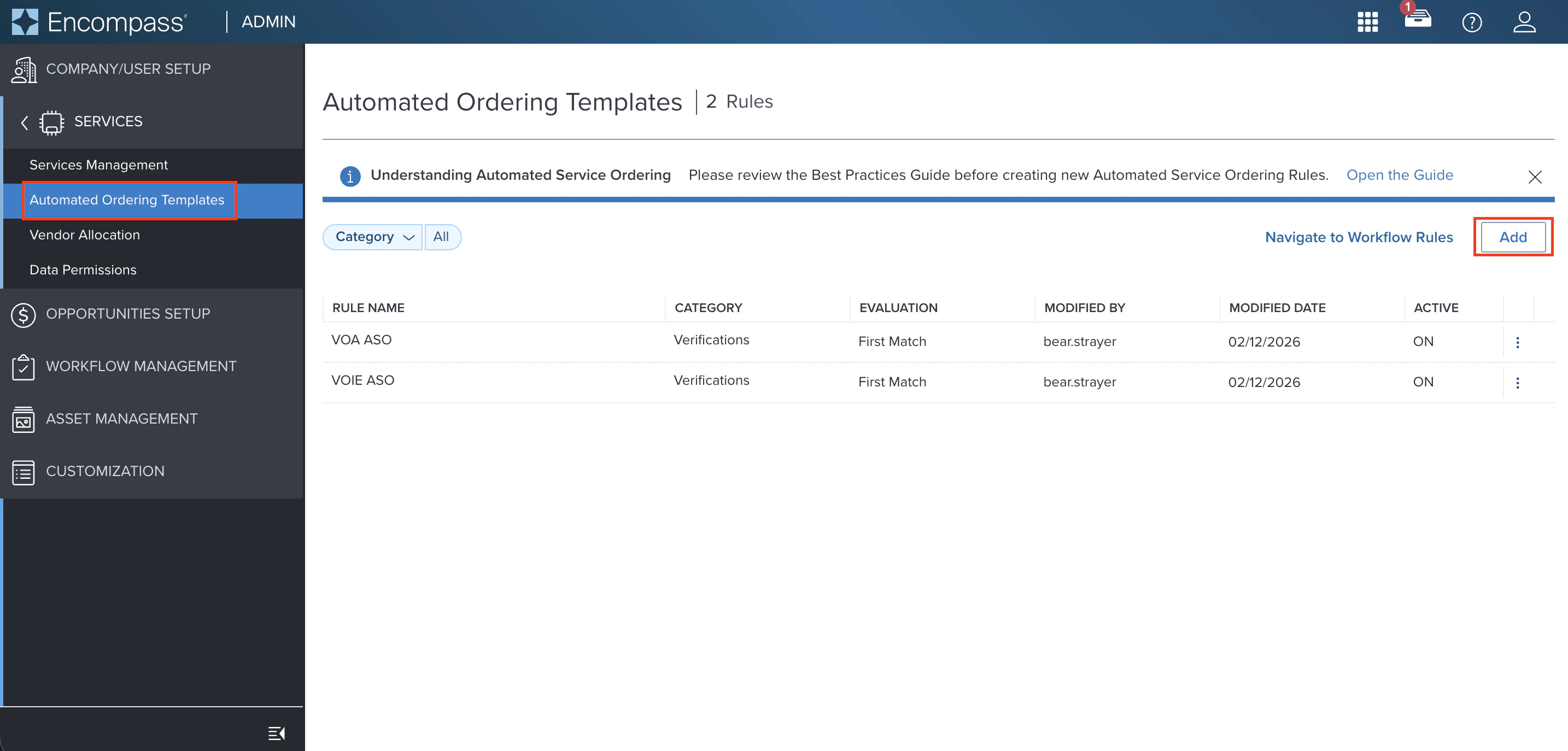
Log into Encompass as an administrator via **Encompass LO Connect**. Navigate to the **Services** tab and select **Automated Ordering Templates**. Click **Add**, select the **Verifications** category, enter a **Rule Name**, and select **Truv - Verification of Income/Employment/Assets**.
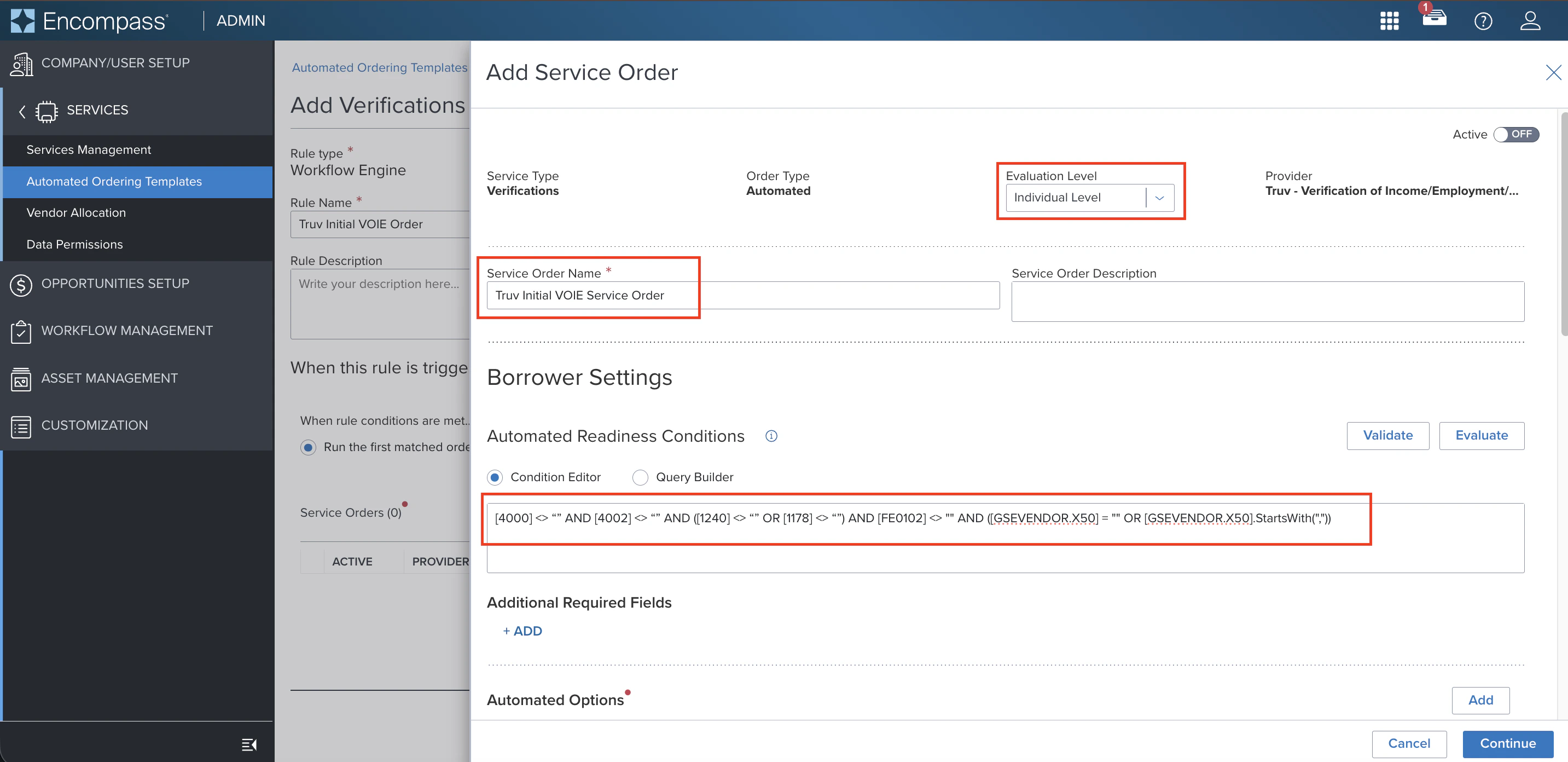
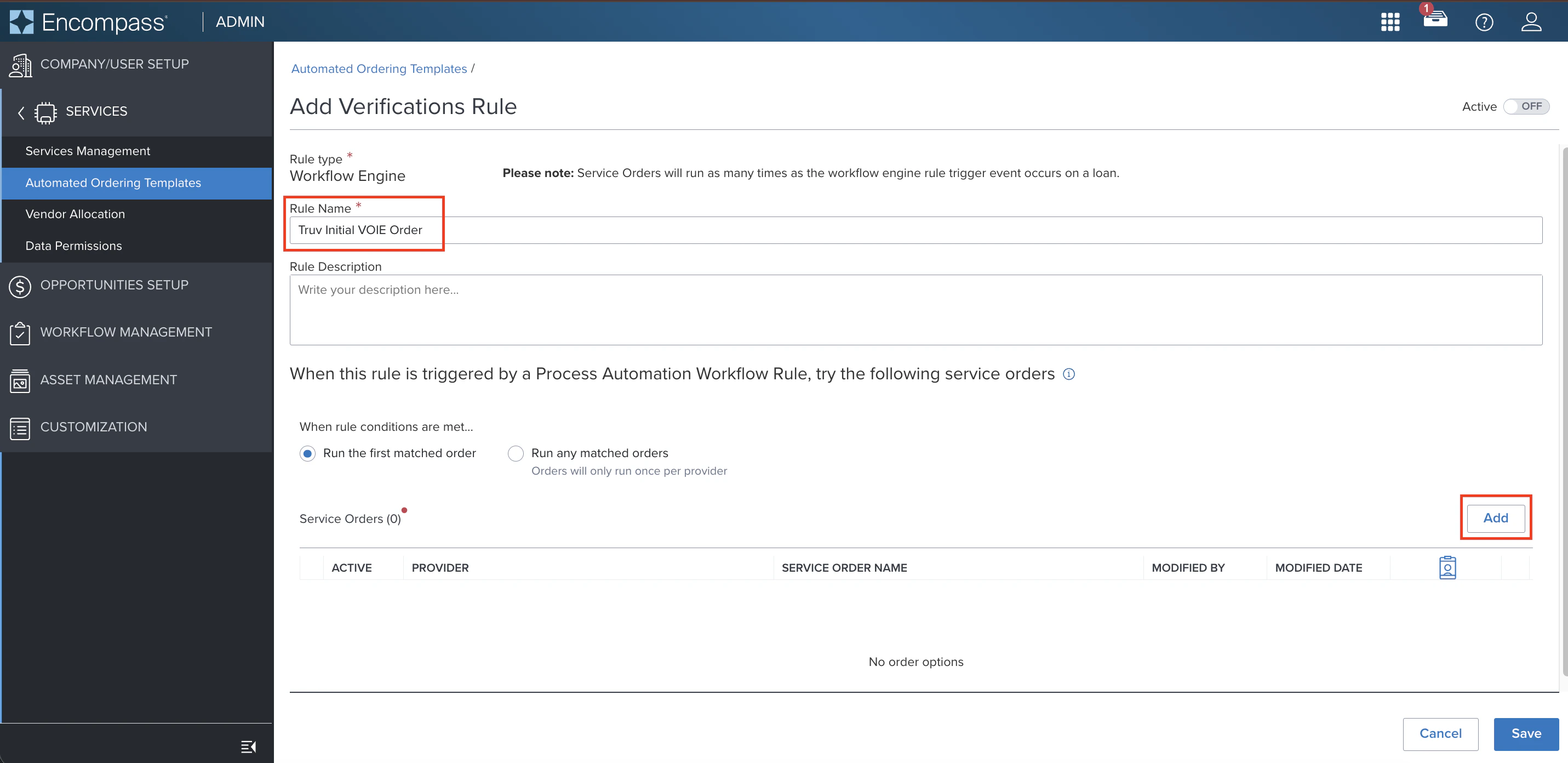 Configure the service order with the following fields:
| Field | Description |
| ---------------------------------- | --------------------------------------------------------------------------- |
| **Evaluation Level** | Set to **Individual Level** to evaluate borrower and co-borrower separately |
| **Service Order Name** | Use a name that identifies the borrower scenario and product type |
| **Automated Readiness Conditions** | Borrower-level conditions that must be met before the rule fires |
| **Automated Options** | The Truv product and notification settings to use when the rule fires |
**Automated Readiness Conditions**
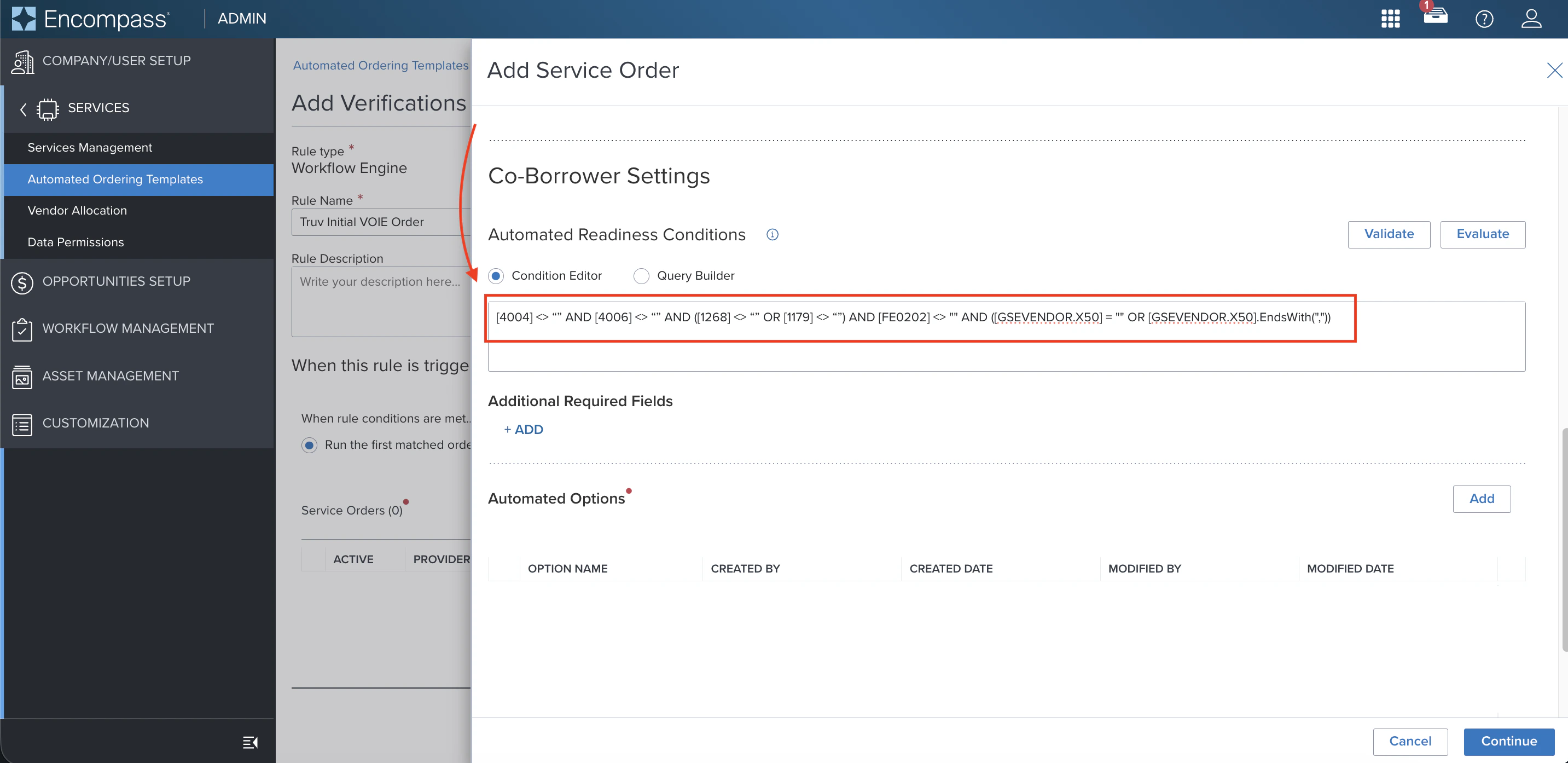
Copy the appropriate condition query into the **Condition Editor** for the borrower and co-borrower.
*Initial order — Borrower (VOIE / VOE):*
```
[4000] <> "" AND [4002] <> "" AND ([1240] <> "" OR [1178] <> "") AND [FE0102] <> "" AND ([GSEVENDOR.X50] = "" OR [GSEVENDOR.X50].StartsWith(","))
```
*Initial order — Borrower (VOA / DVOE):*
```
[4000] <> "" AND [4002] <> "" AND ([1240] <> "" OR [1178] <> "") AND ([GSEVENDOR.X37] = "" AND [GSEVENDOR.X43] = "")
```
*Initial order — Co-Borrower (VOIE / VOE):*
```
[4004] <> "" AND [4006] <> "" AND ([1268] <> "" OR [1179] <> "") AND [FE0202] <> "" AND ([GSEVENDOR.X50] = "" OR [GSEVENDOR.X50].EndsWith(","))
```
*Initial order — Co-Borrower (VOA / DVOE):*
```
[4004] <> "" AND [4006] <> "" AND ([1268] <> "" OR [1179] <> "") AND ([GSEVENDOR.X38] = "" AND [GSEVENDOR.X44] = "")
```
*Refresh order — Borrower (VOIE / VOE):*
```
[4000] <> "" AND [4002] <> "" AND [65].Length > 4 AND ([1240] <> "" OR [1178] <> "")
```
*Refresh order — Borrower (VOA / DVOE):*
```
[4000] <> "" AND [4002] <> "" AND [65].Length > 4 AND ([GSEVENDOR.X37] <> "" OR [GSEVENDOR.X43] <> "")
```
*Refresh order — Co-Borrower (VOIE / VOE):*
```
[4004] <> "" AND [4006] <> "" AND [97].Length > 4 AND ([1268] <> "" OR [1179] <> "")
```
*Refresh order — Co-Borrower (VOA / DVOE):*
```
[4004] <> "" AND [4006] <> "" AND [97].Length > 4 AND ([GSEVENDOR.X38] <> "" OR [GSEVENDOR.X44] <> "")
```
Under **Automated Options**, click **Add** to create a new option or select an existing one for the borrower and co-borrower.
Configure the service order with the following fields:
| Field | Description |
| ---------------------------------- | --------------------------------------------------------------------------- |
| **Evaluation Level** | Set to **Individual Level** to evaluate borrower and co-borrower separately |
| **Service Order Name** | Use a name that identifies the borrower scenario and product type |
| **Automated Readiness Conditions** | Borrower-level conditions that must be met before the rule fires |
| **Automated Options** | The Truv product and notification settings to use when the rule fires |
**Automated Readiness Conditions**
Copy the appropriate condition query into the **Condition Editor** for the borrower and co-borrower.
*Initial order — Borrower (VOIE / VOE):*
```
[4000] <> "" AND [4002] <> "" AND ([1240] <> "" OR [1178] <> "") AND [FE0102] <> "" AND ([GSEVENDOR.X50] = "" OR [GSEVENDOR.X50].StartsWith(","))
```
*Initial order — Borrower (VOA / DVOE):*
```
[4000] <> "" AND [4002] <> "" AND ([1240] <> "" OR [1178] <> "") AND ([GSEVENDOR.X37] = "" AND [GSEVENDOR.X43] = "")
```
*Initial order — Co-Borrower (VOIE / VOE):*
```
[4004] <> "" AND [4006] <> "" AND ([1268] <> "" OR [1179] <> "") AND [FE0202] <> "" AND ([GSEVENDOR.X50] = "" OR [GSEVENDOR.X50].EndsWith(","))
```
*Initial order — Co-Borrower (VOA / DVOE):*
```
[4004] <> "" AND [4006] <> "" AND ([1268] <> "" OR [1179] <> "") AND ([GSEVENDOR.X38] = "" AND [GSEVENDOR.X44] = "")
```
*Refresh order — Borrower (VOIE / VOE):*
```
[4000] <> "" AND [4002] <> "" AND [65].Length > 4 AND ([1240] <> "" OR [1178] <> "")
```
*Refresh order — Borrower (VOA / DVOE):*
```
[4000] <> "" AND [4002] <> "" AND [65].Length > 4 AND ([GSEVENDOR.X37] <> "" OR [GSEVENDOR.X43] <> "")
```
*Refresh order — Co-Borrower (VOIE / VOE):*
```
[4004] <> "" AND [4006] <> "" AND [97].Length > 4 AND ([1268] <> "" OR [1179] <> "")
```
*Refresh order — Co-Borrower (VOA / DVOE):*
```
[4004] <> "" AND [4006] <> "" AND [97].Length > 4 AND ([GSEVENDOR.X38] <> "" OR [GSEVENDOR.X44] <> "")
```
Under **Automated Options**, click **Add** to create a new option or select an existing one for the borrower and co-borrower.
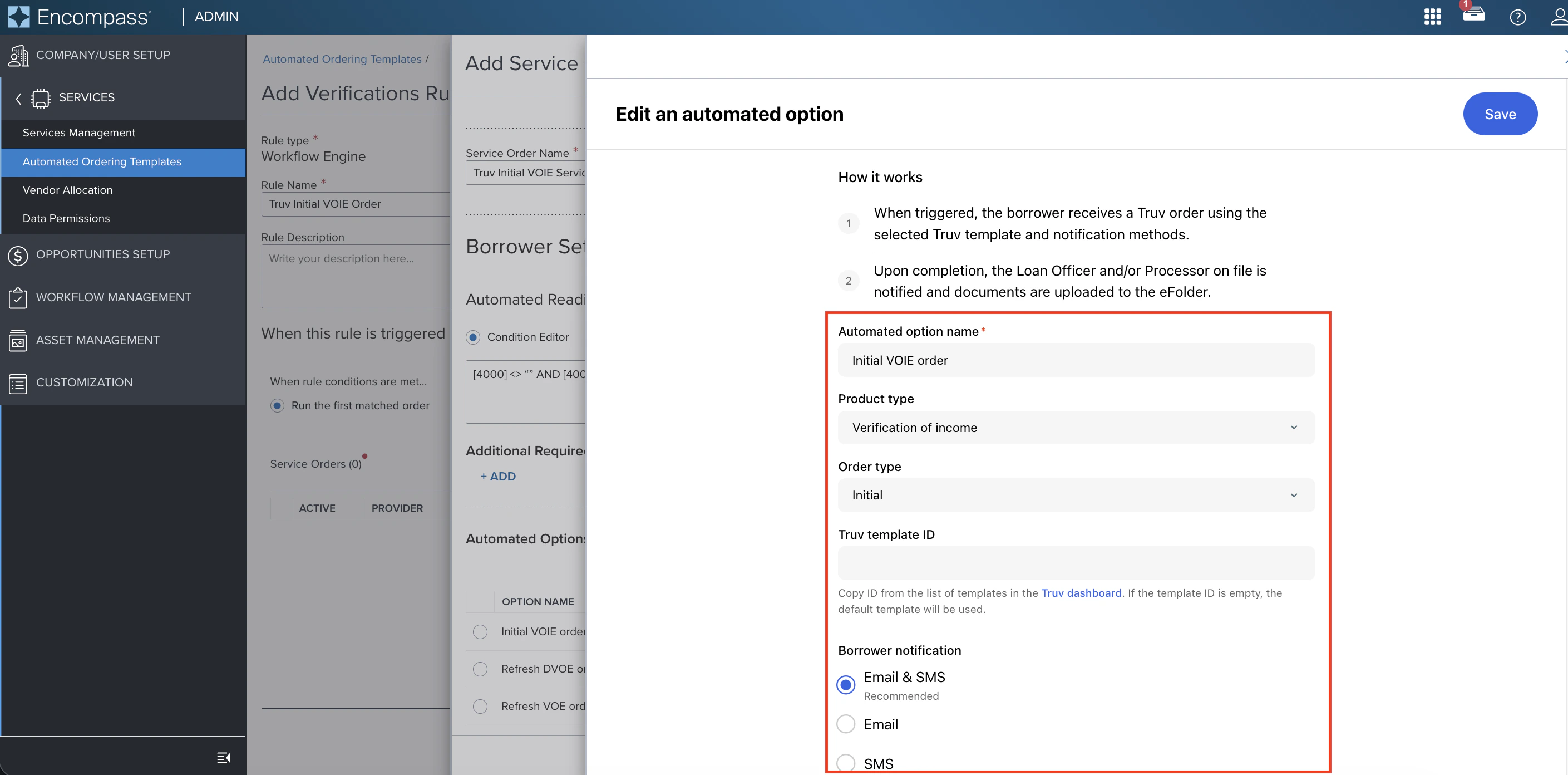
 Configure the automated option with the following fields:
| Field | Description |
| ---------------------------------------- | ------------------------------------------------------------------------------------------------------------------- |
| **Automated option name** | Reflect the product type, order type (initial or refresh), and template used |
| **Product type** | Select the Truv product: VOIE, VOE, VOA, DVOE, etc. |
| **Order type** | Choose **Initial** or **Refresh** |
| **Refreshed employers** *(Refresh only)* | Select all connected employers or only connected & current employers |
| **Truv Template ID** *(Optional)* | Copy from the Truv Dashboard under **Customization > Templates**. If not set, the Primary/Default template is used. |
| **Borrower notification** | Recommend **Email & SMS** for fastest borrower turnaround |
Configure the automated option with the following fields:
| Field | Description |
| ---------------------------------------- | ------------------------------------------------------------------------------------------------------------------- |
| **Automated option name** | Reflect the product type, order type (initial or refresh), and template used |
| **Product type** | Select the Truv product: VOIE, VOE, VOA, DVOE, etc. |
| **Order type** | Choose **Initial** or **Refresh** |
| **Refreshed employers** *(Refresh only)* | Select all connected employers or only connected & current employers |
| **Truv Template ID** *(Optional)* | Copy from the Truv Dashboard under **Customization > Templates**. If not set, the Primary/Default template is used. |
| **Borrower notification** | Recommend **Email & SMS** for fastest borrower turnaround |
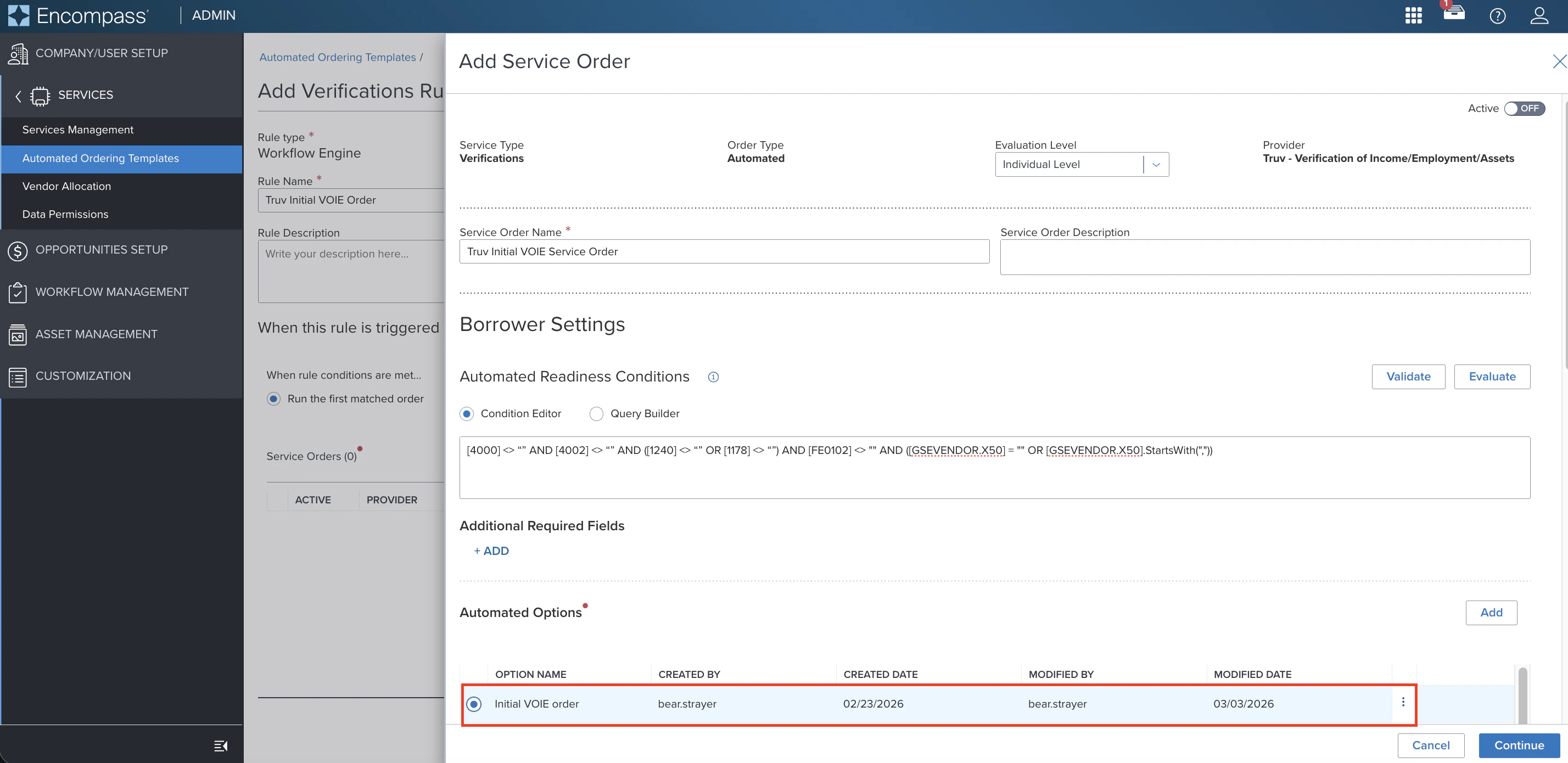
 After saving, select the automated option for both **Borrower** and **Co-Borrower** settings.
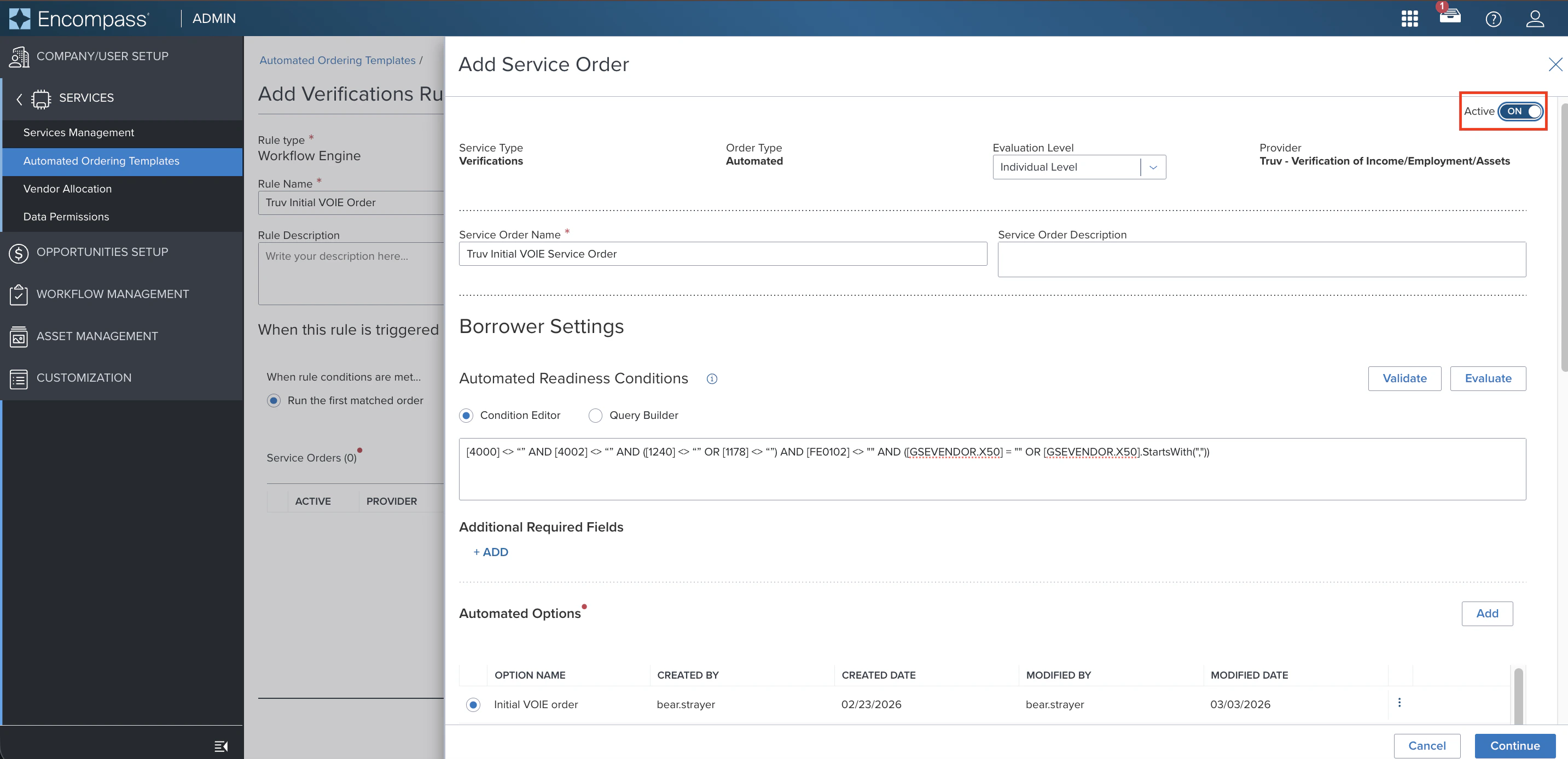
 Set the Service Order to **Active**. This does not create orders — it is required before creating the workflow rule in the next step.
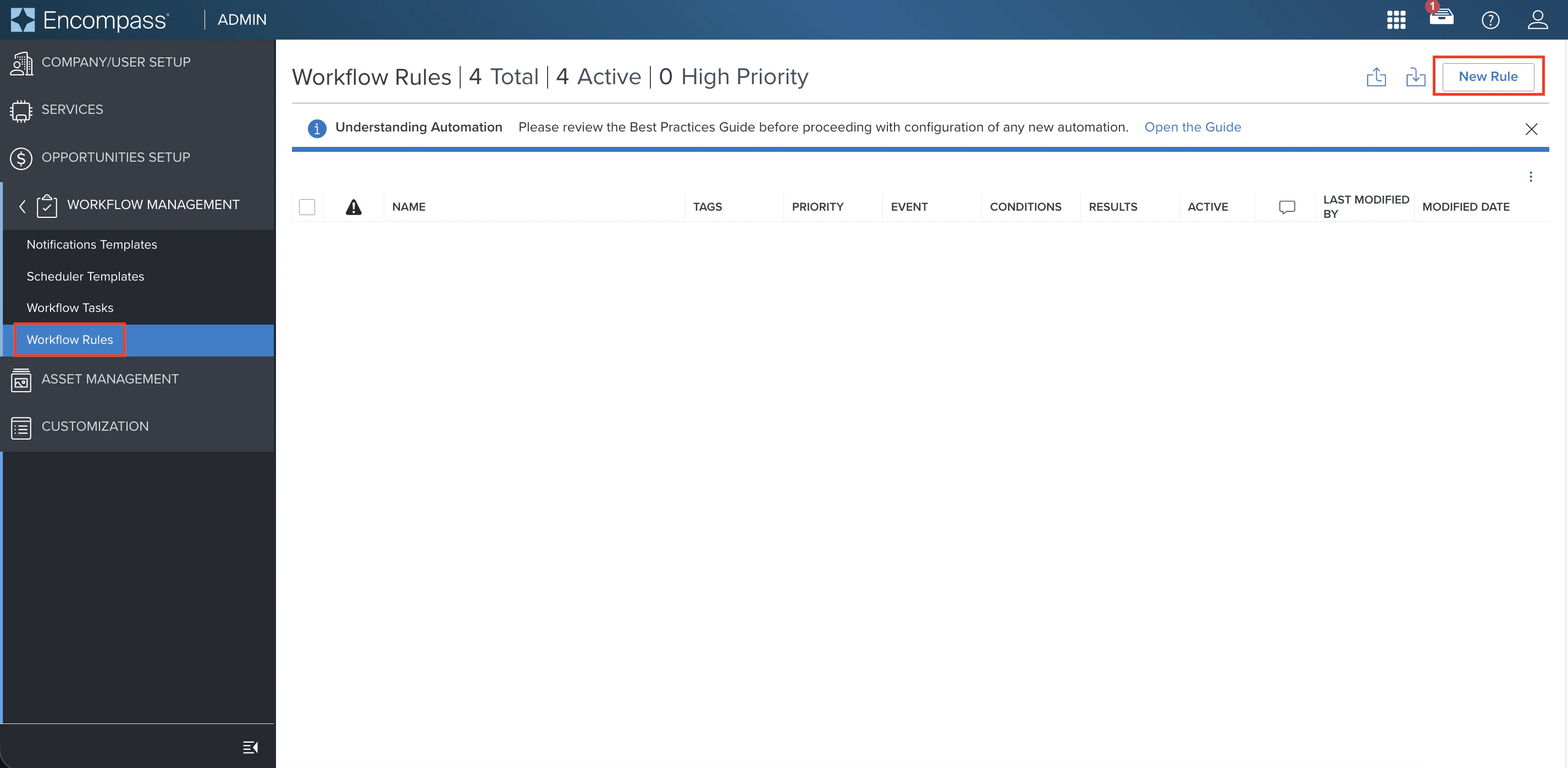
 Navigate to the **Workflow Management** tab and select **Workflow Rules**. Click **New Rule**.
 Configure the rule across three tabs:
**Trigger Event tab** — determines when the rule fires:
| Use case | Trigger options |
| ---------------------------------- | ---------------------------------------------------------------------------------------------------------------------------------------------- |
| Initial ASO — Field Value Modified | Borrower Intent to Continue Date (3197), Application Date Set (3142), Loan Officer Name (317), Loan Processor Name (362), eConsent Date (3983) |
| Initial ASO — Milestone Completed | Processing, or any lender-defined milestone aligned with VOIE/VOA ordering |
| Refresh ASO — Field Value Modified | Calculated field (estimated closing date \< 10 days away), Loan Closer Name (1855), or any lender-defined refresh trigger |
| Refresh ASO — Milestone Completed | Approval, or any lender-defined milestone aligned with refresh ordering |
Also set:
* **Rule Name**: Use a name that reflects what triggers the rule and when
* **Rule Effective Date**: Set to Loan Created Date or Application Date after the agreed go-live date
Configure the rule across three tabs:
**Trigger Event tab** — determines when the rule fires:
| Use case | Trigger options |
| ---------------------------------- | ---------------------------------------------------------------------------------------------------------------------------------------------- |
| Initial ASO — Field Value Modified | Borrower Intent to Continue Date (3197), Application Date Set (3142), Loan Officer Name (317), Loan Processor Name (362), eConsent Date (3983) |
| Initial ASO — Milestone Completed | Processing, or any lender-defined milestone aligned with VOIE/VOA ordering |
| Refresh ASO — Field Value Modified | Calculated field (estimated closing date \< 10 days away), Loan Closer Name (1855), or any lender-defined refresh trigger |
| Refresh ASO — Milestone Completed | Approval, or any lender-defined milestone aligned with refresh ordering |
Also set:
* **Rule Name**: Use a name that reflects what triggers the rule and when
* **Rule Effective Date**: Set to Loan Created Date or Application Date after the agreed go-live date
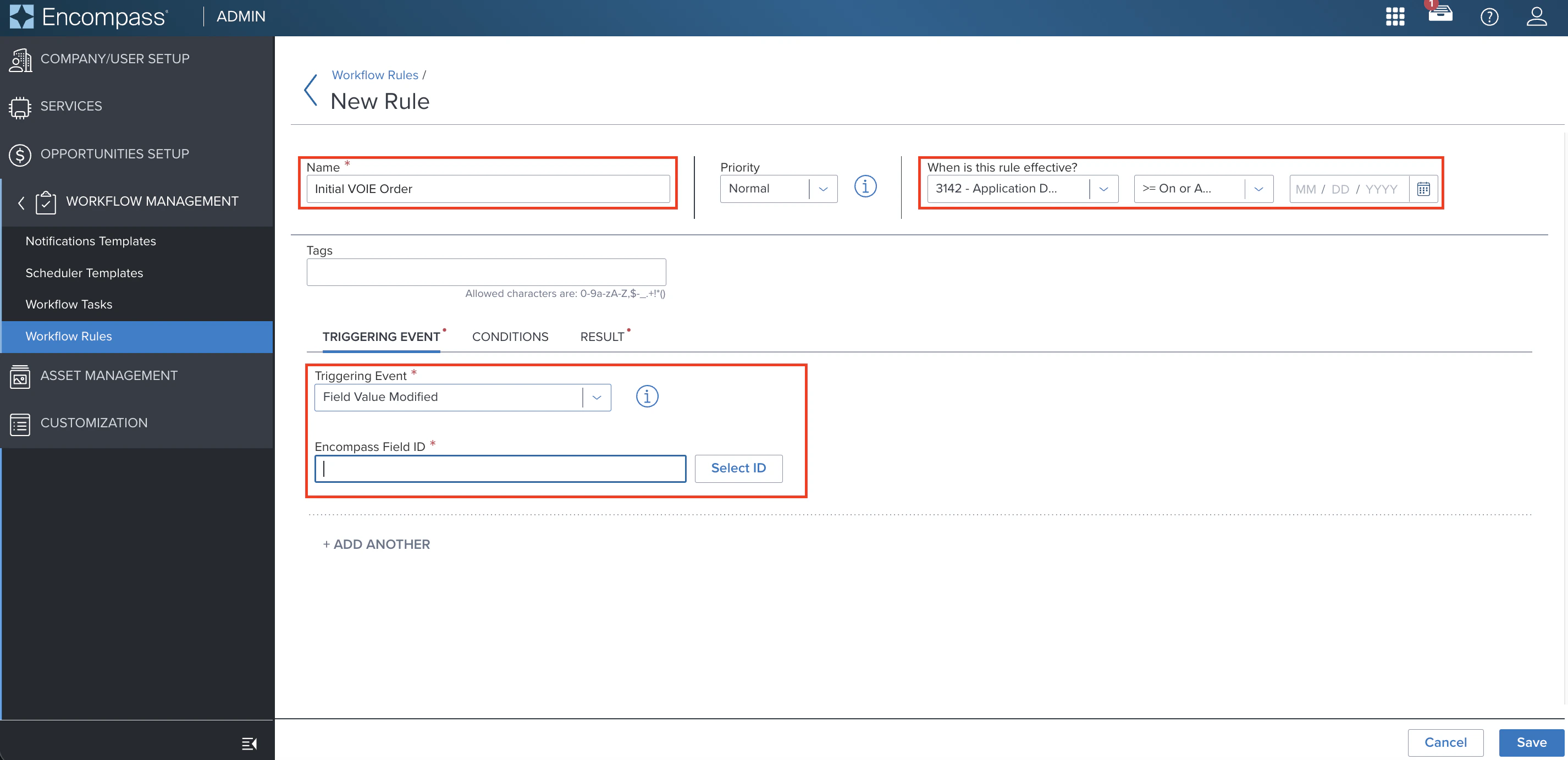 **Conditions tab** — optional filters to scope which loans the rule applies to:
| Use case | Recommended conditions |
| ----------------------- | -------------------------------------------------------------------------------------------------------------------------------- |
| Initial ASO — Permanent | Credit Score for Decision Making (2853), Loan Program (1401), Channels: Banked-Retail, Banked-Wholesale, Brokered, Correspondent |
| Initial ASO — Pilot | Loan Officer Email (1407), specific branch or DBA |
| Refresh ASO | No additional loan-level conditions recommended — rule applies only to files with a successful initial connection |
**Conditions tab** — optional filters to scope which loans the rule applies to:
| Use case | Recommended conditions |
| ----------------------- | -------------------------------------------------------------------------------------------------------------------------------- |
| Initial ASO — Permanent | Credit Score for Decision Making (2853), Loan Program (1401), Channels: Banked-Retail, Banked-Wholesale, Brokered, Correspondent |
| Initial ASO — Pilot | Loan Officer Email (1407), specific branch or DBA |
| Refresh ASO | No additional loan-level conditions recommended — rule applies only to files with a successful initial connection |
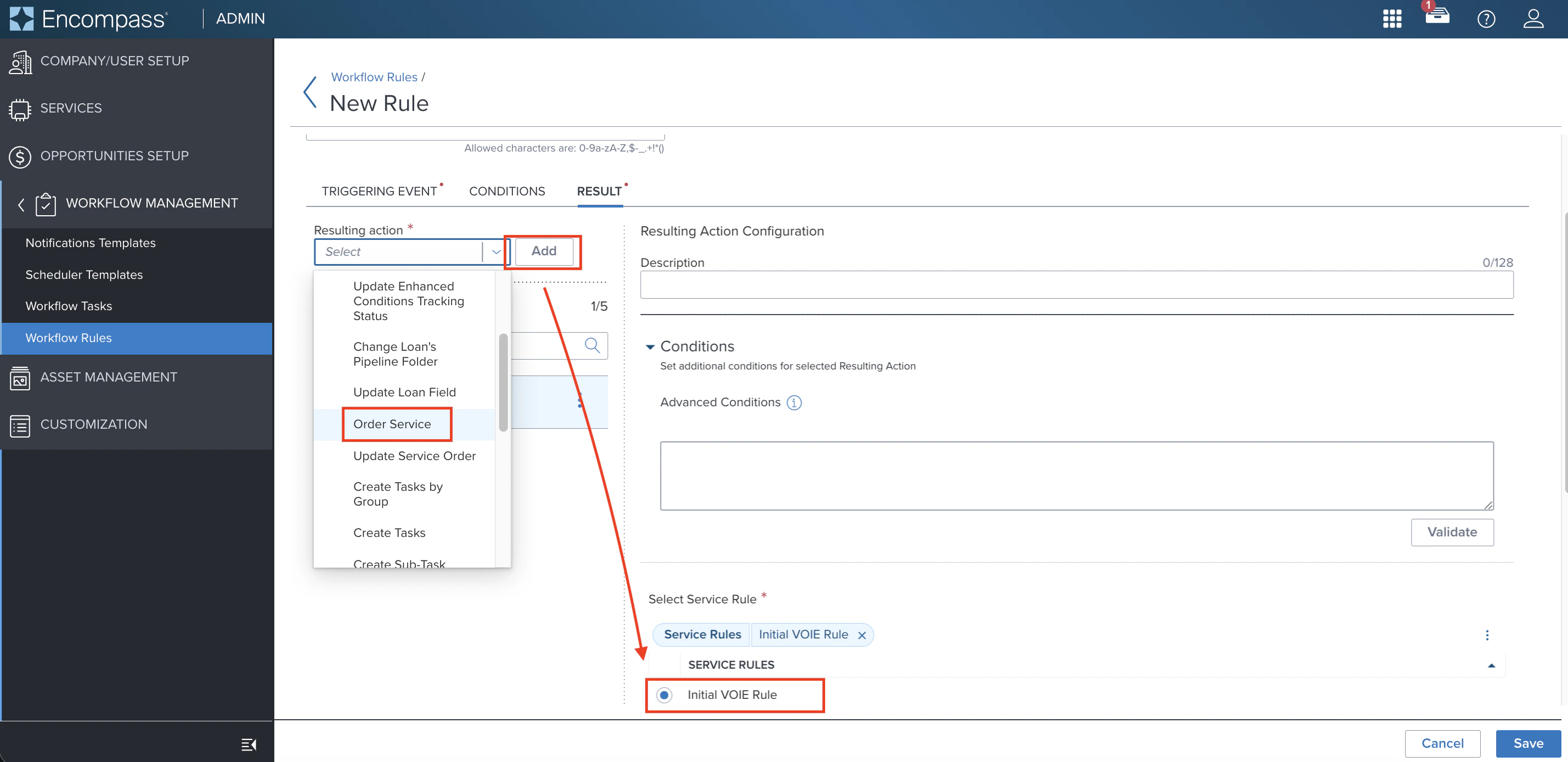
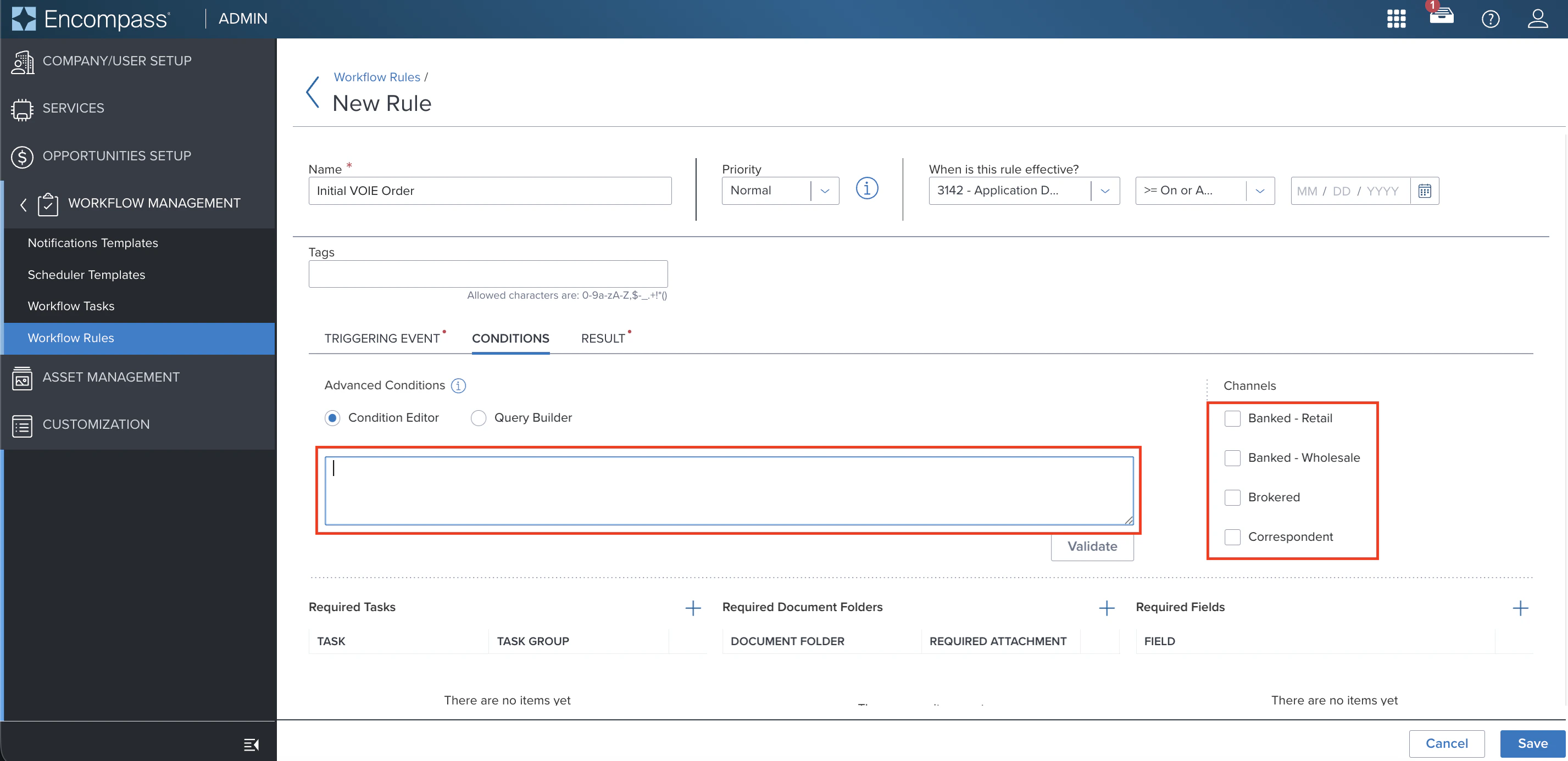 **Results tab** — set the action the rule takes:
1. Open the **Resulting action** dropdown and select **Order service**
2. Scroll down and select the Service Order configured in Step 2
3. Click **Save**
**Results tab** — set the action the rule takes:
1. Open the **Resulting action** dropdown and select **Order service**
2. Scroll down and select the Service Order configured in Step 2
3. Click **Save**
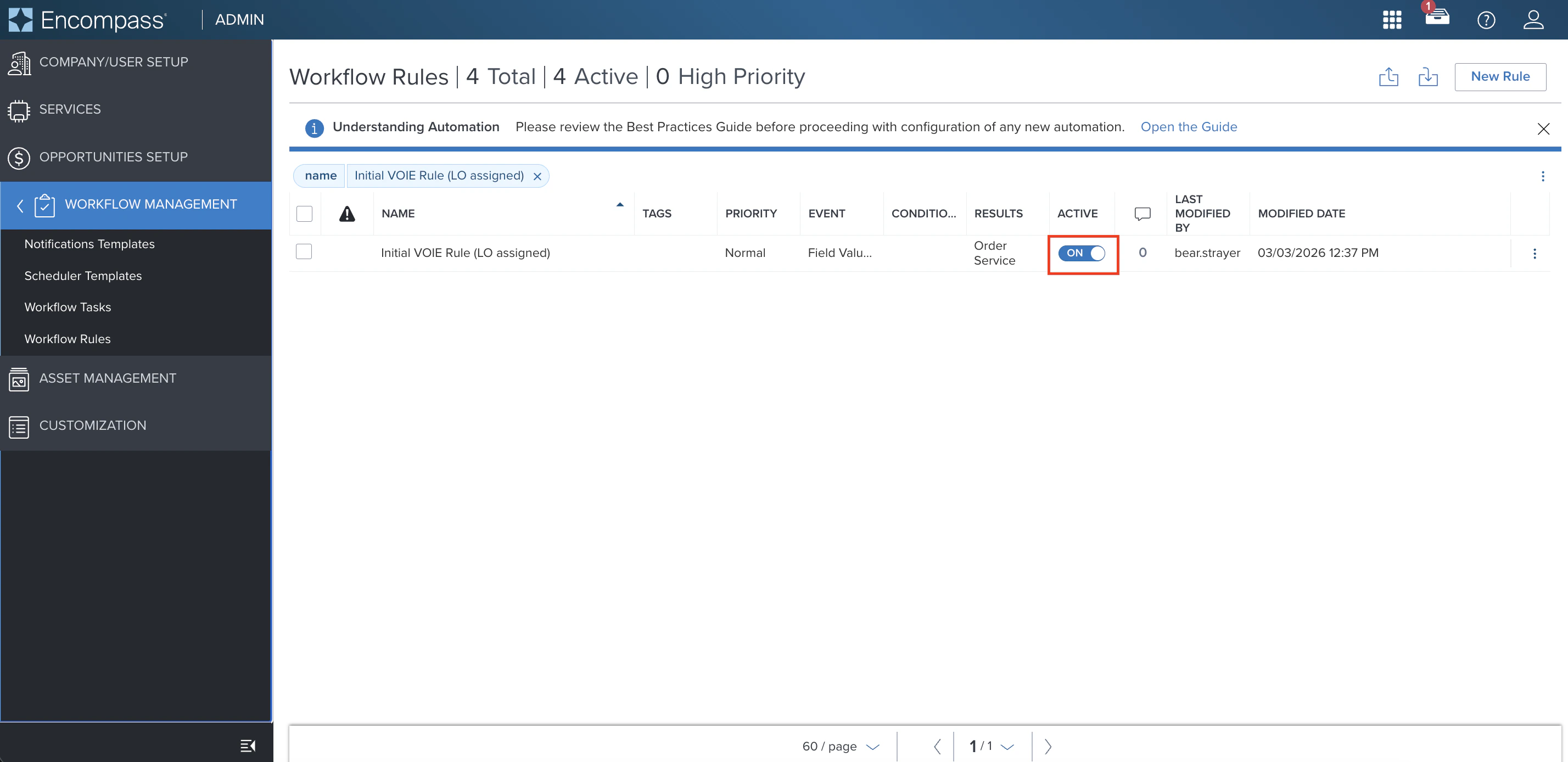
 Set the Workflow Rule to **Active** when ready to enable ASO.
 Work with your Truv Customer Success Manager to configure:
* **Employer filtering by Truv success rate** — include only Green, Yellow, Red, or Gray rated employers
* **Current employers only** — limit ASO to currently active employers
* **Status update recipients** — notify loan officers, processors, group inboxes, or other roles when order status changes
To see orders placed by ASO, log into the Truv Dashboard and filter for **Automated Service Ordering** in the **Created by** filter of the Orders table.
***
## Setup Walkthroughs
### Initial ASO Setup
### Refresh ASO Setup
***
## Next steps
Manual ordering for VOIE, VOE, VOA, and Income and Assets
Templates, eFolder mapping, and notification settings
One-time Encompass configuration
[support@truv.com](mailto:support@truv.com)
Work with your Truv Customer Success Manager to configure:
* **Employer filtering by Truv success rate** — include only Green, Yellow, Red, or Gray rated employers
* **Current employers only** — limit ASO to currently active employers
* **Status update recipients** — notify loan officers, processors, group inboxes, or other roles when order status changes
To see orders placed by ASO, log into the Truv Dashboard and filter for **Automated Service Ordering** in the **Created by** filter of the Orders table.
***
## Setup Walkthroughs
### Initial ASO Setup
### Refresh ASO Setup
***
## Next steps
Manual ordering for VOIE, VOE, VOA, and Income and Assets
Templates, eFolder mapping, and notification settings
One-time Encompass configuration
[support@truv.com](mailto:support@truv.com)