> ## Documentation Index
> Fetch the complete documentation index at: https://docs.truv.com/llms.txt
> Use this file to discover all available pages before exploring further.
# AIM Check via Automated Service Ordering
> Enable Freddie Mac AIM Check in ICE Encompass using Automated Service Ordering to receive early income assessments from digitized paystub and W-2 data
Lenders using Truv can enable AIM Check from Freddie Mac to receive an early view of Loan Product Advisor's income assessment using digitized paystub and W-2 data from borrower-supplied documents. AIM Check is configured via Automated Service Ordering (ASO) in Encompass.
| | Status |
| ----------------------------- | ----------------- |
| AIM Check via ASO | Supported |
| AIM Check via Manual Ordering | Not yet supported |
For more information on Freddie Mac AIM Check, see the [Freddie Mac AIM4IUED Tutorial](https://learn.sf.freddiemac.com/tutorials/loan-advisor/aim4iued-dgtz-pstub-w2/story.html).
***
## Setup Guide
Notify your Truv implementation contact to enable the AIM Check solution in your Encompass instance before proceeding with the steps below.
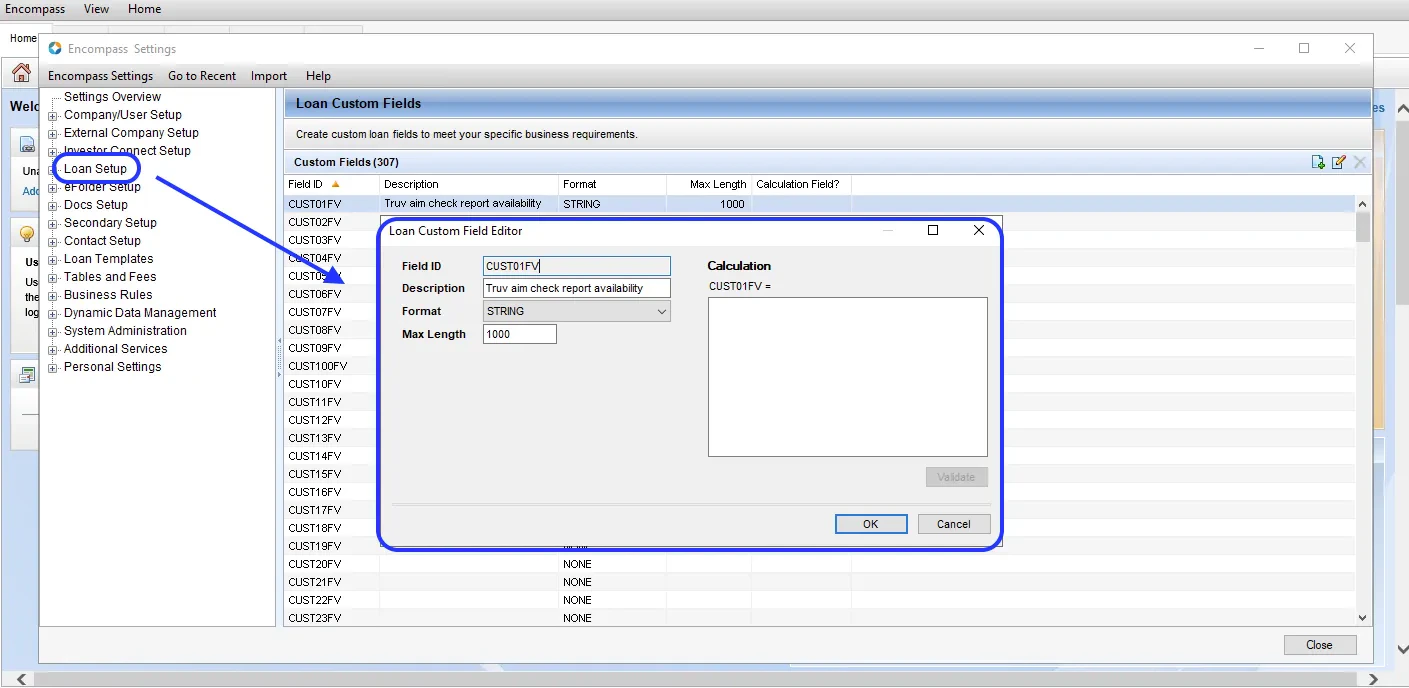
In **Encompass SmartClient**, navigate to **Settings > Loan Setup > Loan Custom Fields**. Select an unused field — `CUST01FV` is used as an example throughout this guide — and configure it with the following settings:
| Setting | Value |
| --------------- | ------------------------------------ |
| **Description** | `Truv aim check report availability` |
| **Format** | `STRING` |
| **Max Length** | `1000` |
If you use a custom field other than `CUST01FV`, replace it consistently in all subsequent steps.
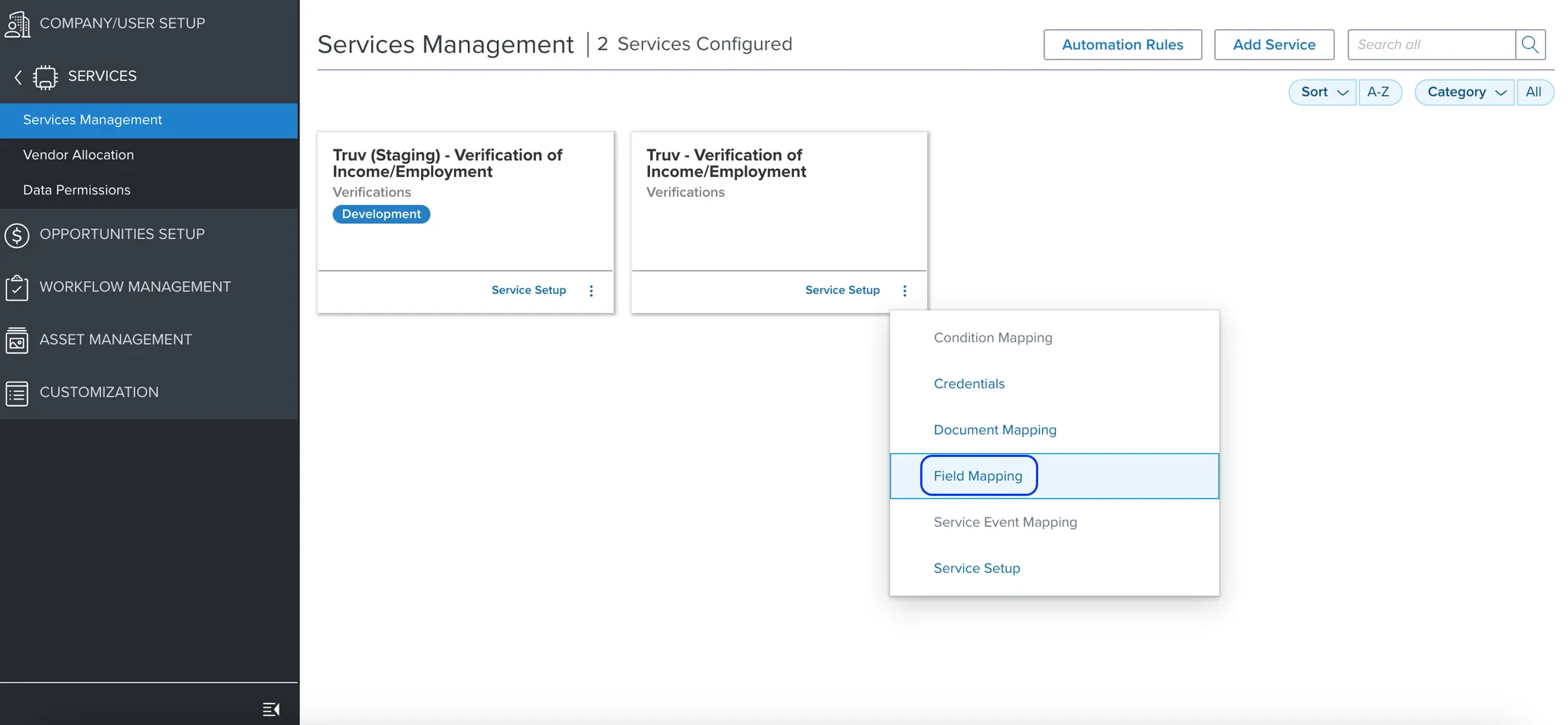
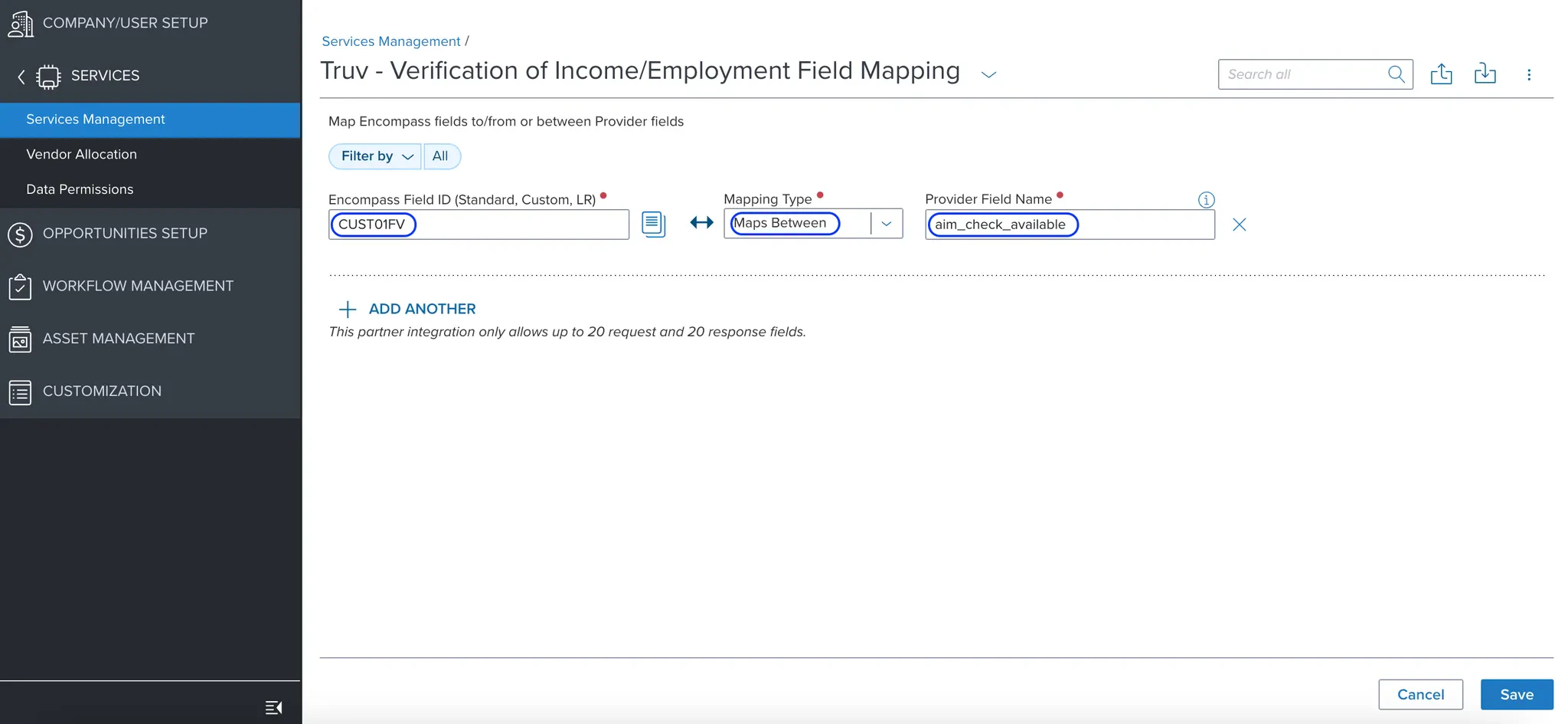
 Navigate to the [Encompass admin portal](https://encompass.ice.com/admin) and go to **Services > Services Management**. Find **Truv - Verification of Income/Employment**, click the three dots, and select **Field Mapping**. Add a new mapping with the following values:
| Setting | Value |
| ----------------------- | --------------------- |
| **Encompass Field ID** | `CUST01FV` |
| **Mapping Type** | `Maps Between` |
| **Provider Field Name** | `aim_check_available` |
Navigate to the [Encompass admin portal](https://encompass.ice.com/admin) and go to **Services > Services Management**. Find **Truv - Verification of Income/Employment**, click the three dots, and select **Field Mapping**. Add a new mapping with the following values:
| Setting | Value |
| ----------------------- | --------------------- |
| **Encompass Field ID** | `CUST01FV` |
| **Mapping Type** | `Maps Between` |
| **Provider Field Name** | `aim_check_available` |
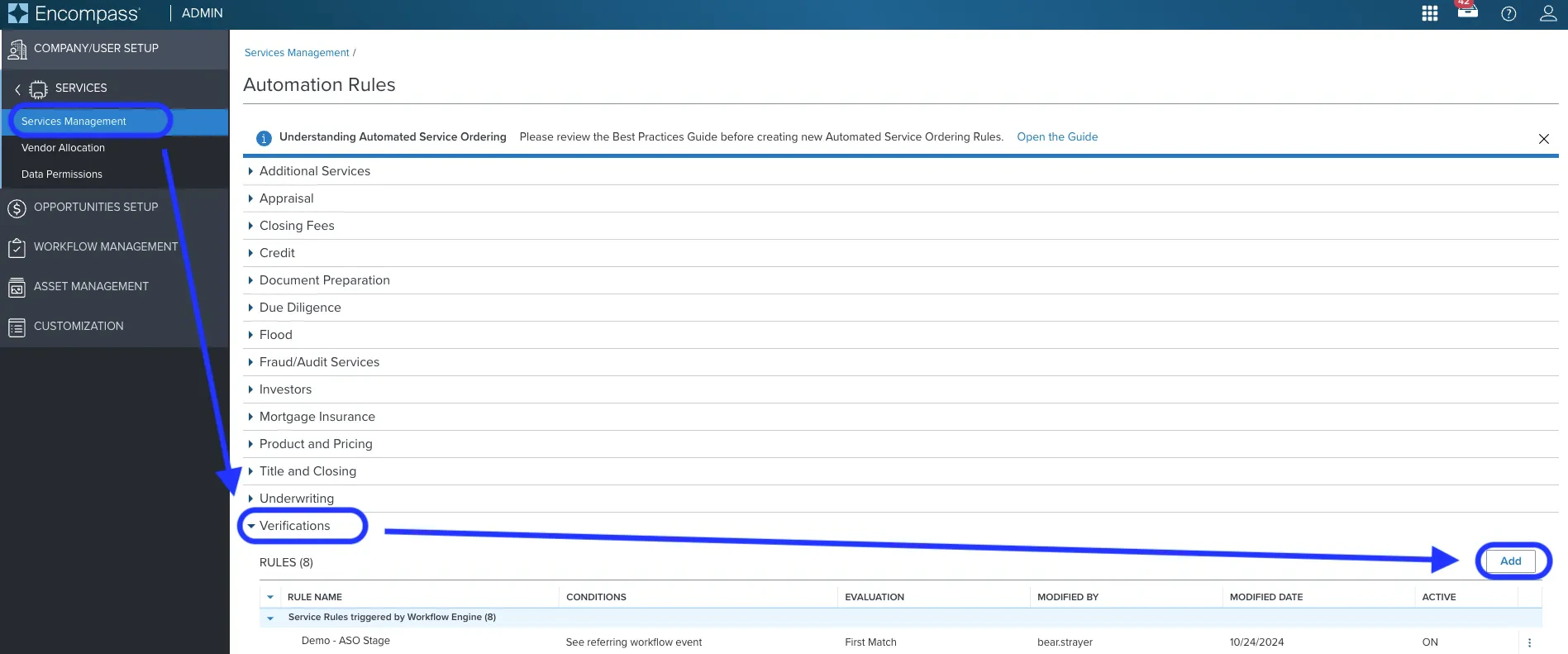
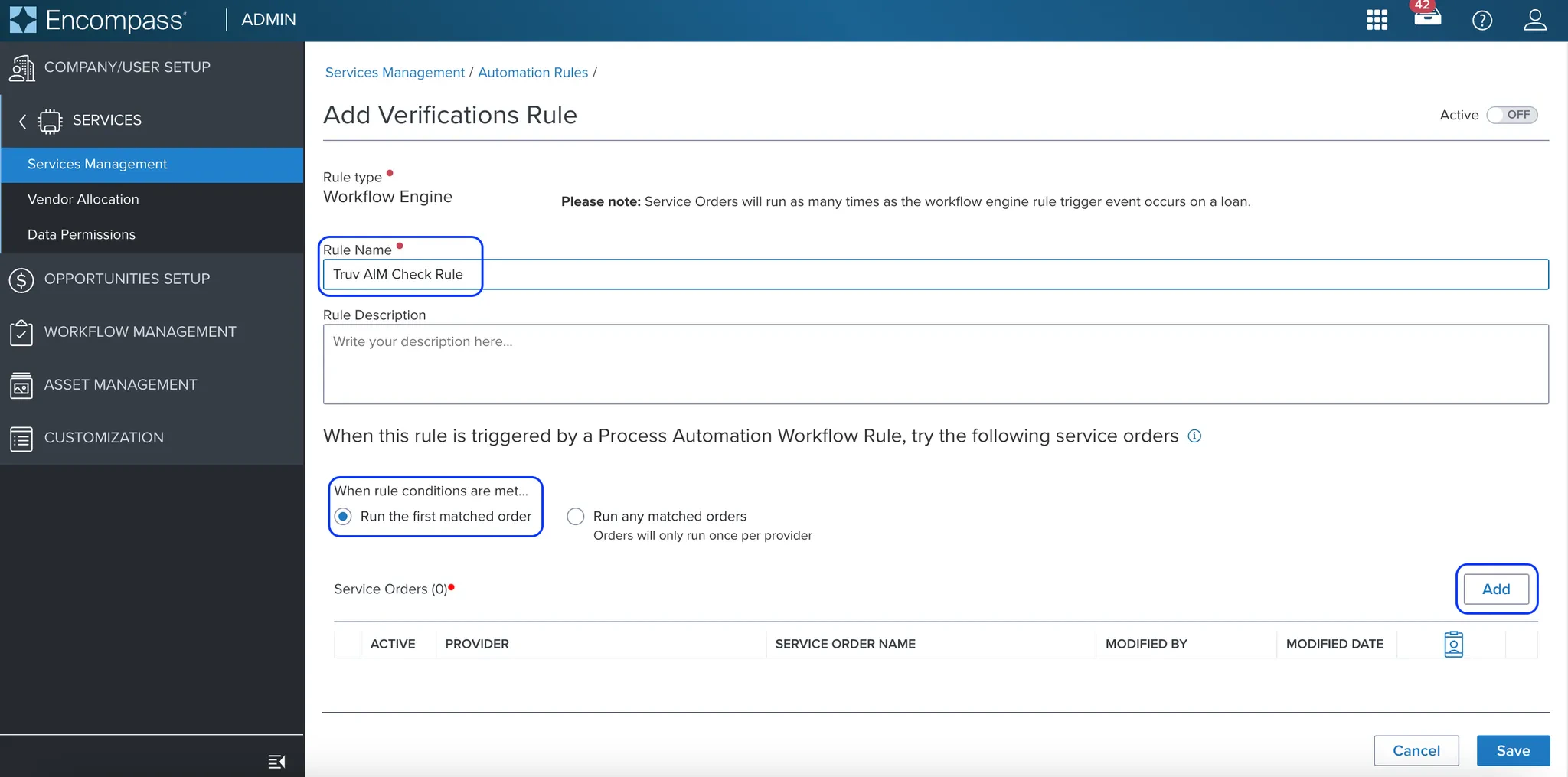
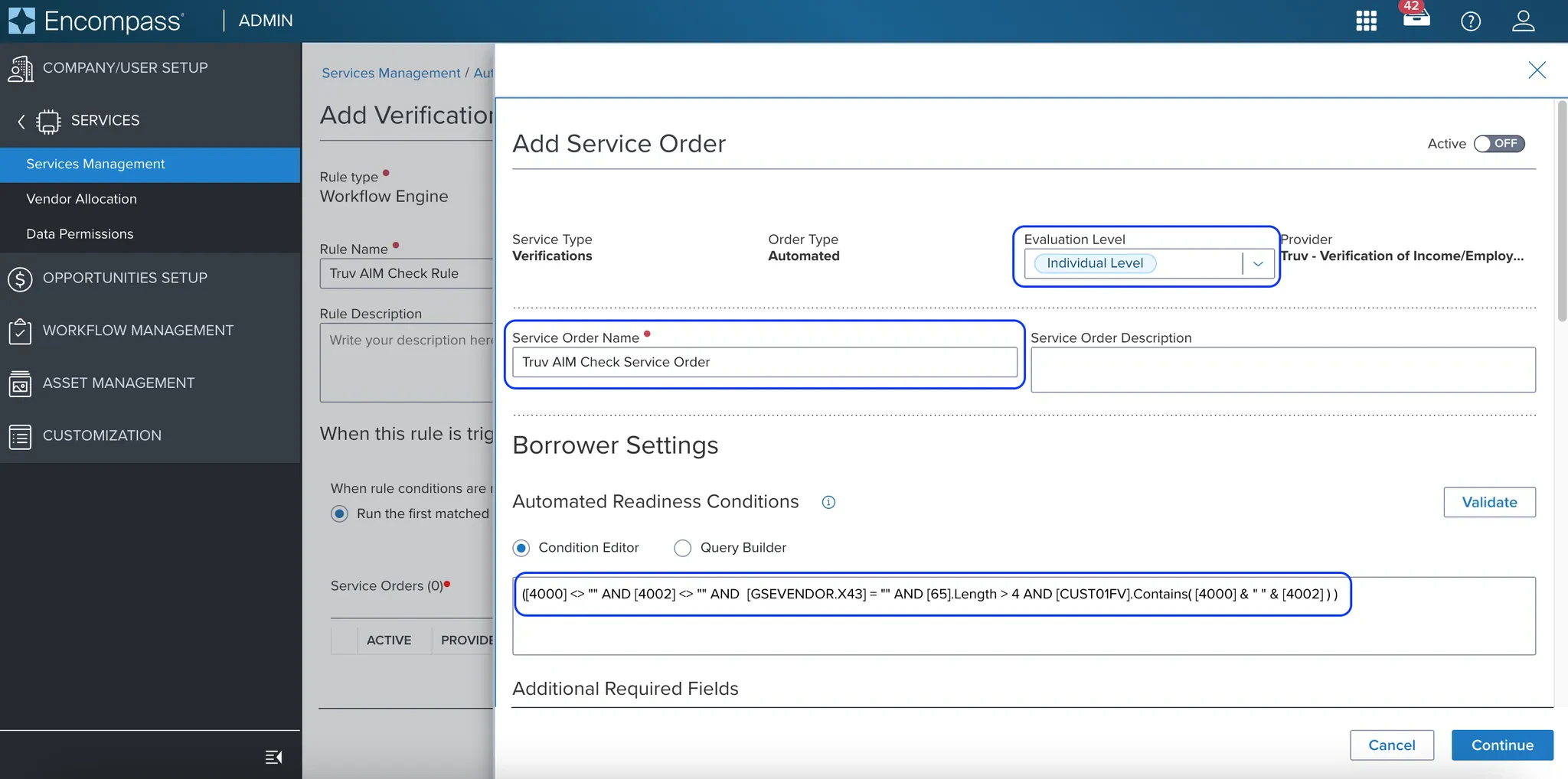
 In **Services Management**, navigate to **Automation Rules > Verifications** and click **Add**. Create a Service Order and configure the automated readiness conditions for borrower and co-borrower.
*Borrower:*
```
([4000] <> "" AND [4002] <> "" AND [GSEVENDOR.X43] = "" AND [65].Length > 4 AND [CUST01FV].Contains( "," & [4000] & " " & [4002] & "," ) )
```
*Co-Borrower:*
```
([4004] <> "" AND [4006] <> "" AND [GSEVENDOR.X44] = "" AND [97].Length > 4 AND [CUST01FV].Contains( "," & [4004] & " " & [4006] & "," ) )
```
If you used a different custom field than `CUST01FV` in Step 2, replace it in both conditions above.
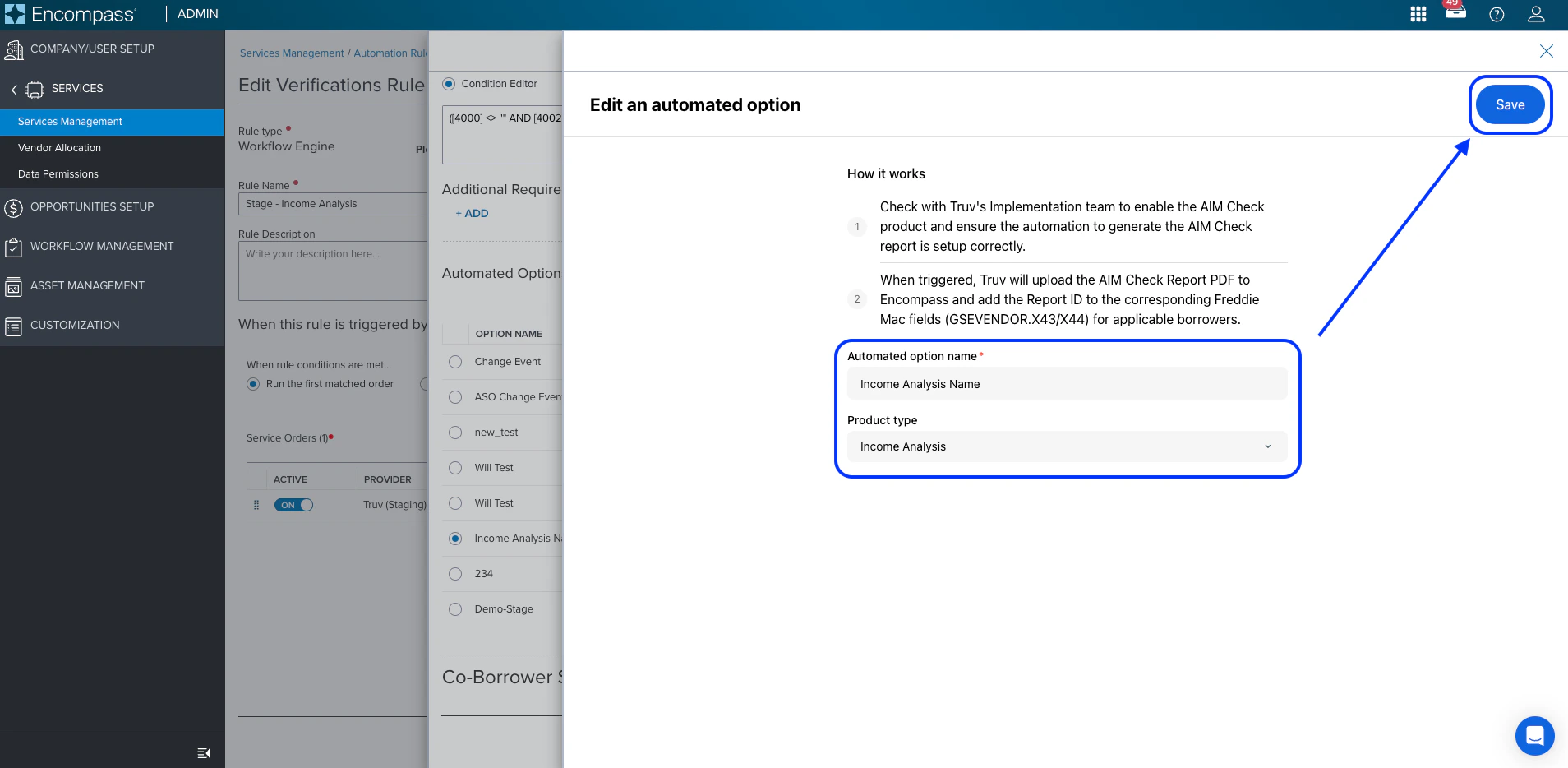
Create an **Automated Option** with **Product Type: Income Analysis**. Assign it to both the borrower and co-borrower settings, then set the Service Order to **Active**.
In **Services Management**, navigate to **Automation Rules > Verifications** and click **Add**. Create a Service Order and configure the automated readiness conditions for borrower and co-borrower.
*Borrower:*
```
([4000] <> "" AND [4002] <> "" AND [GSEVENDOR.X43] = "" AND [65].Length > 4 AND [CUST01FV].Contains( "," & [4000] & " " & [4002] & "," ) )
```
*Co-Borrower:*
```
([4004] <> "" AND [4006] <> "" AND [GSEVENDOR.X44] = "" AND [97].Length > 4 AND [CUST01FV].Contains( "," & [4004] & " " & [4006] & "," ) )
```
If you used a different custom field than `CUST01FV` in Step 2, replace it in both conditions above.
Create an **Automated Option** with **Product Type: Income Analysis**. Assign it to both the borrower and co-borrower settings, then set the Service Order to **Active**.
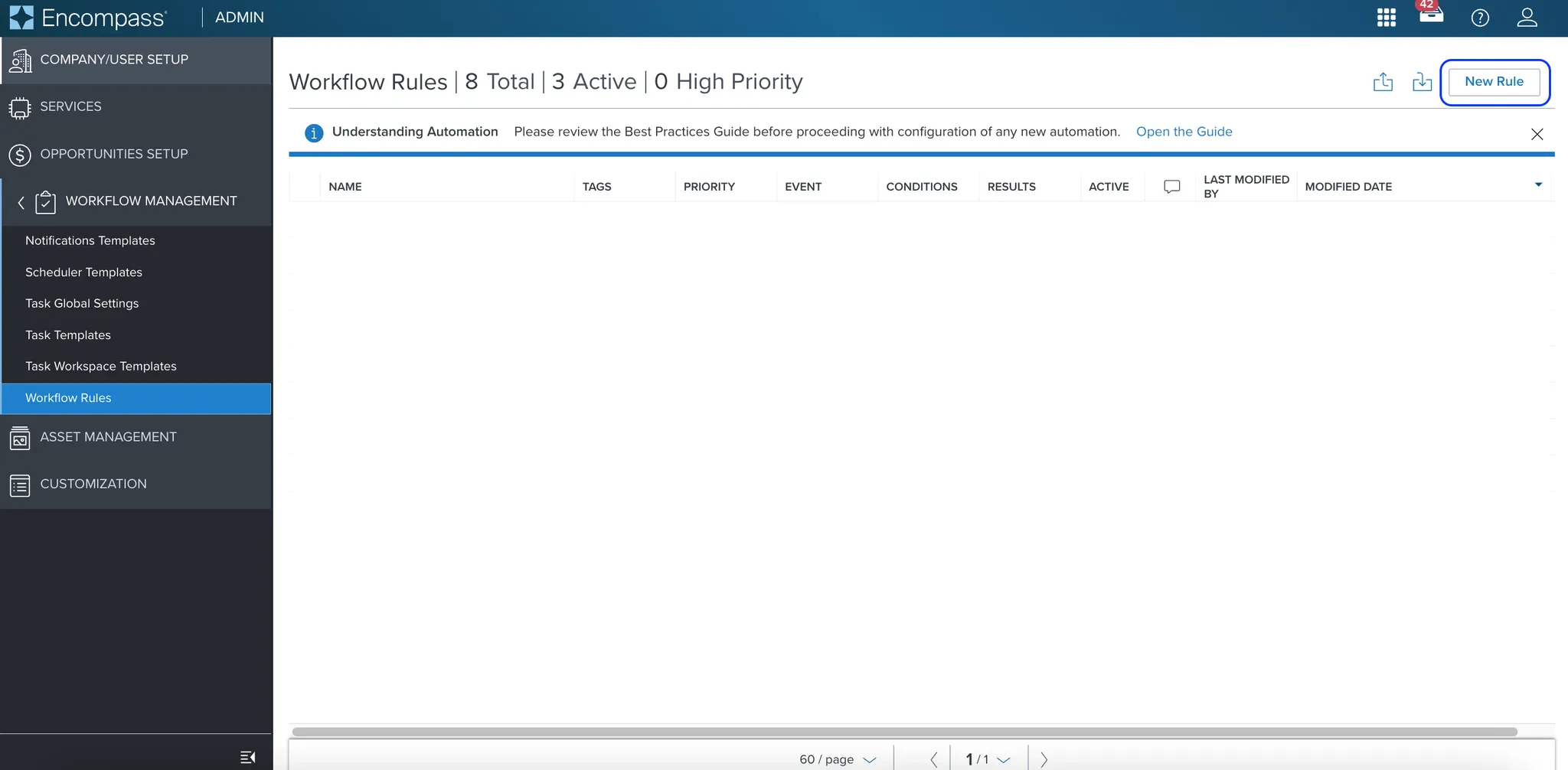
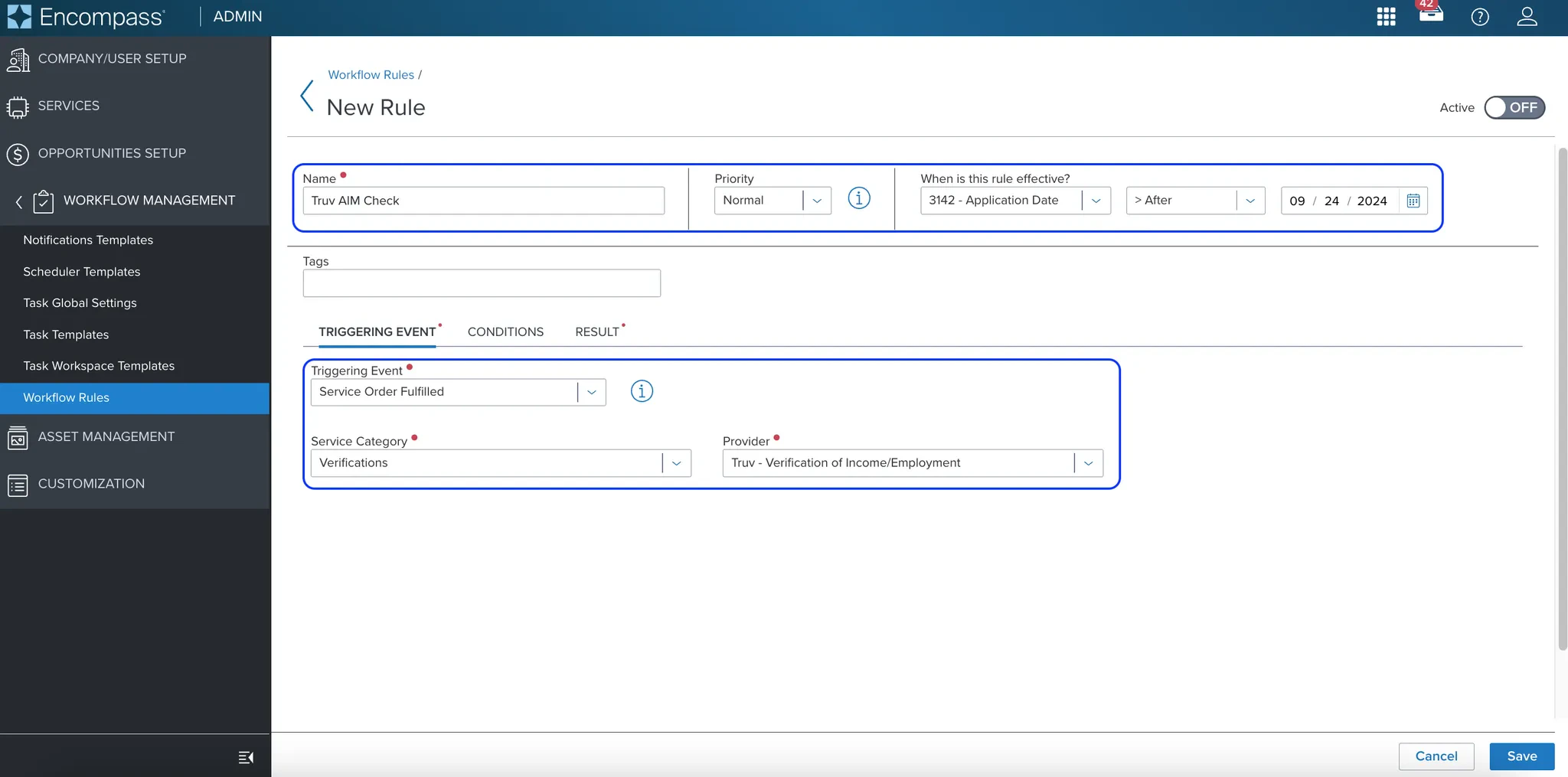
 Navigate to the [Workflow Rules setup](https://encompass.ice.com/admin/workflowrulessetup/rules) in the Encompass admin and click **New Rule**.
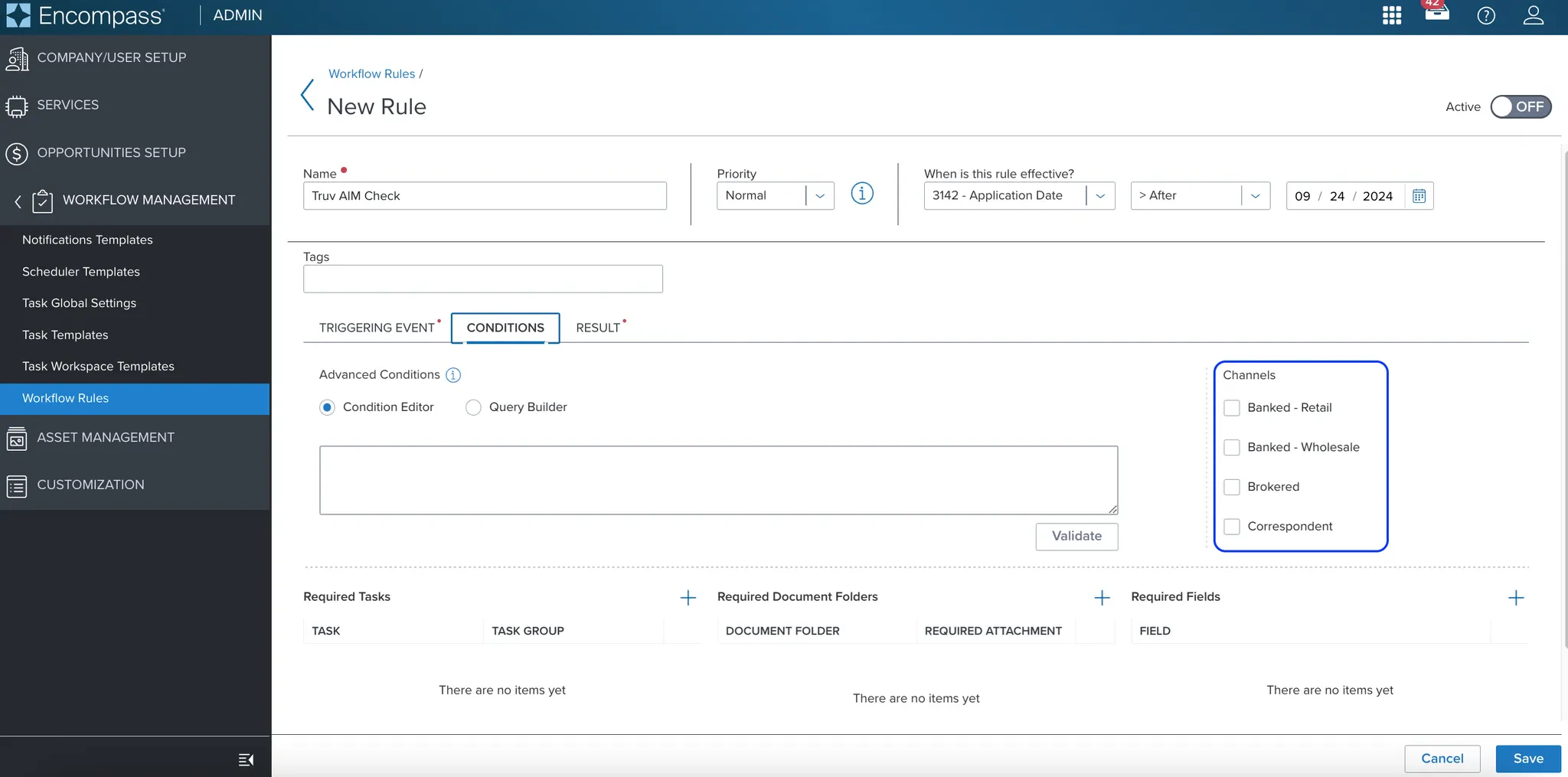
 Configure the rule with the following settings:
| Tab | Setting | Value |
| ----------------- | ---------------- | --------------------------------------------- |
| **Trigger Event** | Triggering Event | Service Order Fulfilled |
| **Trigger Event** | Service Category | Verifications |
| **Trigger Event** | Provider | Truv - Verification of Income/Employment |
| **Conditions** | Channels | Select all applicable loan channels |
| **Results** | Resulting Action | Order Service |
| **Results** | Service Rule | Select the Service Order configured in Step 4 |
Configure the rule with the following settings:
| Tab | Setting | Value |
| ----------------- | ---------------- | --------------------------------------------- |
| **Trigger Event** | Triggering Event | Service Order Fulfilled |
| **Trigger Event** | Service Category | Verifications |
| **Trigger Event** | Provider | Truv - Verification of Income/Employment |
| **Conditions** | Channels | Select all applicable loan channels |
| **Results** | Resulting Action | Order Service |
| **Results** | Service Rule | Select the Service Order configured in Step 4 |
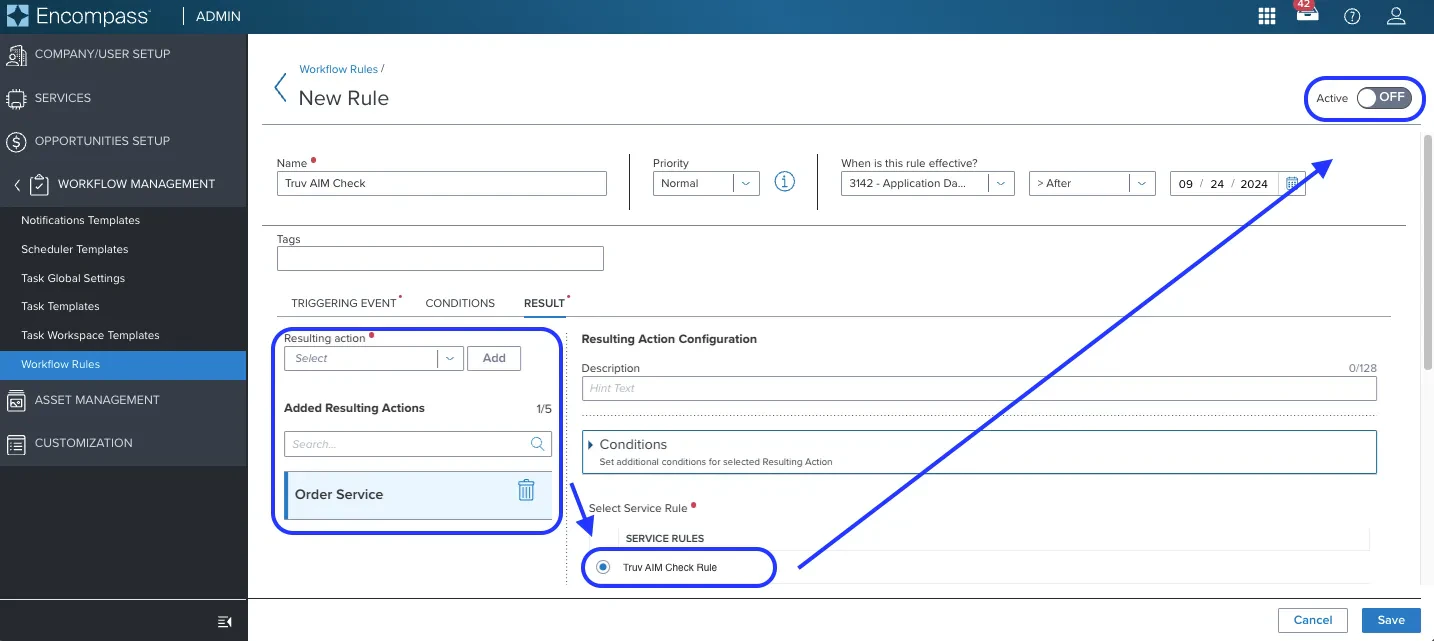 Set the Workflow Rule to **Active** to complete setup. Once active, the AIM Check report automatically downloads to the Encompass eFolder after a Truv Verification of Income order is fulfilled for any borrower who meets the configured criteria.
***
## Next steps
Set up initial and refresh ASO rules in Encompass
Manual ordering for VOIE, VOE, VOA, and Income and Assets
Templates, eFolder mapping, and notification settings
[support@truv.com](mailto:support@truv.com)
Set the Workflow Rule to **Active** to complete setup. Once active, the AIM Check report automatically downloads to the Encompass eFolder after a Truv Verification of Income order is fulfilled for any borrower who meets the configured criteria.
***
## Next steps
Set up initial and refresh ASO rules in Encompass
Manual ordering for VOIE, VOE, VOA, and Income and Assets
Templates, eFolder mapping, and notification settings
[support@truv.com](mailto:support@truv.com)