> ## Documentation Index
> Fetch the complete documentation index at: https://docs.truv.com/llms.txt
> Use this file to discover all available pages before exploring further.
# BeSmartee Integration
> Verify borrower income and employment within the BeSmartee digital mortgage POS platform
Integrating Truv with BeSmartee allows lenders to instantly access and verify borrowers' employment and income details from authenticated payroll sources. This integration enhances the accuracy and speed of the verification process, facilitating quicker loan decisions, all within the BeSmartee point-of-sale system.
Quickly verify employment and income during the borrower application
Accurate data sourced directly from authenticated payroll accounts
Skipped verifications become tasks in the borrower's to-do list for completion later
Connected accounts monitored continuously for new payroll documents
***
## How it works
During the pre-application phase, borrowers and co-borrowers are prompted to connect their payroll accounts using the **Verify Income** section of their BeSmartee loan application.
Once accounts are connected, Truv reports are made available in your connected Loan Origination System (LOS) along with relevant payroll documents.
If the Verify Income step is skipped, tasks are automatically assigned to the borrower or co-borrower in their to-do list to complete the verification later.
Connected accounts are continuously monitored for new payroll documents, enabling up-to-date verification reports throughout the origination process.
***
## BeSmartee Setup Guide
**Step 1:** Contact BeSmartee Customer Success to complete the one-time admin configuration.
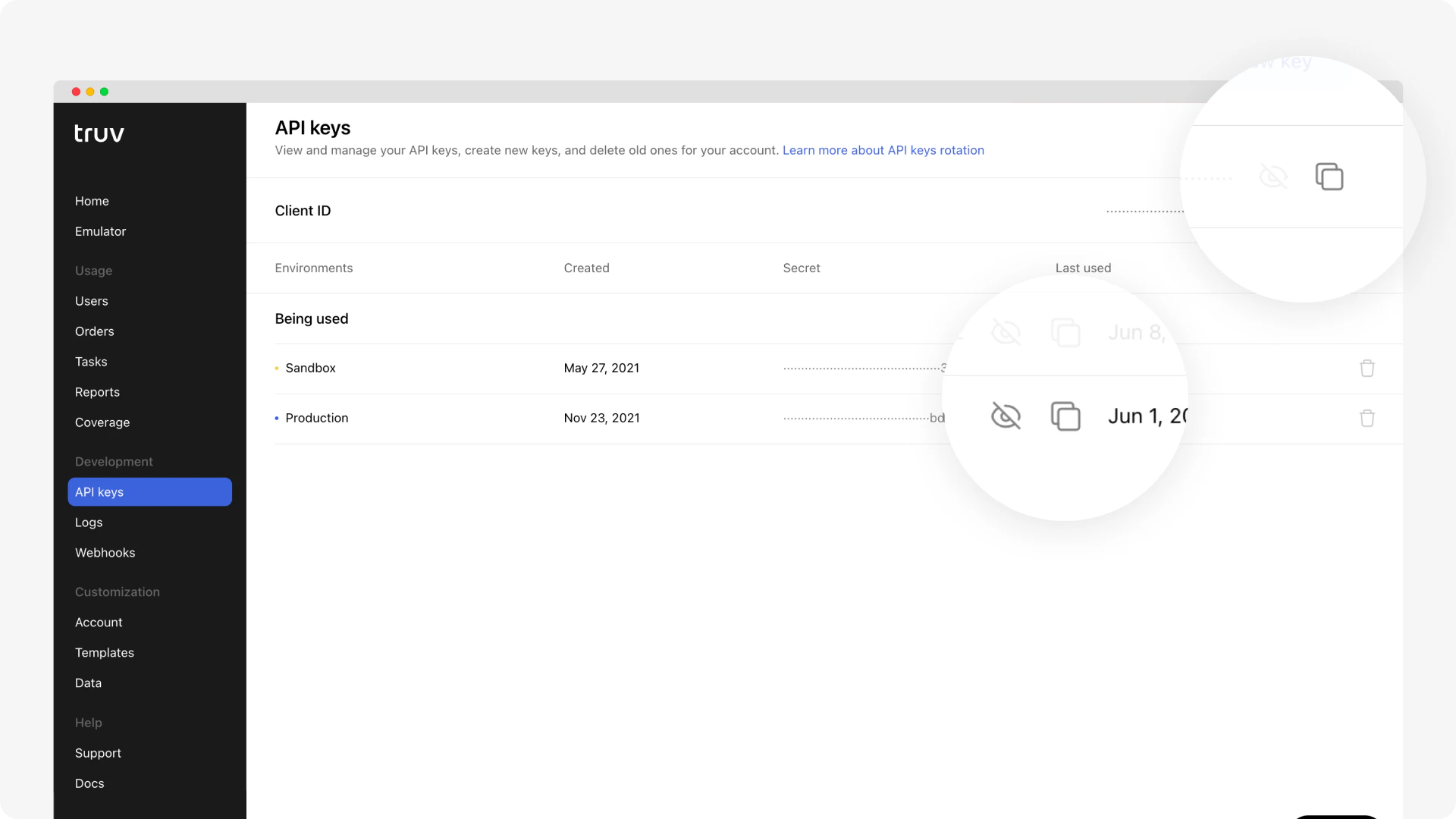
**Step 2:** Copy your Truv API credentials into the BeSmartee platform:
* Log into the [Truv Dashboard](https://dashboard.truv.com) and navigate to **Development → API Keys**
* Copy your **Client ID** and **Access Secret**
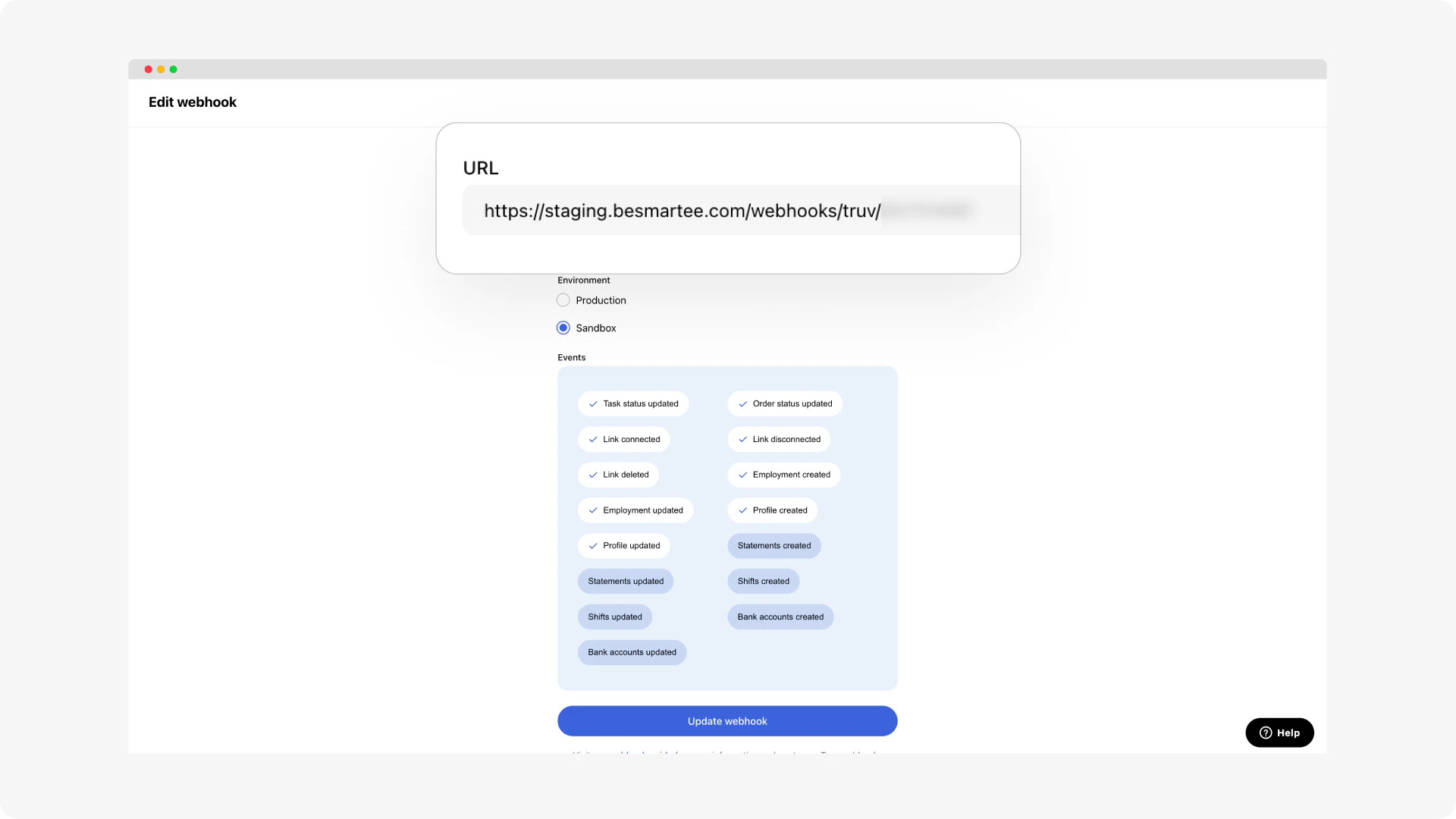
**Step 3:** Configure webhooks in the Truv Dashboard:
* BeSmartee utilizes webhooks to listen to events on every order from Truv and get updated statuses.
* Ask your BeSmartee Customer Success representative to provide the Sandbox and Production URLs to add to the Truv Dashboard.
* Once you have the URLs for both environments, navigate to **Truv Dashboard → Development → Webhooks** and add a URL for your environment. Each environment requires a specific and separate URL.
**Step 4:** Test the full borrower flow in **Sandbox mode** using Truv's test credentials.
**Step 5:** Obtain production access and confirm end-to-end setup with DU (Desktop Underwriter) and LPA (Loan Product Advisor) systems.
***
## Borrower workflow
Borrowers enter their employment and income information using the **Verify Income** section of the BeSmartee application. Alternatively, they receive tasks in their **TO-DO list** prompting them to connect their accounts through Truv.
***
## Next steps
View all POS integration options
Test your integration in sandbox
***
## Support
[support@truv.com](mailto:support@truv.com)
Contact BeSmartee customer success for platform-specific setup
 **Step 3:** Configure webhooks in the Truv Dashboard:
* BeSmartee utilizes webhooks to listen to events on every order from Truv and get updated statuses.
* Ask your BeSmartee Customer Success representative to provide the Sandbox and Production URLs to add to the Truv Dashboard.
* Once you have the URLs for both environments, navigate to **Truv Dashboard → Development → Webhooks** and add a URL for your environment. Each environment requires a specific and separate URL.
**Step 3:** Configure webhooks in the Truv Dashboard:
* BeSmartee utilizes webhooks to listen to events on every order from Truv and get updated statuses.
* Ask your BeSmartee Customer Success representative to provide the Sandbox and Production URLs to add to the Truv Dashboard.
* Once you have the URLs for both environments, navigate to **Truv Dashboard → Development → Webhooks** and add a URL for your environment. Each environment requires a specific and separate URL.
 **Step 4:** Test the full borrower flow in **Sandbox mode** using Truv's test credentials.
**Step 5:** Obtain production access and confirm end-to-end setup with DU (Desktop Underwriter) and LPA (Loan Product Advisor) systems.
***
## Borrower workflow
Borrowers enter their employment and income information using the **Verify Income** section of the BeSmartee application. Alternatively, they receive tasks in their **TO-DO list** prompting them to connect their accounts through Truv.
***
## Next steps
**Step 4:** Test the full borrower flow in **Sandbox mode** using Truv's test credentials.
**Step 5:** Obtain production access and confirm end-to-end setup with DU (Desktop Underwriter) and LPA (Loan Product Advisor) systems.
***
## Borrower workflow
Borrowers enter their employment and income information using the **Verify Income** section of the BeSmartee application. Alternatively, they receive tasks in their **TO-DO list** prompting them to connect their accounts through Truv.
***
## Next steps