> ## Documentation Index
> Fetch the complete documentation index at: https://docs.truv.com/llms.txt
> Use this file to discover all available pages before exploring further.
# Customer Portal
> Embed income, employment, and asset verification in your benefits portal using the CustomerPortal demo
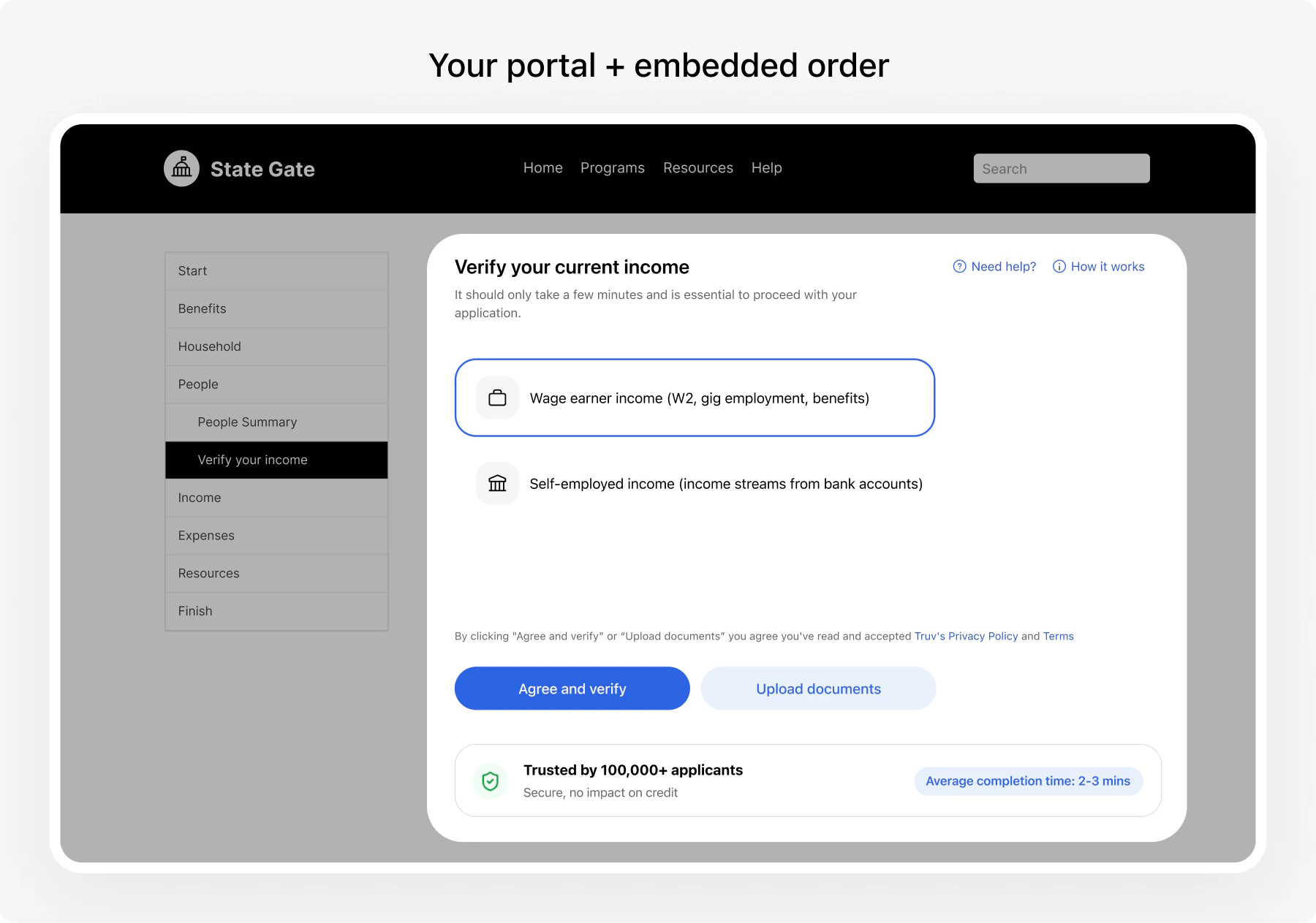 Verify client income, employment, and assets in real-time by embedding Truv Bridge directly in your benefits portal. The client searches for their employer, connects their accounts, and completes verification without leaving your system.
**Integration pattern:** [Embedded Orders](/developers/integration/embedded-orders/overview) | **Products:** VOIE, VOE, VOA | **Demo:** [Customer Portal](/developers/demos/public-sector/customer-portal)
***
## Get started
Clone and run the [Customer Portal demo](/developers/demos/public-sector/customer-portal) to see the full client self-service flow working locally.
```bash theme={null}
git clone https://github.com/truvhq/demo-apps.git
cd demo-apps
npm install && npm start
```
Open `http://localhost:5173`, select **Public Sector > Customer Portal**, choose a product (income, employment, or assets), and walk through a verification using sandbox credentials (`goodlogin` / `goodpassword`).
See [full setup instructions](/developers/quickstarts-overview#demo-apps) for ngrok and environment configuration.
The demo follows this sequence:
1. **Search for employer** — Your server calls [GET /v1/company-mappings-search/](/api-reference/companies/company_autocomplete_search) to find the client's employer by name. For asset verification, search financial institutions with [GET /v1/providers/](/api-reference/data-providers/providers-list).
2. **Create an order** — Your server sends client PII, case ID, and selected products to [POST /v1/orders/](/api-reference/orders/orders_create). The response includes a `bridge_token` and `user_id`.
3. **Initialize Bridge** — Your frontend opens [Truv Bridge](/developers/sdks/overview) with the `bridge_token`. Set `isOrder: true` and optionally pass `companyMappingId` to [deeplink](/developers/integration/embedded-orders/deeplinking) directly to the employer.
4. **Receive webhooks** — Truv sends an `order-status-updated` [webhook](/api-reference/webhooks) when verification completes. Verify the signature using the `X-Webhook-Sign` header with HMAC-SHA256.
5. **Retrieve reports** — Fetch the [VOIE report](/api-reference/user-income-and-employment-reports/users_reports) with `POST /v1/users/{user_id}/reports/` or the [assets report](/api-reference/user-asset-verification-reports/assets-report-create) with `POST /v1/users/{user_id}/assets/reports/`.
Each step maps to a specific file in the demo. Use these as reference when building your integration.
| Step | Demo file | API reference |
| --------------------- | -------------------------------------------------------------------------------------------------------------------- | --------------------------------------------------------------------------------- |
| Employer search | [`src/components/CompanySearch.jsx`](https://github.com/truvhq/demo-apps/blob/main/src/components/CompanySearch.jsx) | [Company Search](/api-reference/companies/company_autocomplete_search) |
| Order creation | [`server/routes/orders.js`](https://github.com/truvhq/demo-apps/blob/main/server/routes/orders.js) | [POST /v1/orders/](/api-reference/orders/orders_create) |
| Bridge initialization | [`src/demos/CustomerPortal.jsx`](https://github.com/truvhq/demo-apps/blob/main/src/demos/CustomerPortal.jsx) | [Bridge SDK](/developers/sdks/overview) |
| Webhook verification | [`server/webhooks.js`](https://github.com/truvhq/demo-apps/blob/main/server/webhooks.js) | [Webhooks](/api-reference/webhooks) |
| Report retrieval | [`server/routes/user-reports.js`](https://github.com/truvhq/demo-apps/blob/main/server/routes/user-reports.js) | [Income reports](/api-reference/user-income-and-employment-reports/users_reports) |
***
## Public Sector-specific configuration
### Case ID tracking
Use `external_user_id` to link orders to your agency's case or application identifier. This enables data continuity across verifications, renewals, and household members.
```json theme={null}
{
"products": ["income", "assets"],
"first_name": "John",
"last_name": "Doe",
"ssn": "222233333",
"external_user_id": "case-12345",
"template_id": "YOUR_TEMPLATE_ID",
"locale": "es"
}
```
Pass `template_id` to apply your agency's [customized template](/developers/customization) (branding, messaging, landing page). Pass `locale` to set the client's language — see [threshold languages](/government/overview#threshold-languages) for all supported values.
### Products
Request the products your eligibility determination requires:
| Product | Use case | Report |
| ------------ | ------------------------------------------------- | ------------------------------- |
| `income` | SNAP, TANF, Medicaid, housing assistance | VOIE (includes employment data) |
| `employment` | Employment status confirmation, compliance checks | VOE |
| `assets` | Means testing, housing assistance | VOA + Income Insights |
The `income` product includes employment verification automatically. Do not pass both `income` and `employment`.
### Household members
Create separate orders for each household member who needs to verify income. Use the same `external_user_id` (case ID) to group orders under one case.
| Approach | How it works | Best for |
| ---------------- | ------------------------------------------------------------ | ------------------------------------------ |
| **Portal tasks** | Create a to-do item in the portal for each household member | Agencies with portal login for all members |
| **Email / SMS** | Create an order with contact info and let Truv send the link | Agencies that collect contact consent |
### Content Security Policy
If your portal uses a Content Security Policy, allow `my.truv.com` (frame-src) and `cdn.truv.com` (script-src) for Bridge to load.
Missing CSP configuration is the most common cause of the widget failing to load. Check your CSP settings first if Bridge doesn't appear.
### Renewals and data refresh
When a client's case is due for recertification, use the [Order Refresh API](/api-reference/orders/orders_create_refresh_order) to pull updated data from their existing payroll and bank connections. If the session is still active, the client does not need to do anything — Truv returns fresh data automatically.
| Scenario | What happens | Client action |
| ------------------------ | ----------------------------------------------------------------------------------------------------------------------------- | ---------------------------------------- |
| **Session still active** | Refresh succeeds. Your system receives updated income and employment data via webhook. Pre-fill the caseworker review screen. | None |
| **Session expired** | Refresh fails with `login_error` or `mfa_error`. The client needs to re-authenticate. | Complete verification through a new link |
**Recommended renewal flow:**
1. **Attempt a refresh first.** When a case is due for recertification, create a [refresh order](/api-reference/orders/orders_create_refresh_order) against the original order. This is a server-side call — no portal interaction needed.
2. **If the refresh succeeds**, route the updated data to the caseworker review screen. The client's portal can show a "Verification complete" status with no action required.
3. **If the refresh fails**, display a verification task in the client's portal. The client logs in, sees the pending task, and completes a new verification through Bridge.
For programs with periodic eligibility reviews, most refreshes succeed because sessions stay active. For annual recertification, expect more re-authentication. Plan your portal UX for both paths.
See [Data Refresh](/developers/integration/embedded-orders/data-refresh) for the full implementation guide, including refresh limits (3 per connection per 24 hours) and failure handling.
### Self-certification
Enable [self-certification](/developers/integration/embedded-orders/self-certification) to let clients review and confirm retrieved income and employment data before submission. After verification, the client sees their data and marks it as representative or flags discrepancies.
Self-certification is especially useful for:
* Clients with multiple income sources or irregular pay
* Self-employed clients confirming bank transaction data
* Programs that require client attestation
Retrieve certification results from the [certifications endpoint](/api-reference/orders/orders_certifications_results) after the order completes.
#### What's configurable on the certification screen
The certification screen is the final review step the client sees before submitting their verified data. Most layout and copy are fixed today — these specific elements are tunable per company:
| Element | Configurable? | Notes |
| ------------------------------------------------ | ------------- | ---------------------------------------------------------------------------------------------------------------------------------------- |
| Hours display | Yes | Designed for Community Engagement verification (e.g., volunteer-hour requirements). Toggle on the company's certification configuration. |
| Link expiration text | Yes | The "Expires in…" countdown copy is set on the [Customization Template](/developers/customization). |
| Income amounts and pay-period grouping | No | Driven by the parsed payroll data — not editable client-side. |
| Section labels (employer, pay period, gross pay) | No | Fixed on the screen. |
To change configurable elements, contact your Truv Technical Account Manager.
### Email and SMS link delivery
For cases where the client verifies outside your portal (e.g., a caseworker sends a link during an office visit or phone call), you can embed the Truv verification link in your own communications:
| Field | Use |
| ----------------- | ------------------------------ |
| `share_url` | Full URL for email links |
| `short_share_url` | Shortened URL for SMS messages |
To use your own email/SMS system instead of Truv's, set `suppress_user_notifications: true` in the order's `notification_settings` and deliver the `share_url` yourself.
Order links expire based on your template configuration. To configure link expiry, set the expiration in your [template settings](/developers/customization) or pass it in the order request.
### Follow-up tasks
When a client starts but doesn't complete verification, configure [follow-up notifications](/developers/integration/embedded-orders/follow-up) to bring them back. Truv sends email/SMS reminders automatically based on your `notification_settings`.
| Setting | Description |
| -------------------------------- | --------------------------------------------------------- |
| `suppress_user_notifications` | Set to `false` (default) to enable Truv-managed reminders |
| `first_notification_delay_hours` | Hours to wait before the first reminder (default: 0) |
For portal-integrated workflows, you can also display incomplete verifications as pending tasks in your portal UI and let the client resume where they left off.
***
## Next steps
Send verification links and ingest data into caseworker screens
Skip the employer search screen for higher completion rates
Test with government-specific scenarios
Full implementation guide for order creation, Bridge, callbacks, and data retrieval
Verify client income, employment, and assets in real-time by embedding Truv Bridge directly in your benefits portal. The client searches for their employer, connects their accounts, and completes verification without leaving your system.
**Integration pattern:** [Embedded Orders](/developers/integration/embedded-orders/overview) | **Products:** VOIE, VOE, VOA | **Demo:** [Customer Portal](/developers/demos/public-sector/customer-portal)
***
## Get started
Clone and run the [Customer Portal demo](/developers/demos/public-sector/customer-portal) to see the full client self-service flow working locally.
```bash theme={null}
git clone https://github.com/truvhq/demo-apps.git
cd demo-apps
npm install && npm start
```
Open `http://localhost:5173`, select **Public Sector > Customer Portal**, choose a product (income, employment, or assets), and walk through a verification using sandbox credentials (`goodlogin` / `goodpassword`).
See [full setup instructions](/developers/quickstarts-overview#demo-apps) for ngrok and environment configuration.
The demo follows this sequence:
1. **Search for employer** — Your server calls [GET /v1/company-mappings-search/](/api-reference/companies/company_autocomplete_search) to find the client's employer by name. For asset verification, search financial institutions with [GET /v1/providers/](/api-reference/data-providers/providers-list).
2. **Create an order** — Your server sends client PII, case ID, and selected products to [POST /v1/orders/](/api-reference/orders/orders_create). The response includes a `bridge_token` and `user_id`.
3. **Initialize Bridge** — Your frontend opens [Truv Bridge](/developers/sdks/overview) with the `bridge_token`. Set `isOrder: true` and optionally pass `companyMappingId` to [deeplink](/developers/integration/embedded-orders/deeplinking) directly to the employer.
4. **Receive webhooks** — Truv sends an `order-status-updated` [webhook](/api-reference/webhooks) when verification completes. Verify the signature using the `X-Webhook-Sign` header with HMAC-SHA256.
5. **Retrieve reports** — Fetch the [VOIE report](/api-reference/user-income-and-employment-reports/users_reports) with `POST /v1/users/{user_id}/reports/` or the [assets report](/api-reference/user-asset-verification-reports/assets-report-create) with `POST /v1/users/{user_id}/assets/reports/`.
Each step maps to a specific file in the demo. Use these as reference when building your integration.
| Step | Demo file | API reference |
| --------------------- | -------------------------------------------------------------------------------------------------------------------- | --------------------------------------------------------------------------------- |
| Employer search | [`src/components/CompanySearch.jsx`](https://github.com/truvhq/demo-apps/blob/main/src/components/CompanySearch.jsx) | [Company Search](/api-reference/companies/company_autocomplete_search) |
| Order creation | [`server/routes/orders.js`](https://github.com/truvhq/demo-apps/blob/main/server/routes/orders.js) | [POST /v1/orders/](/api-reference/orders/orders_create) |
| Bridge initialization | [`src/demos/CustomerPortal.jsx`](https://github.com/truvhq/demo-apps/blob/main/src/demos/CustomerPortal.jsx) | [Bridge SDK](/developers/sdks/overview) |
| Webhook verification | [`server/webhooks.js`](https://github.com/truvhq/demo-apps/blob/main/server/webhooks.js) | [Webhooks](/api-reference/webhooks) |
| Report retrieval | [`server/routes/user-reports.js`](https://github.com/truvhq/demo-apps/blob/main/server/routes/user-reports.js) | [Income reports](/api-reference/user-income-and-employment-reports/users_reports) |
***
## Public Sector-specific configuration
### Case ID tracking
Use `external_user_id` to link orders to your agency's case or application identifier. This enables data continuity across verifications, renewals, and household members.
```json theme={null}
{
"products": ["income", "assets"],
"first_name": "John",
"last_name": "Doe",
"ssn": "222233333",
"external_user_id": "case-12345",
"template_id": "YOUR_TEMPLATE_ID",
"locale": "es"
}
```
Pass `template_id` to apply your agency's [customized template](/developers/customization) (branding, messaging, landing page). Pass `locale` to set the client's language — see [threshold languages](/government/overview#threshold-languages) for all supported values.
### Products
Request the products your eligibility determination requires:
| Product | Use case | Report |
| ------------ | ------------------------------------------------- | ------------------------------- |
| `income` | SNAP, TANF, Medicaid, housing assistance | VOIE (includes employment data) |
| `employment` | Employment status confirmation, compliance checks | VOE |
| `assets` | Means testing, housing assistance | VOA + Income Insights |
The `income` product includes employment verification automatically. Do not pass both `income` and `employment`.
### Household members
Create separate orders for each household member who needs to verify income. Use the same `external_user_id` (case ID) to group orders under one case.
| Approach | How it works | Best for |
| ---------------- | ------------------------------------------------------------ | ------------------------------------------ |
| **Portal tasks** | Create a to-do item in the portal for each household member | Agencies with portal login for all members |
| **Email / SMS** | Create an order with contact info and let Truv send the link | Agencies that collect contact consent |
### Content Security Policy
If your portal uses a Content Security Policy, allow `my.truv.com` (frame-src) and `cdn.truv.com` (script-src) for Bridge to load.
Missing CSP configuration is the most common cause of the widget failing to load. Check your CSP settings first if Bridge doesn't appear.
### Renewals and data refresh
When a client's case is due for recertification, use the [Order Refresh API](/api-reference/orders/orders_create_refresh_order) to pull updated data from their existing payroll and bank connections. If the session is still active, the client does not need to do anything — Truv returns fresh data automatically.
| Scenario | What happens | Client action |
| ------------------------ | ----------------------------------------------------------------------------------------------------------------------------- | ---------------------------------------- |
| **Session still active** | Refresh succeeds. Your system receives updated income and employment data via webhook. Pre-fill the caseworker review screen. | None |
| **Session expired** | Refresh fails with `login_error` or `mfa_error`. The client needs to re-authenticate. | Complete verification through a new link |
**Recommended renewal flow:**
1. **Attempt a refresh first.** When a case is due for recertification, create a [refresh order](/api-reference/orders/orders_create_refresh_order) against the original order. This is a server-side call — no portal interaction needed.
2. **If the refresh succeeds**, route the updated data to the caseworker review screen. The client's portal can show a "Verification complete" status with no action required.
3. **If the refresh fails**, display a verification task in the client's portal. The client logs in, sees the pending task, and completes a new verification through Bridge.
For programs with periodic eligibility reviews, most refreshes succeed because sessions stay active. For annual recertification, expect more re-authentication. Plan your portal UX for both paths.
See [Data Refresh](/developers/integration/embedded-orders/data-refresh) for the full implementation guide, including refresh limits (3 per connection per 24 hours) and failure handling.
### Self-certification
Enable [self-certification](/developers/integration/embedded-orders/self-certification) to let clients review and confirm retrieved income and employment data before submission. After verification, the client sees their data and marks it as representative or flags discrepancies.
Self-certification is especially useful for:
* Clients with multiple income sources or irregular pay
* Self-employed clients confirming bank transaction data
* Programs that require client attestation
Retrieve certification results from the [certifications endpoint](/api-reference/orders/orders_certifications_results) after the order completes.
#### What's configurable on the certification screen
The certification screen is the final review step the client sees before submitting their verified data. Most layout and copy are fixed today — these specific elements are tunable per company:
| Element | Configurable? | Notes |
| ------------------------------------------------ | ------------- | ---------------------------------------------------------------------------------------------------------------------------------------- |
| Hours display | Yes | Designed for Community Engagement verification (e.g., volunteer-hour requirements). Toggle on the company's certification configuration. |
| Link expiration text | Yes | The "Expires in…" countdown copy is set on the [Customization Template](/developers/customization). |
| Income amounts and pay-period grouping | No | Driven by the parsed payroll data — not editable client-side. |
| Section labels (employer, pay period, gross pay) | No | Fixed on the screen. |
To change configurable elements, contact your Truv Technical Account Manager.
### Email and SMS link delivery
For cases where the client verifies outside your portal (e.g., a caseworker sends a link during an office visit or phone call), you can embed the Truv verification link in your own communications:
| Field | Use |
| ----------------- | ------------------------------ |
| `share_url` | Full URL for email links |
| `short_share_url` | Shortened URL for SMS messages |
To use your own email/SMS system instead of Truv's, set `suppress_user_notifications: true` in the order's `notification_settings` and deliver the `share_url` yourself.
Order links expire based on your template configuration. To configure link expiry, set the expiration in your [template settings](/developers/customization) or pass it in the order request.
### Follow-up tasks
When a client starts but doesn't complete verification, configure [follow-up notifications](/developers/integration/embedded-orders/follow-up) to bring them back. Truv sends email/SMS reminders automatically based on your `notification_settings`.
| Setting | Description |
| -------------------------------- | --------------------------------------------------------- |
| `suppress_user_notifications` | Set to `false` (default) to enable Truv-managed reminders |
| `first_notification_delay_hours` | Hours to wait before the first reminder (default: 0) |
For portal-integrated workflows, you can also display incomplete verifications as pending tasks in your portal UI and let the client resume where they left off.
***
## Next steps
Send verification links and ingest data into caseworker screens
Skip the employer search screen for higher completion rates
Test with government-specific scenarios
Full implementation guide for order creation, Bridge, callbacks, and data retrieval