> ## Documentation Index
> Fetch the complete documentation index at: https://docs.truv.com/llms.txt
> Use this file to discover all available pages before exploring further.
# New Order
> Create a verification order through the Truv Dashboard without writing any code
Create orders directly in the Truv Dashboard. No API integration required. Enter the user's details, select a product, and Truv sends an email or SMS with a link to complete verification.
Providing both email and phone maximizes success rates. High-intent users complete over 50% of verifications within 2 hours.
```mermaid theme={null}
sequenceDiagram
participant Dashboard as Truv Dashboard
participant API as Truv API
participant User as User
Dashboard->>API: 1. Create Order
API->>User: 2. Email/SMS with verification link
User->>API: 3. User clicks link, connects accounts
API-->>Dashboard: 4. Status updates in Dashboard
```
***
## Create an order
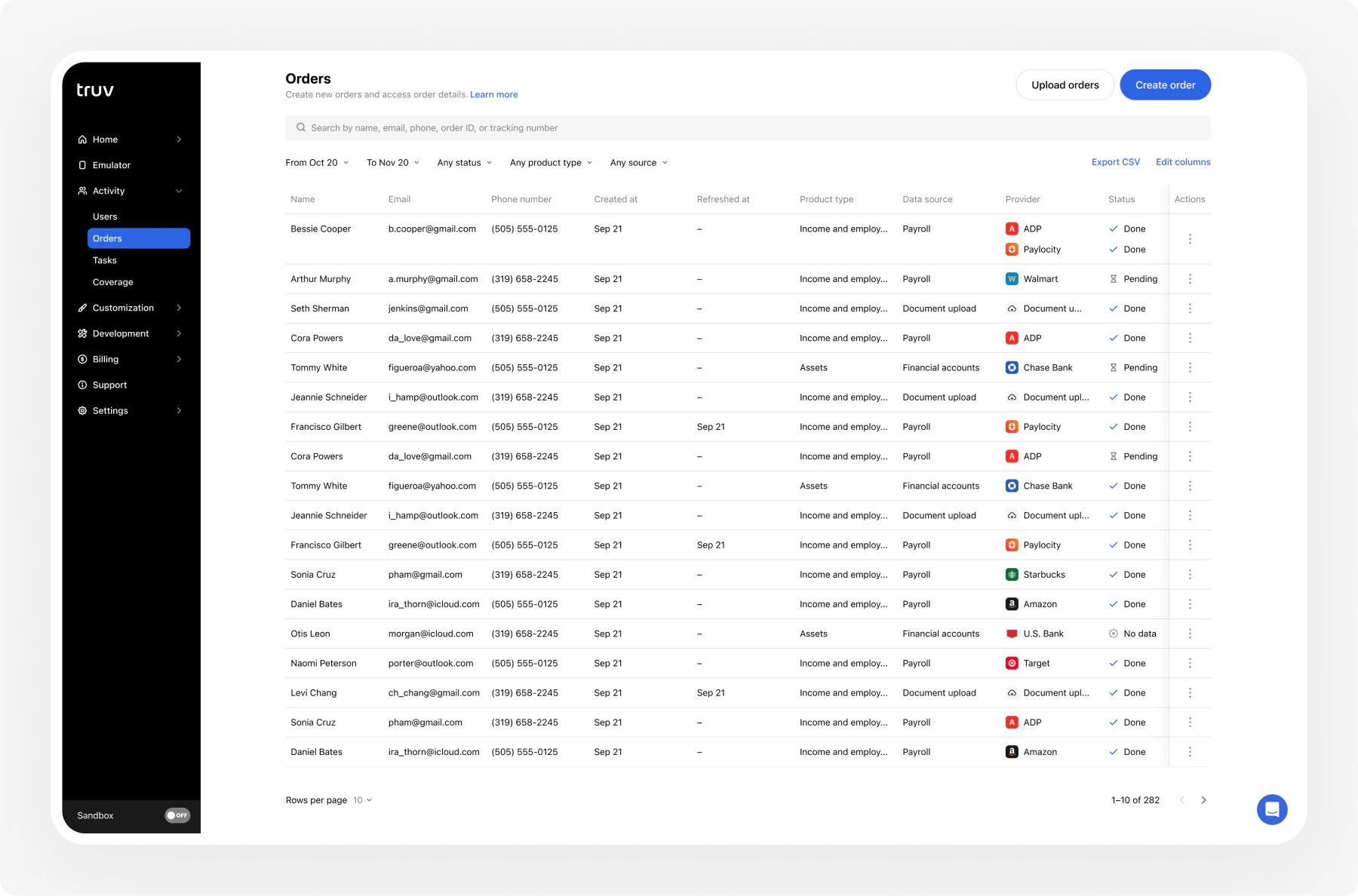
1. Go to **Activity > Orders** in the [Dashboard](https://dashboard.truv.com) and click **Create Order**
 2. Select the product type (income, employment, assets)
3. Enter applicant details. First and last name are required.
4. Choose how to reach the user: send via email, SMS, or generate a shareable link
2. Select the product type (income, employment, assets)
3. Enter applicant details. First and last name are required.
4. Choose how to reach the user: send via email, SMS, or generate a shareable link
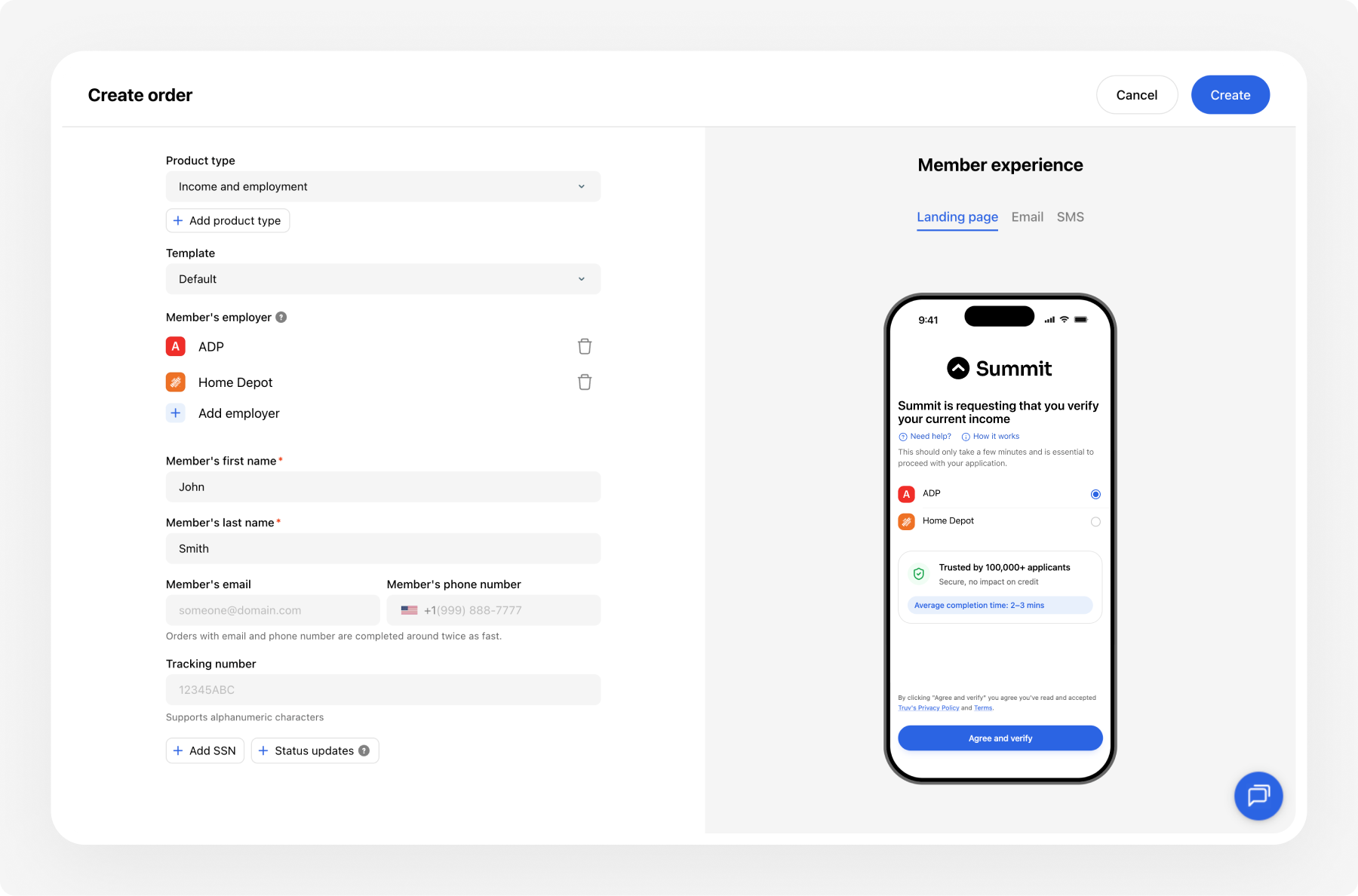 5. Click **Create**. Truv sends the notification automatically.
### Required fields
| Field | Description |
| -------------- | ----------------------------- |
| `First name` | User's first name |
| `Last name` | User's last name |
| `Product type` | Income, employment, or assets |
### Recommended fields
| Field | Description |
| -------------- | --------------------------------------------------------------------------------------------------------------------------------------- |
| `Email` | User's email for notifications |
| `Phone` | User's phone for SMS notifications |
| `SSN` | Social security number (4 or 9 digits). Used for identity matching. |
| `Loan number` | Loan identifier for tracking |
| `Employer` | Pre-fill employer info to skip search (up to 5 employers) |
| `Template` | [Customization template](/developers/customization) for branding |
| `Custom field` | Custom metadata field to associate with the order. Configure custom fields in your [customization template](/developers/customization). |
If both email and phone are left blank, Truv cannot send notifications. Retrieve the verification link from the order details and share it manually.
***
## Track order status
After creating an order, track its progress directly in the Dashboard. The order card shows the current status, notification history, and connection results.
Subscribe to email alerts for order status changes in **Settings > Notifications** to get notified when orders complete or fail without checking the Dashboard.
| Status | Description |
| ------------- | ------------------------------------------------ |
| **Pending** | Order created, system processing |
| **Sent** | Email or SMS sent to the user |
| **Completed** | User connected their account |
| **Error** | Notification delivery failed |
| **Canceled** | Order manually canceled |
| **Expired** | Order exceeded its expiration window |
| **Skipped** | User opened the link but did not complete |
| **No Data** | User connected but the provider returned no data |
***
## Set expiration and reminders
The default expiration window is **72 hours**, configurable from 1 day to 12 weeks. Expiration periods do not count weekends. Configure expiration and automatic reminders in the [Dashboard](/developers/dashboard) under **Customization**.
***
## View results
Once the user completes verification:
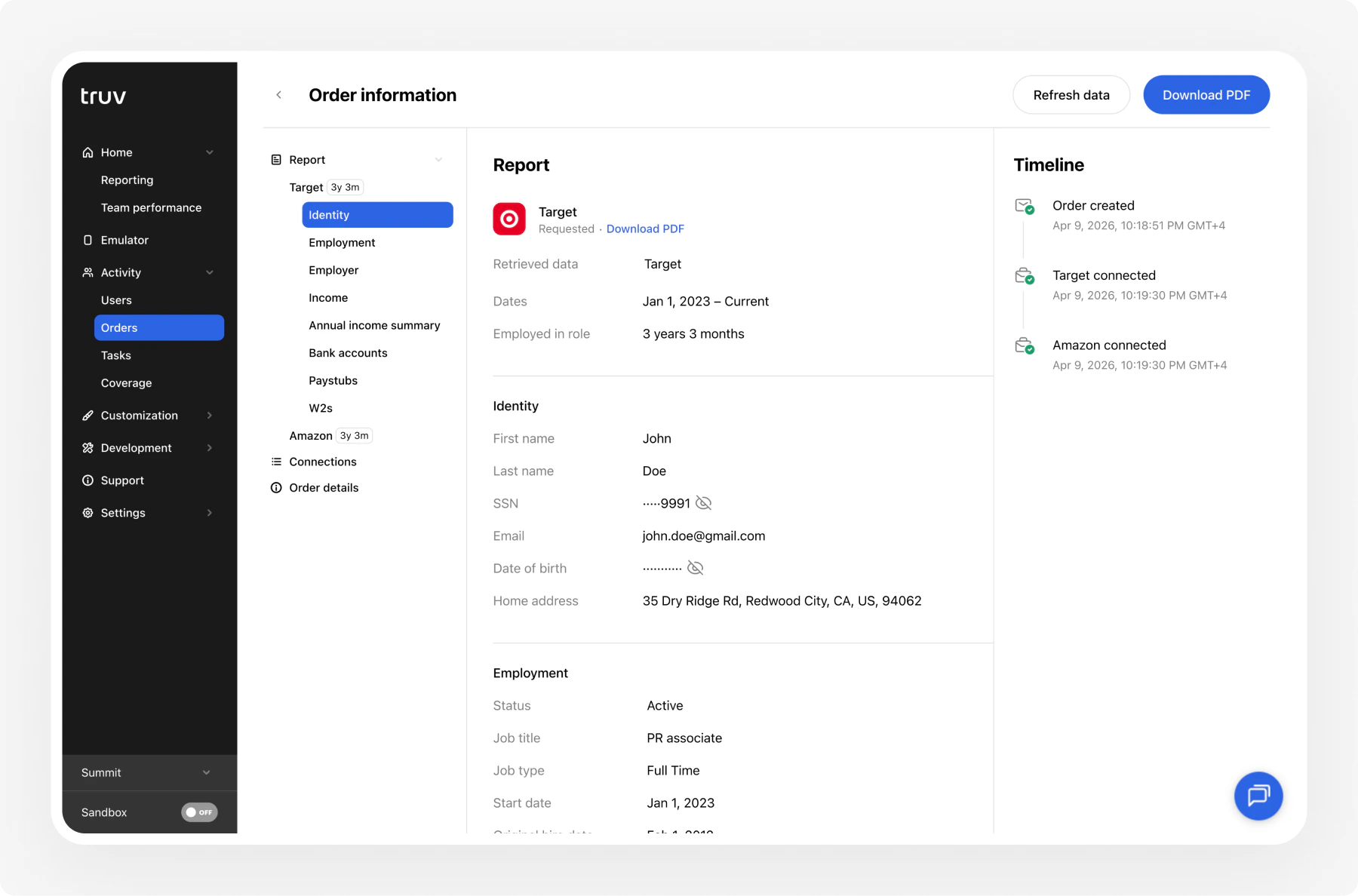
1. Open the order in **Activity > Orders**
2. View employer data, income, and employment details
3. Download PDF reports for each verified employer
4. Export data as needed
5. Click **Create**. Truv sends the notification automatically.
### Required fields
| Field | Description |
| -------------- | ----------------------------- |
| `First name` | User's first name |
| `Last name` | User's last name |
| `Product type` | Income, employment, or assets |
### Recommended fields
| Field | Description |
| -------------- | --------------------------------------------------------------------------------------------------------------------------------------- |
| `Email` | User's email for notifications |
| `Phone` | User's phone for SMS notifications |
| `SSN` | Social security number (4 or 9 digits). Used for identity matching. |
| `Loan number` | Loan identifier for tracking |
| `Employer` | Pre-fill employer info to skip search (up to 5 employers) |
| `Template` | [Customization template](/developers/customization) for branding |
| `Custom field` | Custom metadata field to associate with the order. Configure custom fields in your [customization template](/developers/customization). |
If both email and phone are left blank, Truv cannot send notifications. Retrieve the verification link from the order details and share it manually.
***
## Track order status
After creating an order, track its progress directly in the Dashboard. The order card shows the current status, notification history, and connection results.
Subscribe to email alerts for order status changes in **Settings > Notifications** to get notified when orders complete or fail without checking the Dashboard.
| Status | Description |
| ------------- | ------------------------------------------------ |
| **Pending** | Order created, system processing |
| **Sent** | Email or SMS sent to the user |
| **Completed** | User connected their account |
| **Error** | Notification delivery failed |
| **Canceled** | Order manually canceled |
| **Expired** | Order exceeded its expiration window |
| **Skipped** | User opened the link but did not complete |
| **No Data** | User connected but the provider returned no data |
***
## Set expiration and reminders
The default expiration window is **72 hours**, configurable from 1 day to 12 weeks. Expiration periods do not count weekends. Configure expiration and automatic reminders in the [Dashboard](/developers/dashboard) under **Customization**.
***
## View results
Once the user completes verification:
1. Open the order in **Activity > Orders**
2. View employer data, income, and employment details
3. Download PDF reports for each verified employer
4. Export data as needed
 ***
## Next steps
Filter, search, and export order data
Create orders in bulk via CSV
Full Dashboard overview and backend integration
***
## Next steps
Filter, search, and export order data
Create orders in bulk via CSV
Full Dashboard overview and backend integration