> ## Documentation Index
> Fetch the complete documentation index at: https://docs.truv.com/llms.txt
> Use this file to discover all available pages before exploring further.
# CSV Upload
> Create verification orders in bulk by uploading a CSV file through the Dashboard
For high-volume order creation without API integration, upload a CSV file through the Dashboard. Each row creates a separate order. Truv sends notifications to all users automatically.
```mermaid theme={null}
sequenceDiagram
participant Dashboard as Truv Dashboard
participant API as Truv API
participant Users as Users
Dashboard->>API: 1. Upload CSV file
API->>API: Validate rows
API->>Users: 2. Email/SMS to each user
Users->>API: 3. Users complete verifications
API-->>Dashboard: 4. Status updates per order
```
***
## Upload orders
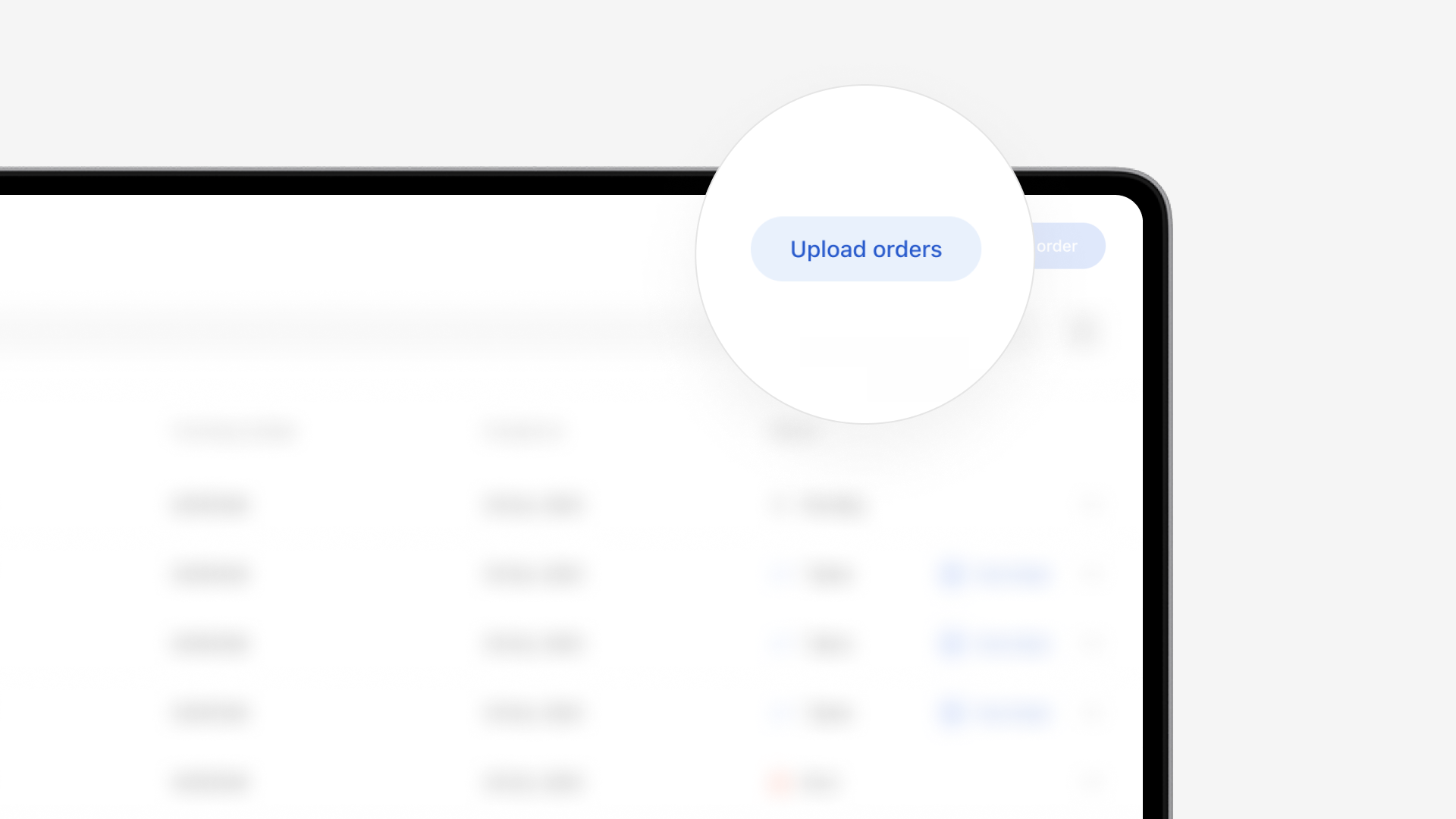
1. Go to **Activity > Orders** and click **Upload Order**
2. Select the product type (income, employment, assets)
3. Download the sample CSV template provided
4. Fill in the template with applicant details, one row per order
5. Drag-and-drop or browse to upload the completed file
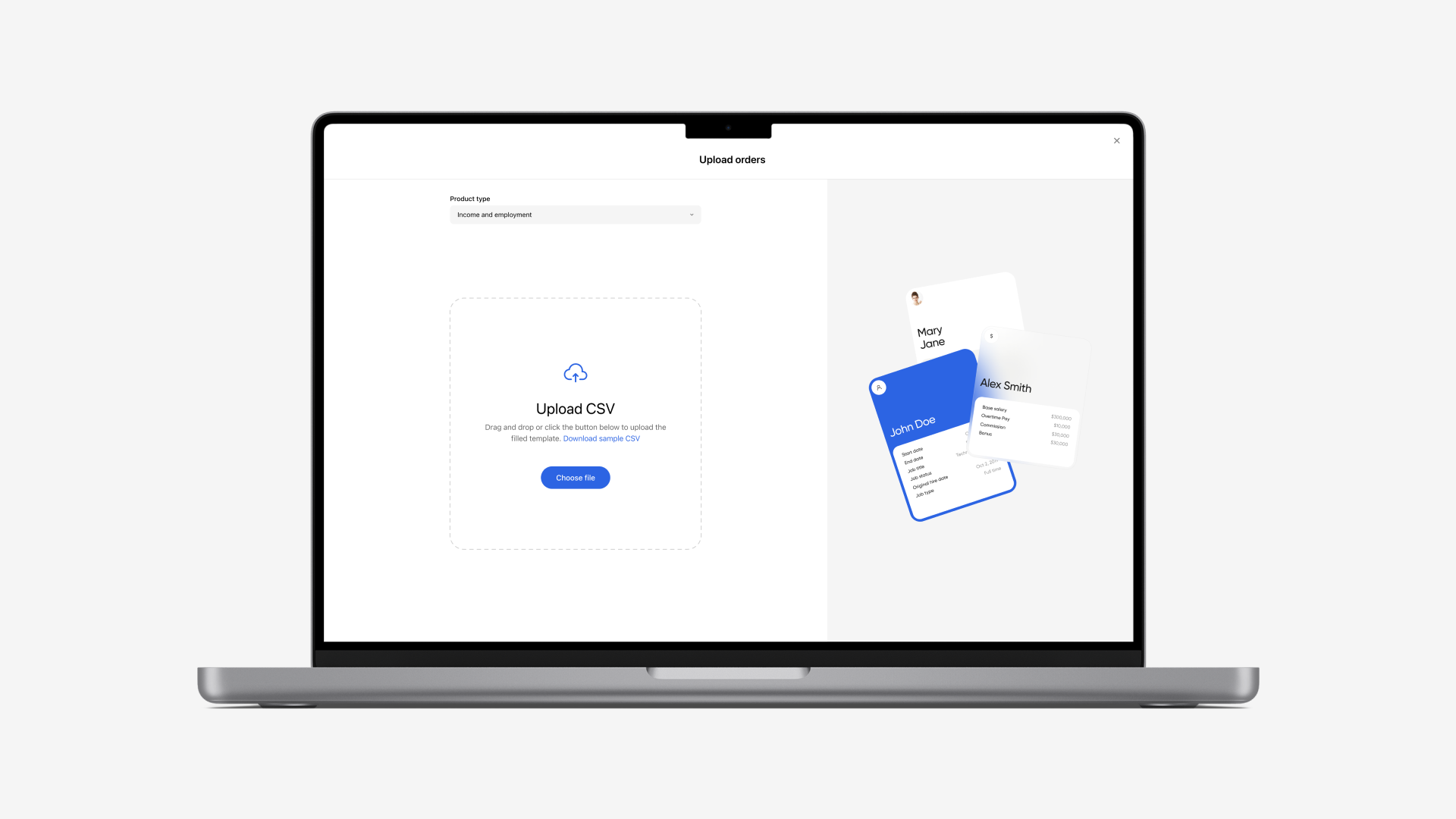
6. Truv validates mandatory fields before processing
Audit your CSV file to ensure all details are accurately filled out before uploading. Rows with missing mandatory fields (first name, last name) are rejected.
***
## CSV template fields
| Column | Required | Description |
| ------------------ | -------- | -------------------------------------- |
| `first_name` | Yes | User's first name |
| `last_name` | Yes | User's last name |
| `email` | No\* | User's email for notifications |
| `phone` | No\* | User's phone for SMS notifications |
| `ssn` | No | Social security number (4 or 9 digits) |
| `employer_name` | No | Pre-fill employer for deeplinking |
| `loan_number` | No | Loan identifier for tracking |
| `external_user_id` | No | Your internal identifier |
At least one of `email` or `phone` is recommended per row. Otherwise Truv cannot send notifications and you must share the verification link manually.
***
## After upload
Each row creates a separate order visible in the **Activity > Orders** table. Filter by source to see only CSV-uploaded orders. Track individual order statuses and view results as users complete their verifications.
See [Manage Orders](/developers/integration/manual-orders/manage-orders) for filtering, searching, and exporting.
***
## Next steps
Filter, search, and export order data
Create a single order through the Dashboard