> ## Documentation Index
> Fetch the complete documentation index at: https://docs.truv.com/llms.txt
> Use this file to discover all available pages before exploring further.
# Display Modes
> Control how the embedded order appears: as an overlay dialog or inline within your page
Set the order's display mode with the `position` property when you initialize Truv Bridge.
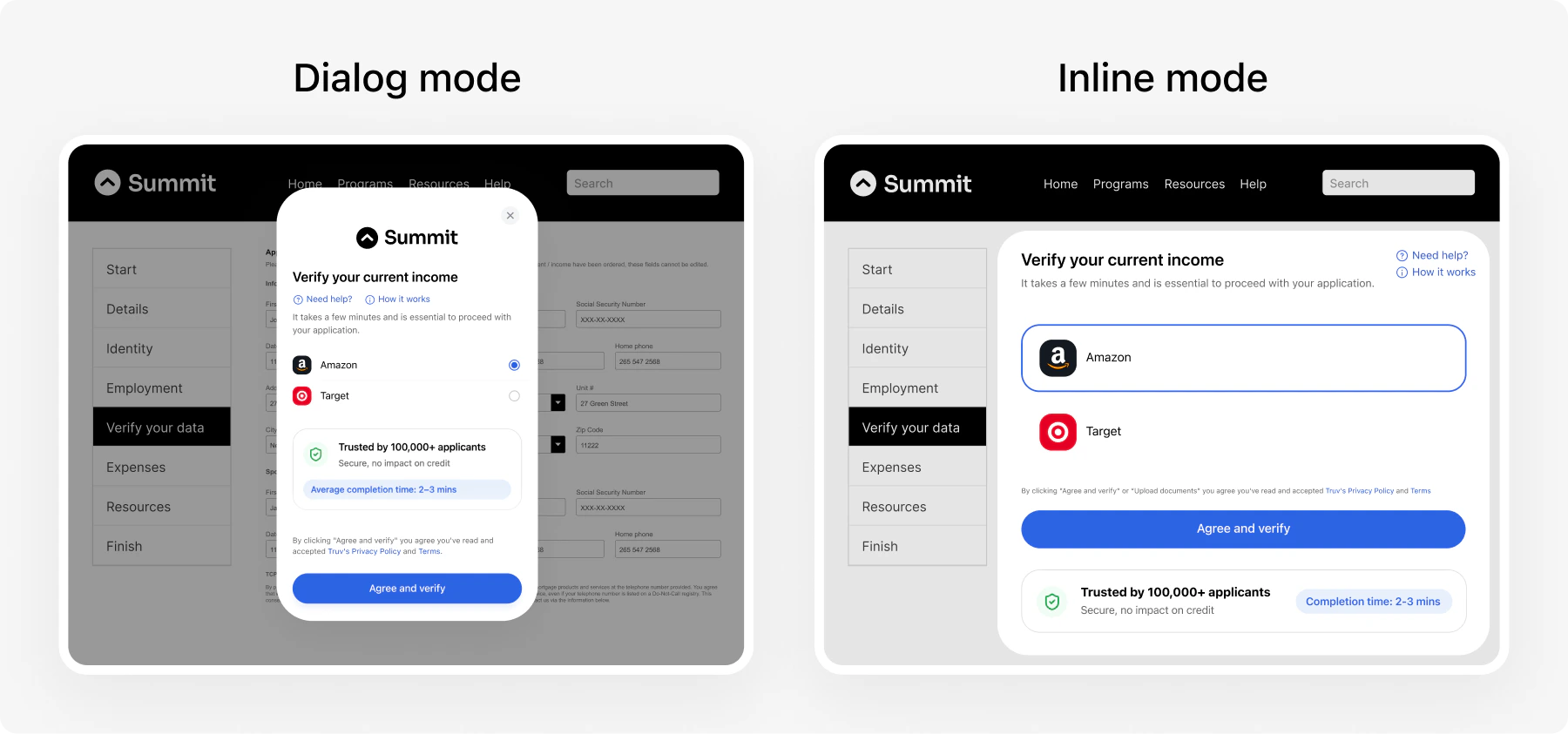 ## Dialog (default)
Bridge opens as a centered overlay and disables page scrolling.
```javascript theme={null}
var bridge = TruvBridge.init({
isOrder: true,
bridgeToken: bridgeToken
});
```
## Inline
Bridge embeds inside an existing DOM element. Use this for seamless page layouts.
```javascript theme={null}
var bridge = TruvBridge.init({
isOrder: true,
bridgeToken: bridgeToken,
position: {
type: 'inline',
container: document.querySelector('#order-container')
}
});
```
When using inline mode:
1. The container element must remain stable. Do not unmount or reparent it while the bridge is open.
2. Manually close the bridge before removing the container (e.g., on SPA navigation).
3. Only one bridge instance can be open at a time.
Both behaviors are account-level settings. New accounts default to the simpler setup; existing accounts may keep the previous one.
| Behavior | Values |
| --------------------------------------- | -------------------------------------------------------------------------------------------------------------------------------------------------------------------------------------------------------------------- |
| **Frame sizing** | • [**Automatic height**](#frame-sizing) — default for new accounts
## Dialog (default)
Bridge opens as a centered overlay and disables page scrolling.
```javascript theme={null}
var bridge = TruvBridge.init({
isOrder: true,
bridgeToken: bridgeToken
});
```
## Inline
Bridge embeds inside an existing DOM element. Use this for seamless page layouts.
```javascript theme={null}
var bridge = TruvBridge.init({
isOrder: true,
bridgeToken: bridgeToken,
position: {
type: 'inline',
container: document.querySelector('#order-container')
}
});
```
When using inline mode:
1. The container element must remain stable. Do not unmount or reparent it while the bridge is open.
2. Manually close the bridge before removing the container (e.g., on SPA navigation).
3. Only one bridge instance can be open at a time.
Both behaviors are account-level settings. New accounts default to the simpler setup; existing accounts may keep the previous one.
| Behavior | Values |
| --------------------------------------- | -------------------------------------------------------------------------------------------------------------------------------------------------------------------------------------------------------------------- |
| **Frame sizing** | • [**Automatic height**](#frame-sizing) — default for new accounts
• [**Fixed height**](#alternative-frame-sizing-fixed-height) — use only if automatic height isn't suitable (was default until June 18, 2026) |
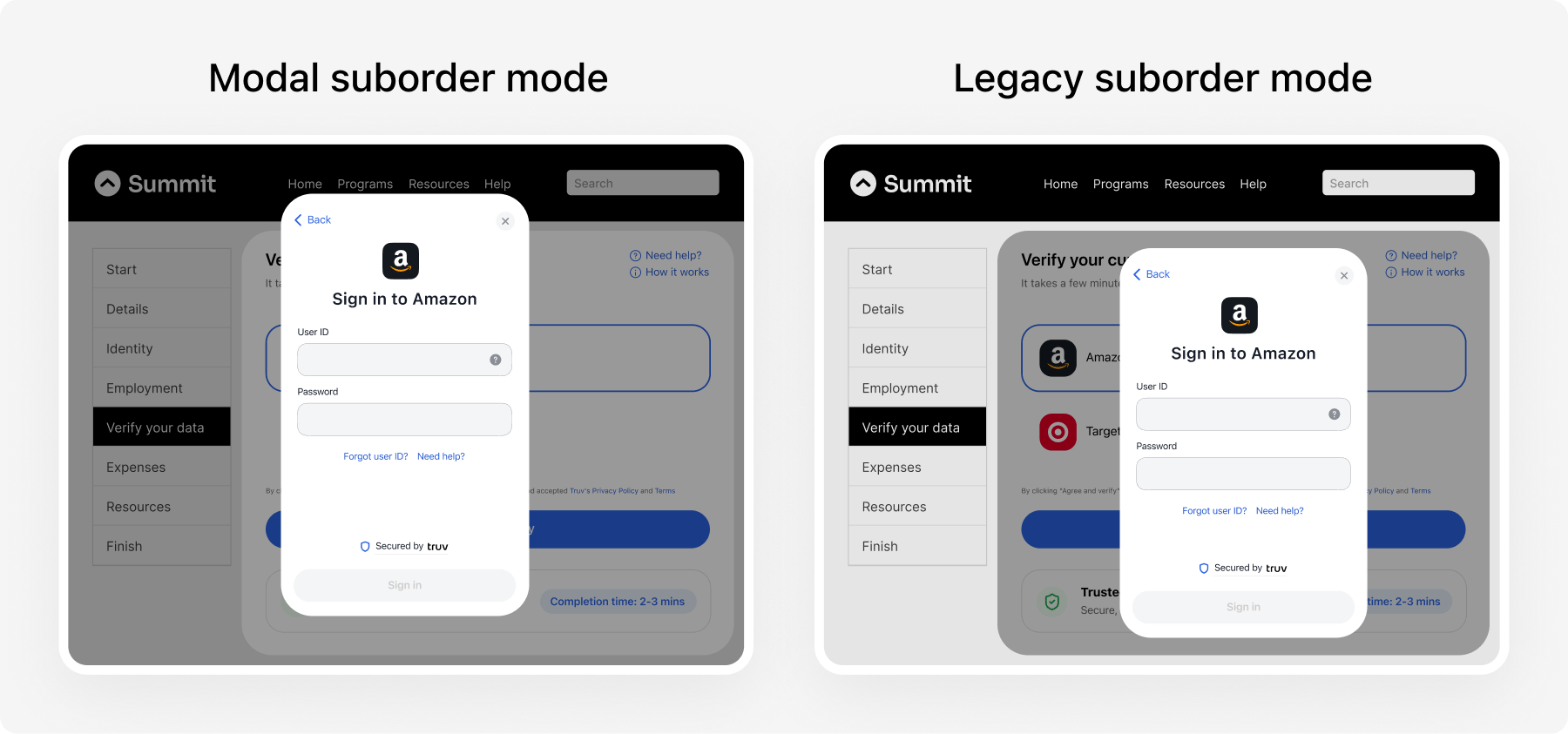
| [**Suborder launch**](#suborder-launch) | • **As a modal** — default for new accounts
• **Inside the inline frame** — deprecated as of June 18, 2026; was the previous default |
To change either behavior, contact your Truv representative or [support@truv.com](mailto:support@truv.com) — your `TruvBridge.init` call stays the same.
### Frame sizing
By default the inline frame height follows its content. We recommend automatic height: it takes the least effort to embed correctly. Set only `width` on the container and let the frame grow to fit. The page keeps a single scrollbar, with no double-scroll.
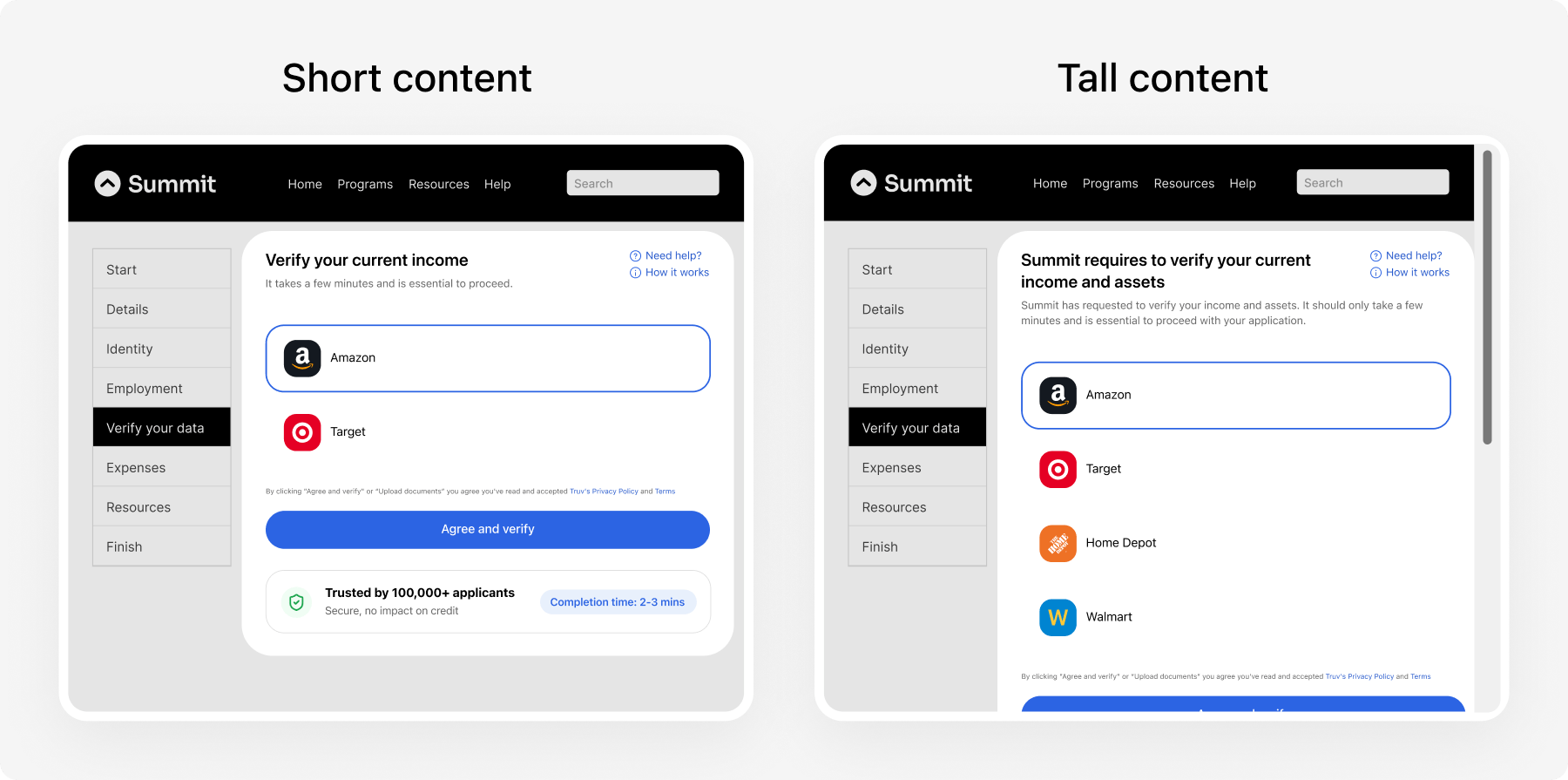 The minimum supported width is **320** pixels. Provide a wider container whenever possible for a comfortable experience.
Don't set `height` on the container. The frame sizes itself to its content — a fixed height would clip or stretch it.
With automatic height, the frame expands to its full content height and the page provides the scroll. Make sure the parent elements scroll correctly — don't clip the container or trap the scroll inside it.
### Alternative frame sizing: fixed height
With fixed height, you set an explicit `height` on the container and the frame doesn't resize itself. This was the previous default; new accounts use automatic height instead. Use fixed height only if automatic height isn't suitable for your layout.
The minimum supported width is **320** pixels. Provide a wider container whenever possible for a comfortable experience.
Don't set `height` on the container. The frame sizes itself to its content — a fixed height would clip or stretch it.
With automatic height, the frame expands to its full content height and the page provides the scroll. Make sure the parent elements scroll correctly — don't clip the container or trap the scroll inside it.
### Alternative frame sizing: fixed height
With fixed height, you set an explicit `height` on the container and the frame doesn't resize itself. This was the previous default; new accounts use automatic height instead. Use fixed height only if automatic height isn't suitable for your layout.
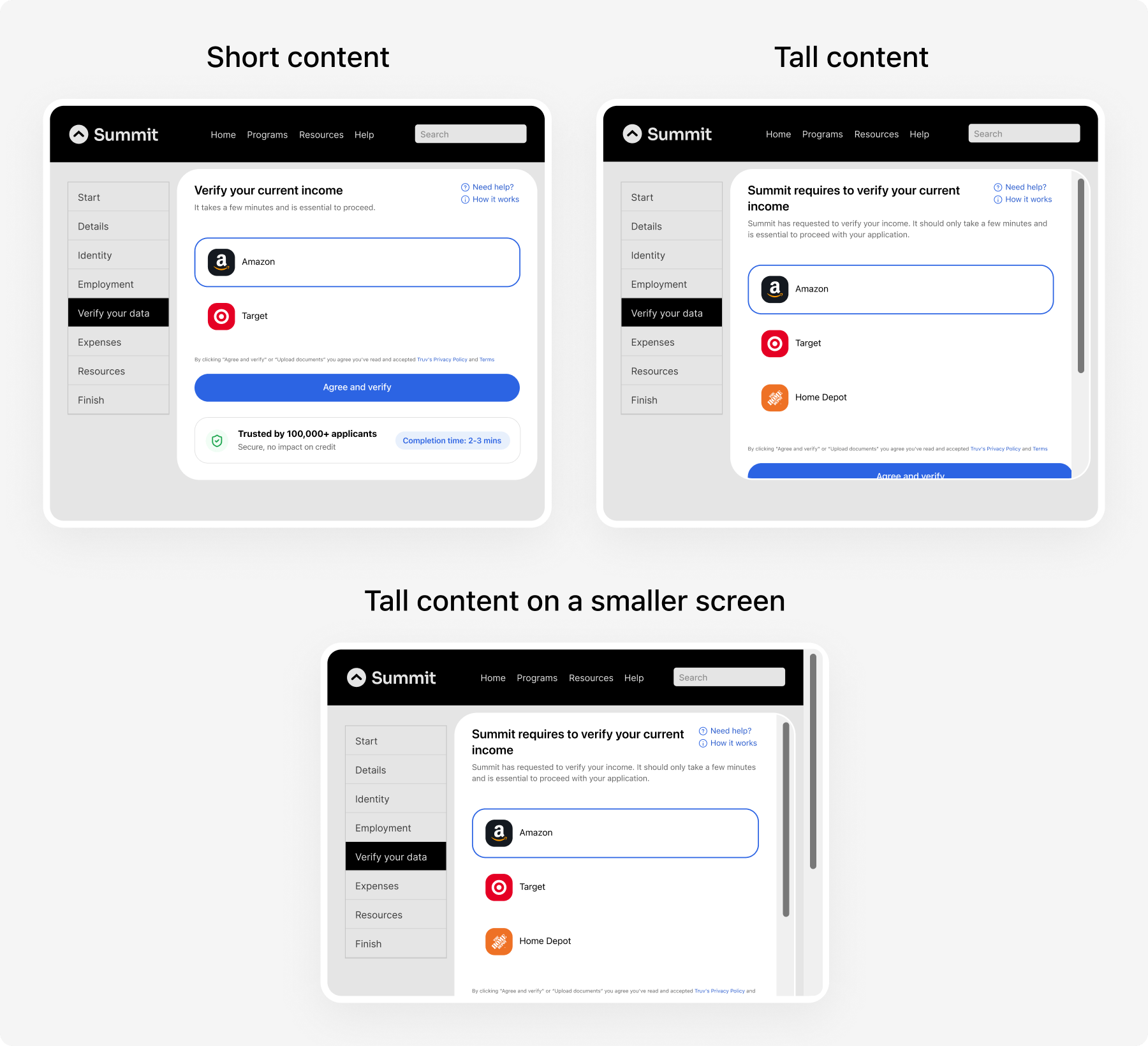 Fixed height needs a few conditions to keep the UI usable:
* Set an explicit `height` on the container, ideally relative to the viewport so the frame adapts to the screen.
* Don't place the container inside a scrollable parent — this creates a double-scroll.
Test the frame across the full range of viewports — narrow and wide, short and tall.
The minimum supported size is **320×240** pixels.
### Suborder launch
When the applicant starts a verification — a suborder — Bridge opens as a modal on top of the page instead of inside the inline frame. The order page stays inline in your container. The modal gives Bridge more room and avoids scroll and virtual-keyboard issues on mobile. Opening Bridge inside the inline frame (legacy suborder mode) was the previous default and is deprecated as of June 18, 2026.
Fixed height needs a few conditions to keep the UI usable:
* Set an explicit `height` on the container, ideally relative to the viewport so the frame adapts to the screen.
* Don't place the container inside a scrollable parent — this creates a double-scroll.
Test the frame across the full range of viewports — narrow and wide, short and tall.
The minimum supported size is **320×240** pixels.
### Suborder launch
When the applicant starts a verification — a suborder — Bridge opens as a modal on top of the page instead of inside the inline frame. The order page stays inline in your container. The modal gives Bridge more room and avoids scroll and virtual-keyboard issues on mobile. Opening Bridge inside the inline frame (legacy suborder mode) was the previous default and is deprecated as of June 18, 2026.