> ## Documentation Index
> Fetch the complete documentation index at: https://docs.truv.com/llms.txt
> Use this file to discover all available pages before exploring further.

# Bridge Widget Overview

> The client-side widget for secure account connections

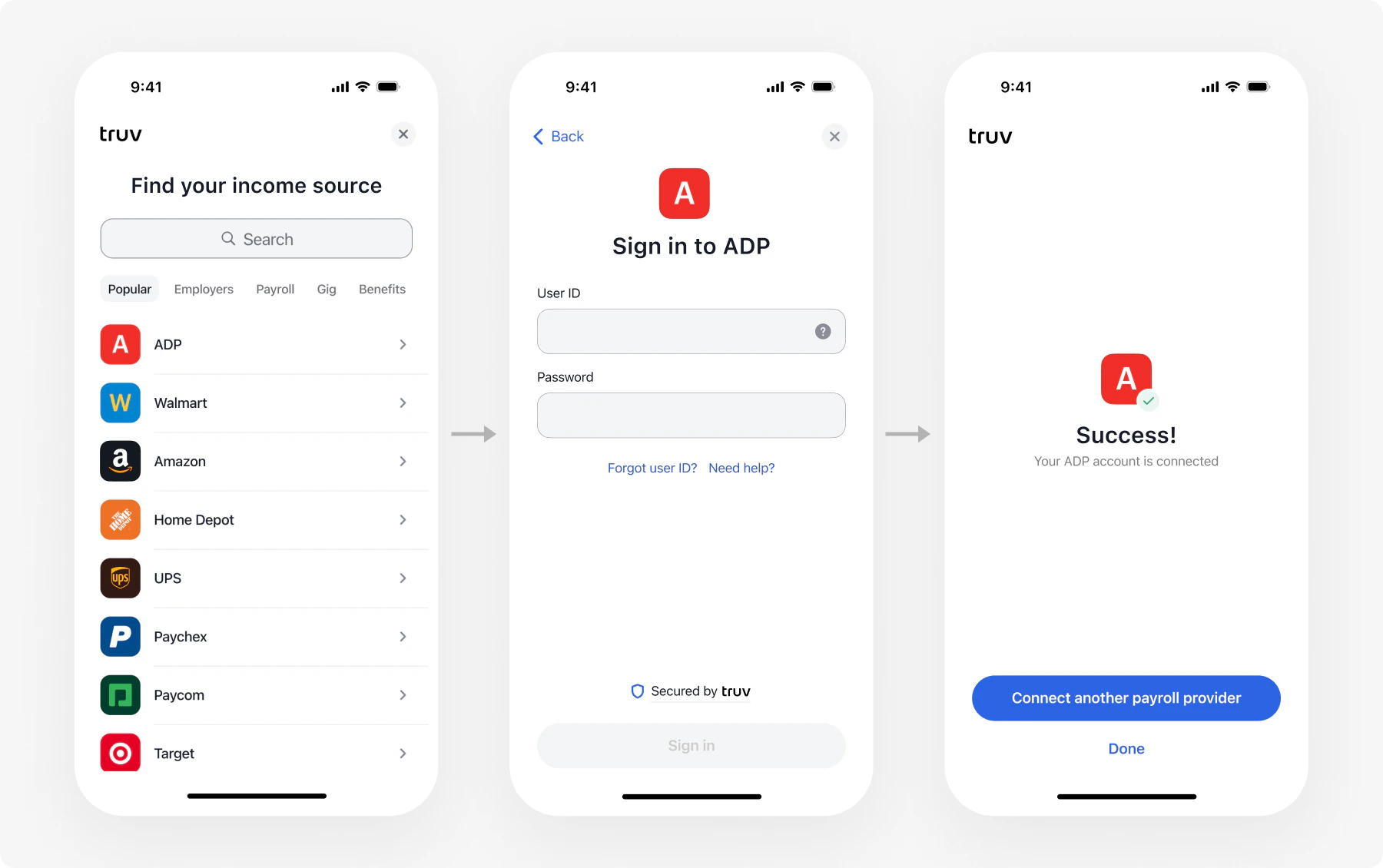
<img src="https://mintcdn.com/truv/EPZ3fgmRiGhZ9lyi/images/income-widget.png?fit=max&auto=format&n=EPZ3fgmRiGhZ9lyi&q=85&s=5d2c864447b04ec2c9d655136af735a2" alt="Widget - income verification" width="1800" height="1130" data-path="images/income-widget.png" />

Truv Bridge is a drop-in client-side widget that handles the entire account connection flow: employer/bank search, credential entry, multi-factor authentication, and error handling. You embed it in your frontend; Truv manages the UI.

Bridge is used in two ways:

| Integration                                                         | Use case                                                                       | How Bridge gets a token                 |
| ------------------------------------------------------------------- | ------------------------------------------------------------------------------ | --------------------------------------- |
| [Embedded Orders](/developers/integration/embedded-orders/overview) | Income, employment, assets (multi-connection)                                  | Order API returns `bridge_token`        |
| [Bridge Widget](/developers/integration/bridge-widget/new-user)     | Direct Deposit Switch (DDS), Paycheck Linked Lending (PLL) (single connection) | Bridge Token API returns `bridge_token` |

***

## Platform support

| Platform         | Package                                         |
| ---------------- | ----------------------------------------------- |
| **Web**          | `<script src="https://cdn.truv.com/bridge.js">` |
| **iOS**          | Native SDK                                      |
| **Android**      | Native SDK                                      |
| **React Native** | SDK package                                     |
| **Flutter**      | SDK package                                     |
| **Expo**         | SDK package                                     |

See [SDK documentation](/developers/sdks/overview) for installation guides and code samples.

***

## Token exchange flow

The Bridge Widget uses a token exchange pattern to keep credentials secure. Your backend handles all secret-bearing API calls; your frontend only touches the `bridge_token` and `public_token`.

```mermaid theme={null}
sequenceDiagram
    participant App as Your App (Frontend)
    participant Backend as Your Backend
    participant Truv as Truv API

    App->>Backend: 1. Request bridge_token
    Backend->>Truv: 2. Create user + POST /v1/users/{user_id}/tokens/
    Truv-->>Backend: bridge_token
    Backend-->>App: bridge_token
    App->>App: 3. Initialize TruvBridge with bridge_token
    App->>Truv: 4. User connects account → public_token
    Truv-->>Backend: 5. Webhook: task-status-updated
    Backend->>Truv: 6. POST /v1/link-access-tokens/ (exchange public_token)
    Truv-->>Backend: access_token
    Backend->>Truv: 7. Retrieve data using access_token
```

***

## Embed Bridge in your page

Add the Bridge script and initialize it with a `bridge_token` from your backend.

```html theme={null}
<!DOCTYPE html>
<html>
<head>
  <meta charset="utf-8" />
  <title>Truv Bridge</title>
  <script src="https://cdn.truv.com/bridge.js"></script>
</head>
<body>
  <button id="connect-btn">Connect account</button>

  <script>
    const button = document.getElementById('connect-btn');

    // Fetch bridge_token from your backend
    async function getBridgeToken() {
      const response = await fetch('/api/bridge-token');
      const data = await response.json();
      return data.bridge_token;
    }

    button.addEventListener('click', async () => {
      const bridgeToken = await getBridgeToken();

      const bridge = TruvBridge.init({
        bridgeToken: bridgeToken,
        onLoad: function () {
          console.log('Bridge loaded');
        },
        onSuccess: function (publicToken, metadata) {
          console.log('public_token:', publicToken);
          // Send publicToken to your backend for exchange
          fetch('/api/exchange-token', {
            method: 'POST',
            headers: { 'Content-Type': 'application/json' },
            body: JSON.stringify({ public_token: publicToken }),
          });
        },
        onEvent: function (eventType, payload) {
          console.log('Event:', eventType, payload);
        },
        onClose: function () {
          console.log('Bridge closed');
        },
      });

      bridge.open();
    });
  </script>
</body>
</html>
```

***

## Parameters

| Parameter     | Required | Description                                                                                           |
| ------------- | -------- | ----------------------------------------------------------------------------------------------------- |
| `bridgeToken` | Yes      | The `bridge_token` value returned by [Create Bridge Token](/api-reference/bridge-token/users_tokens). |
| `position`    | No       | Display mode configuration. Default is `dialog`. See [Set the position](#set-the-position).           |

***

## Set the position

The `position` parameter controls how Bridge renders on the page.

<img src="https://mintcdn.com/truv/vd0qdUd6laBF3m3V/images/dialog-mode-vs-inline-mode-bridge.png?fit=max&auto=format&n=vd0qdUd6laBF3m3V&q=85&s=787d4d6163c2824d8bcd4dd4dfd7cb49" alt="Bridge: Dialog mode vs. Inline mode" width="1800" height="843" data-path="images/dialog-mode-vs-inline-mode-bridge.png" />

### Dialog (default)

Bridge opens as a centered overlay and disables page scrolling.

```javascript theme={null}
const bridge = TruvBridge.init({
  bridgeToken: bridgeToken,
  position: { type: 'dialog' },
  // callbacks...
});
```

### Inline

Bridge embeds inside an existing DOM element. Use this for seamless page layouts.

```javascript theme={null}
const container = document.getElementById('bridge-container');

const bridge = TruvBridge.init({
  bridgeToken: bridgeToken,
  position: { type: 'inline', container: container },
  // callbacks...
});
```

<Note>
  Inline mode requires the container element to exist in the DOM before calling `TruvBridge.init`.
</Note>

***

## Close Bridge programmatically

Call `bridge.close()` to dismiss the widget from your code.

```javascript theme={null}
const bridge = TruvBridge.init({
  bridgeToken: bridgeToken,
  // callbacks...
});

// Close the widget after a timeout or user action
bridge.close();
```

### Close options

`bridge.close()` accepts an optional `{ mode }` parameter that controls which frames are dismissed.

| `mode`            | Behavior                                                                        |
| ----------------- | ------------------------------------------------------------------------------- |
| `'all'` (default) | Closes the widget unconditionally. Equivalent to `bridge.close()`.              |
| `'onlyModal'`     | Closes only frames rendered as a modal/dialog. Inline frames are left in place. |

```javascript theme={null}
bridge.close();                          // closes everything
bridge.close({ mode: 'all' });           // same as bridge.close()
bridge.close({ mode: 'onlyModal' });     // dismisses modal layers only
```

Behavior matrix:

<table>
  <thead>
    <tr>
      <th>isOrder</th>
      <th>position.type</th>
      <th>mode: 'all'</th>
      <th>mode: 'onlyModal'</th>
    </tr>
  </thead>

  <tbody>
    <tr>
      <td style={{ whiteSpace: 'nowrap' }}><code>false</code></td>
      <td style={{ whiteSpace: 'nowrap' }}><code>dialog</code></td>
      <td>Closes the modal Bridge</td>
      <td>Closes the modal Bridge</td>
    </tr>

    <tr>
      <td style={{ whiteSpace: 'nowrap' }}><code>false</code></td>
      <td style={{ whiteSpace: 'nowrap' }}><code>inline</code></td>
      <td>Removes the inline Bridge from the page</td>
      <td>**No-op**</td>
    </tr>

    <tr>
      <td style={{ whiteSpace: 'nowrap' }}><code>true</code></td>
      <td style={{ whiteSpace: 'nowrap' }}><code>dialog</code></td>
      <td>Closes the modal order page and the inner connection widget</td>
      <td>Closes the modal order page and the inner connection widget</td>
    </tr>

    <tr>
      <td style={{ whiteSpace: 'nowrap' }}><code>true</code></td>
      <td style={{ whiteSpace: 'nowrap' }}><code>inline</code></td>
      <td>Removes the inline order page and closes the inner connection widget</td>
      <td>**Closes the inner connection widget; leaves the inline order page mounted**</td>
    </tr>
  </tbody>
</table>

Use `mode: 'onlyModal'` when your app needs to display its own modal (for example, a session-timeout dialog) on top of an inline Embedded Order. Without dismissing the inner connection widget first, your dialog would be unreachable behind it.

***

## Callbacks

| Callback    | When it fires                           |
| ----------- | --------------------------------------- |
| `onSuccess` | User successfully connected an account  |
| `onLoad`    | Bridge widget finished loading          |
| `onClose`   | User closed the widget                  |
| `onEvent`   | Any interaction event, including errors |

Errors surface through `onEvent` with `type=ERROR` and an [`ErrorData`](/developers/sdks/bridge-events#errordata) payload — there is no separate `onError` callback. See [Bridge events](/developers/sdks/bridge-events) for the full list of event types and payloads.

***

## Customize the widget

Customize Bridge appearance through [Customization Templates](/developers/customization) in the Dashboard: company branding, search experience, success pages, document upload settings, and privacy agreements.

***

## Next steps

<CardGroup cols={2}>
  <Card title="Embedded Orders" icon="link" href="/developers/integration/embedded-orders/overview">
    Multi-connection verification (VOIE, VOA, VOE)
  </Card>

  <Card title="Bridge Widget" icon="key" href="/developers/integration/bridge-widget/new-user">
    Single-connection flow (DDS, PLL)
  </Card>

  <Card title="Consumer Credit Demo" icon="rocket" href="/developers/quickstarts-overview#demo-apps">
    Bundle income, deposit switch, and PLL in one Bridge session
  </Card>

  <Card title="SDKs" icon="code" href="/developers/sdks/overview">
    Platform-specific installation guides
  </Card>
</CardGroup>