> ## Documentation Index
> Fetch the complete documentation index at: https://docs.truv.com/llms.txt
> Use this file to discover all available pages before exploring further.
# Customization
> Control branding, order defaults, templates, and API response fields
Brand your verification experience, configure order-level defaults, manage templates, and control which fields your API responses return. The Customization section has four areas: **Branding**, **Order Settings**, **Templates**, and **Data**.
***
## Branding
Set your company's visual identity for all verification experiences.
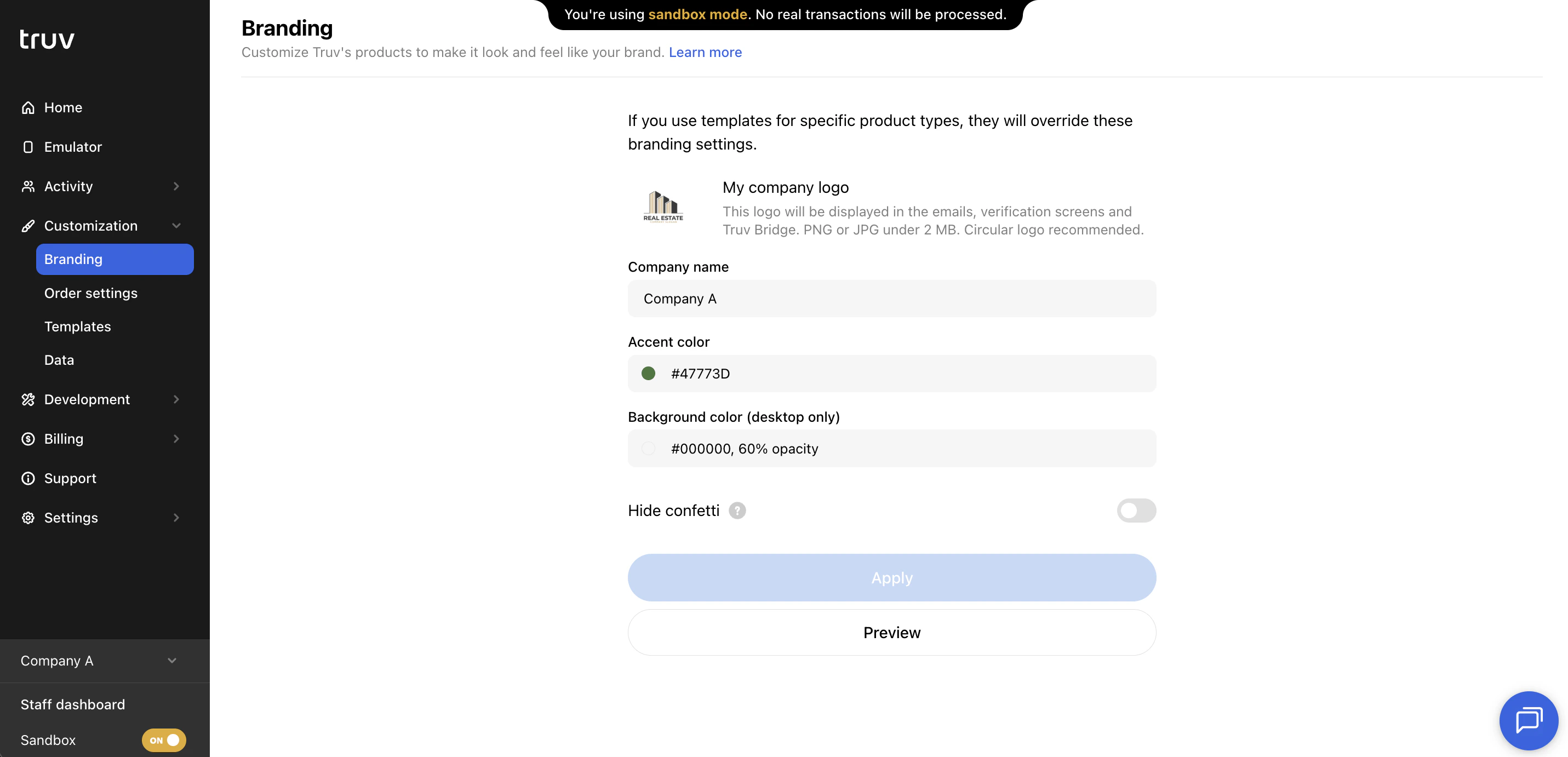 Branding settings apply globally across your account as defaults. Template-level branding takes precedence when a template is applied to an order.
| Setting | Description |
| -------------------- | ------------------------------------------------------------------------------------------------------------- |
| **Company logo** | Displayed in emails, verification screens, and Truv Bridge. PNG or JPG under 2 MB. Circular logo recommended. |
| **Company name** | Displayed in verification communications |
| **Accent color** | Primary color in the verification UI |
| **Background color** | Background overlay color for the verification UI (desktop only) |
| **Hide confetti** | Show or hide the confetti animation on successful connection |
Click **Preview** to see your branding in the Emulator before saving, or **Apply** to save changes.
***
## Order Settings
Configure account-wide defaults applied to all orders unless overridden at the template level.
Branding settings apply globally across your account as defaults. Template-level branding takes precedence when a template is applied to an order.
| Setting | Description |
| -------------------- | ------------------------------------------------------------------------------------------------------------- |
| **Company logo** | Displayed in emails, verification screens, and Truv Bridge. PNG or JPG under 2 MB. Circular logo recommended. |
| **Company name** | Displayed in verification communications |
| **Accent color** | Primary color in the verification UI |
| **Background color** | Background overlay color for the verification UI (desktop only) |
| **Hide confetti** | Show or hide the confetti animation on successful connection |
Click **Preview** to see your branding in the Emulator before saving, or **Apply** to save changes.
***
## Order Settings
Configure account-wide defaults applied to all orders unless overridden at the template level.
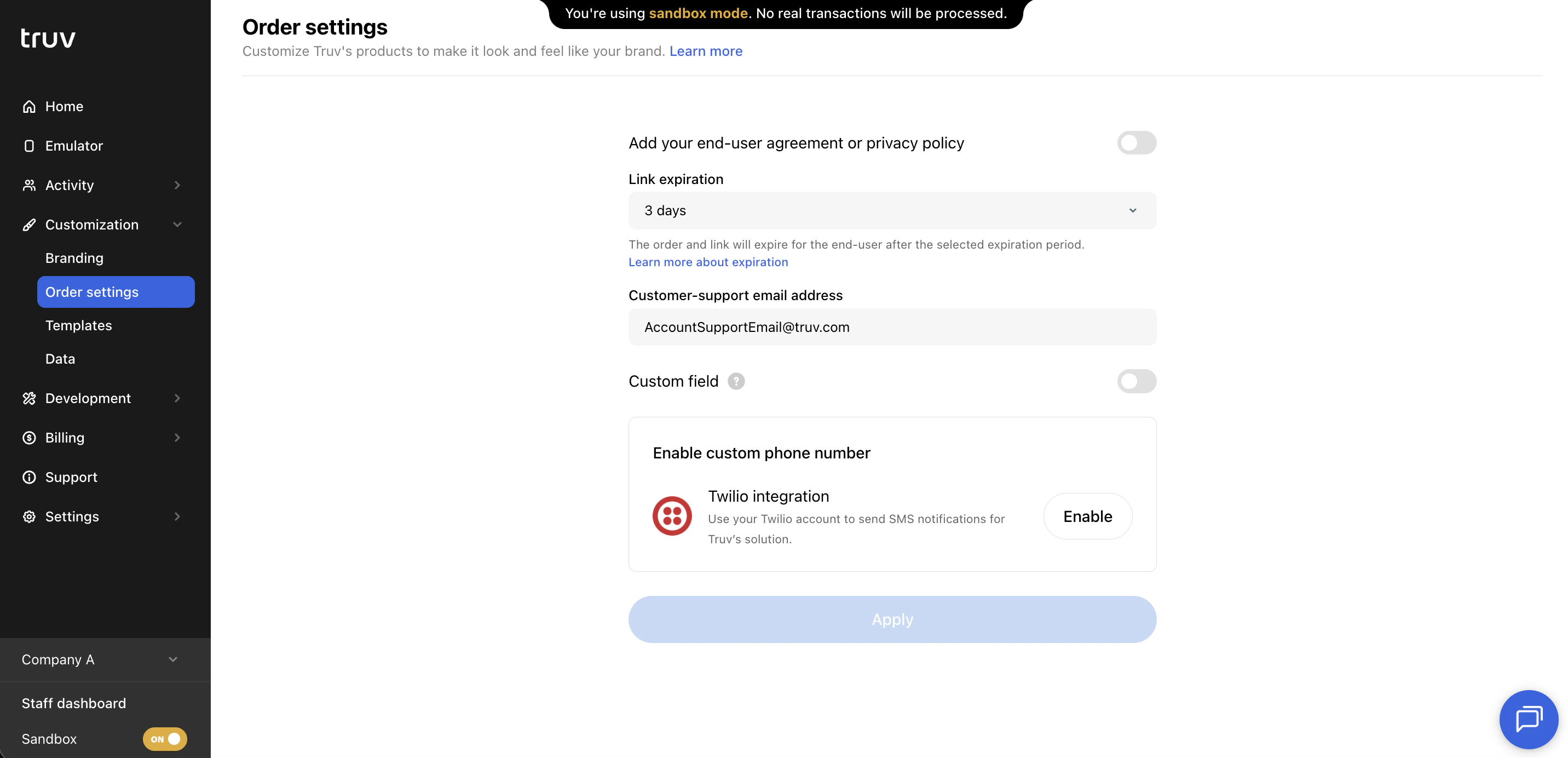 | Setting | Description |
| --------------------------------------- | ---------------------------------------------------------------------------------------- |
| **End-user agreement / privacy policy** | Toggle on to add a URL to all verification experiences |
| **Link expiration** | How long verification links stay active before expiring (e.g. 3 days) |
| **Customer support email** | Support email address shown to end users during verification |
| **Custom field** | Enforces a required custom data field (e.g. loan number) on all orders |
| **Custom phone number** | Send SMS notifications from a specific authenticated phone number via Twilio integration |
***
## Templates
Create and manage templates to apply distinct customizations to individual workflows or clients.
| Setting | Description |
| --------------------------------------- | ---------------------------------------------------------------------------------------- |
| **End-user agreement / privacy policy** | Toggle on to add a URL to all verification experiences |
| **Link expiration** | How long verification links stay active before expiring (e.g. 3 days) |
| **Customer support email** | Support email address shown to end users during verification |
| **Custom field** | Enforces a required custom data field (e.g. loan number) on all orders |
| **Custom phone number** | Send SMS notifications from a specific authenticated phone number via Twilio integration |
***
## Templates
Create and manage templates to apply distinct customizations to individual workflows or clients.
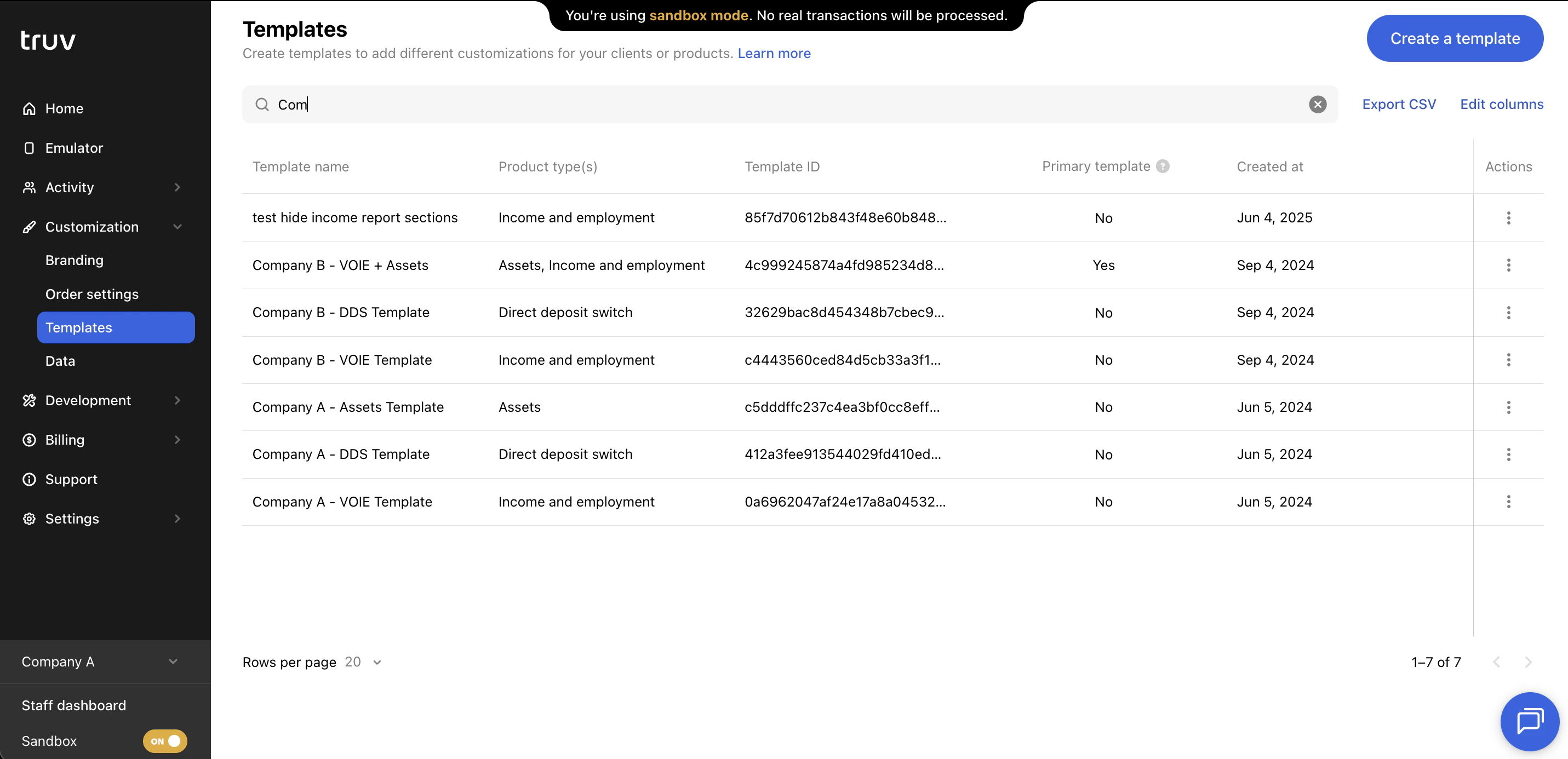 Templates give fine-grained control over branding, the end-user experience, and returned data for individual workflows. Select a template when creating an order to apply its full configuration.
Templates also control **order manager access** — a team member assigned to a specific template can only create orders with that template and can only view orders using it. This makes templates an effective tool for branch-level access control.
See the full [UX Customization guide](/developers/customization) for detailed configuration options for each template section.
***
## Data
Control which fields are included in API responses for each product type.
Templates give fine-grained control over branding, the end-user experience, and returned data for individual workflows. Select a template when creating an order to apply its full configuration.
Templates also control **order manager access** — a team member assigned to a specific template can only create orders with that template and can only view orders using it. This makes templates an effective tool for branch-level access control.
See the full [UX Customization guide](/developers/customization) for detailed configuration options for each template section.
***
## Data
Control which fields are included in API responses for each product type.
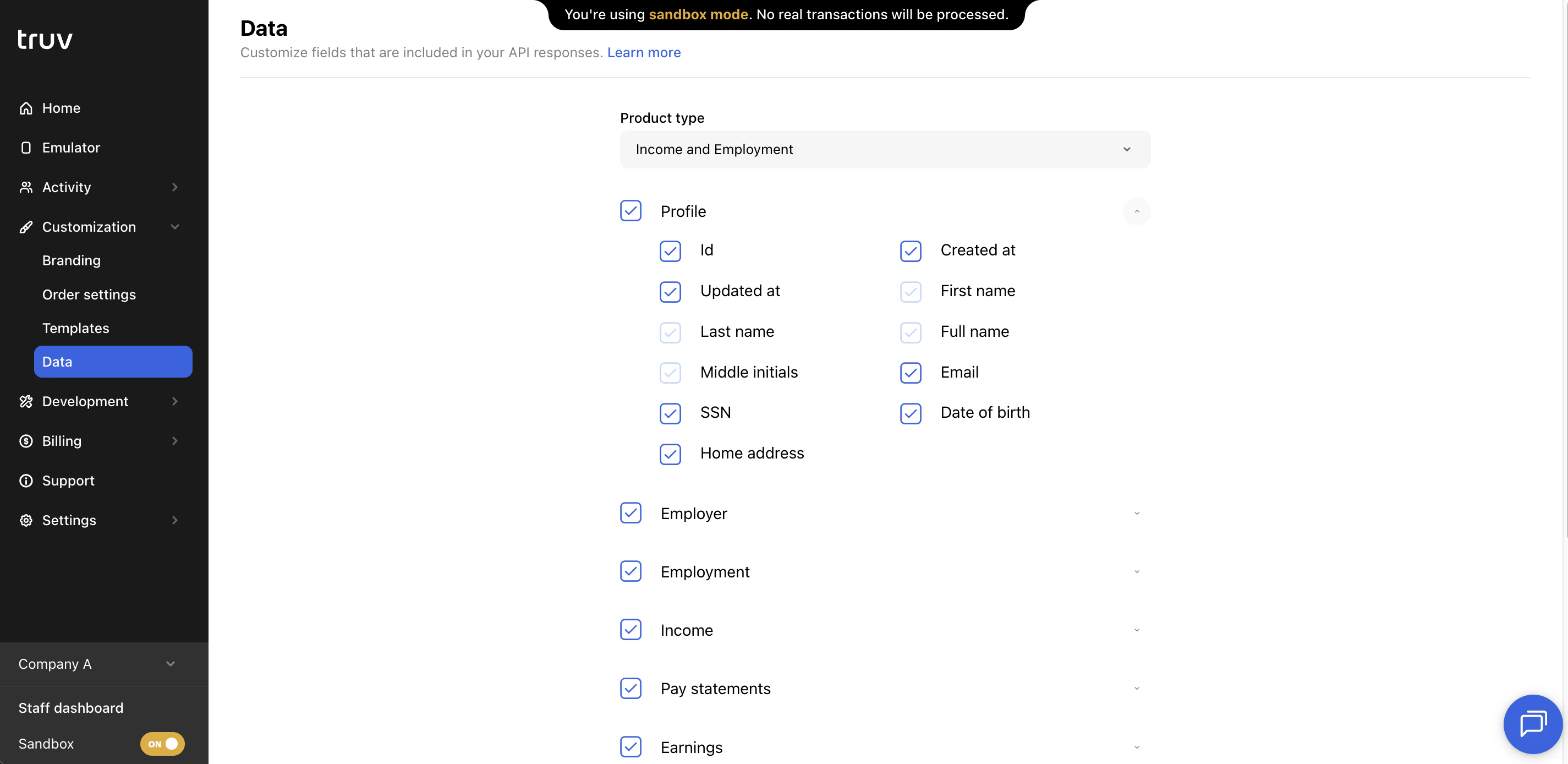 Select a product type to view its full API response schema. Each field group (Profile, Employer, Employment, Income, Pay statements, Earnings, etc.) can be expanded to show individual fields. Uncheck any field to exclude it from all API responses when a connection is completed using that product type. This is useful for limiting data returned to only what your application needs.
***
## Next steps
Full template configuration reference
Full configuration reference for templates
Select a product type to view its full API response schema. Each field group (Profile, Employer, Employment, Income, Pay statements, Earnings, etc.) can be expanded to show individual fields. Uncheck any field to exclude it from all API responses when a connection is completed using that product type. This is useful for limiting data returned to only what your application needs.
***
## Next steps
Full template configuration reference
Full configuration reference for templates