> ## Documentation Index
> Fetch the complete documentation index at: https://docs.truv.com/llms.txt
> Use this file to discover all available pages before exploring further.
# UX Customization
> Brand your verification experience across Bridge, emails, SMS, and landing pages
Customization templates let you personalize the entire verification experience, from the [Truv Bridge](/developers/sdks/overview) widget to emails, SMS messages, and landing pages. Templates are configured per product type and can be managed in the [Dashboard](https://dashboard.truv.com) under **Customization > Templates** or programmatically via the [Templates API](/api-reference/templates/object). Truv adds default templates to your account tailored to your use case and products — open and edit these to get started.
Template configurations take priority over universal branding settings. Set a template as **Primary** to make it the default for its product type when creating new orders.
***
## Manage templates
Truv automatically creates default templates in your account tailored to your products and use case. Adjust them in the [Dashboard](/developers/dashboard/customization#templates) or via the API below.
### API
Manage templates programmatically for automated workflows.
| Operation | Endpoint | Description |
| --------- | -------------------------------------------------------------------------------- | ----------------------------------- |
| Create | [`POST /v1/templates/`](/api-reference/templates/templates_create) | Create a new customization template |
| List | [`GET /v1/templates/`](/api-reference/templates/templates_list) | List all templates |
| Read | [`GET /v1/templates/{id}/`](/api-reference/templates/templates_read) | Retrieve a specific template |
| Update | [`PATCH /v1/templates/{id}/`](/api-reference/templates/templates_partial_update) | Update template settings |
| Delete | [`DELETE /v1/templates/{id}/`](/api-reference/templates/templates_delete) | Delete a template |
Pass a `template_id` when [creating an order](/api-reference/orders/orders_create) to apply a specific template.
```bash theme={null}
curl --request POST \
--url https://prod.truv.com/v1/orders/ \
--header 'X-Access-Client-Id: YOUR_TRUV_CLIENT_ID' \
--header 'X-Access-Secret: YOUR_TRUV_CLIENT_SECRET' \
--header 'Content-Type: application/json' \
--data '{
"products": ["income"],
"first_name": "John",
"last_name": "Doe",
"email": "john@example.com",
"template_id": "a1b2c3d4e5f6"
}'
```
In a [multi-tenancy](/developers/multi-tenancy) setup, each company has its own set of templates. Make sure you're editing templates in the correct company context.
***
## Settings
Configure the template's core identity and order behavior.
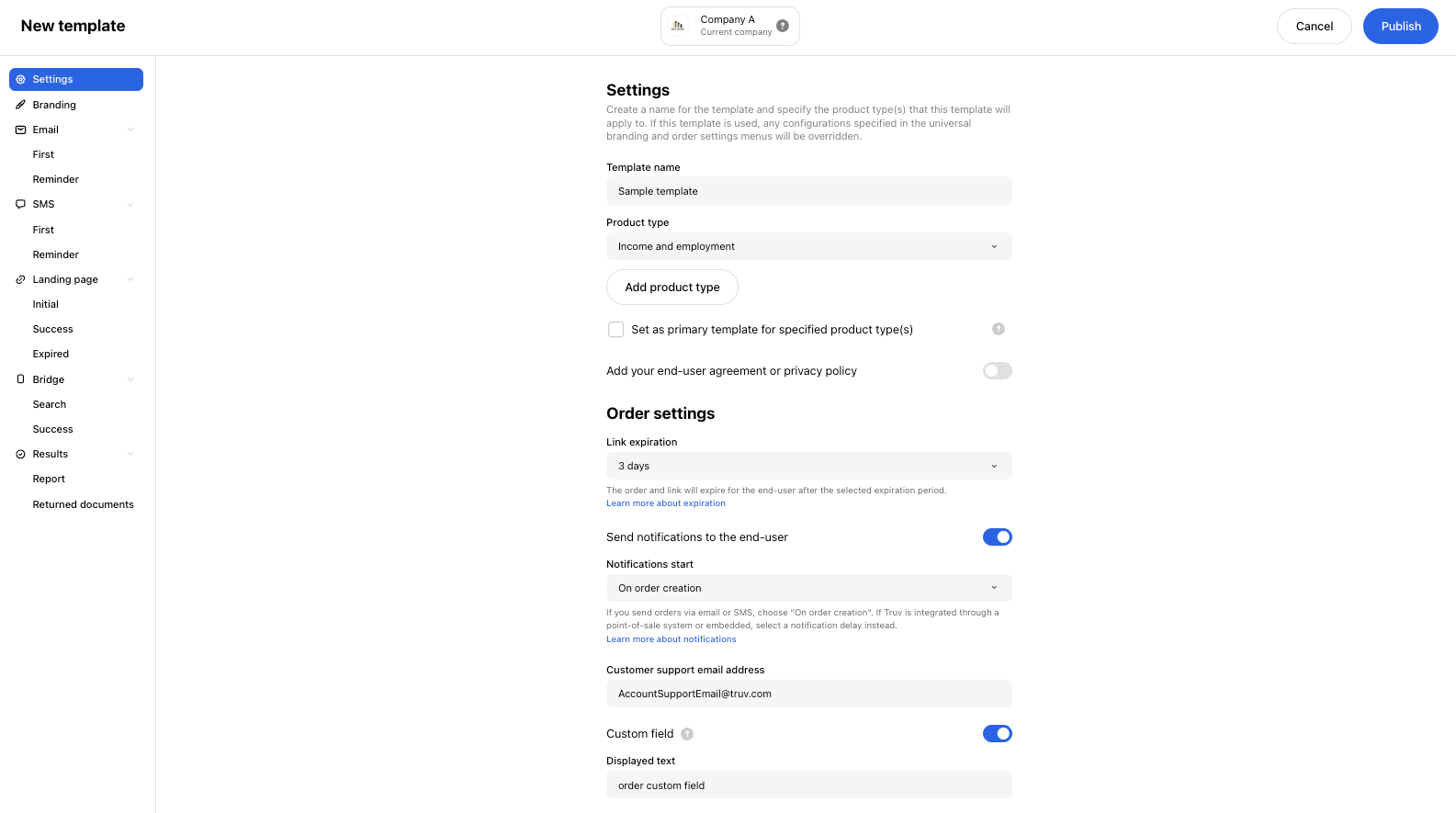 | Field | Description |
| --------------------------------------------------------- | --------------------------------------------------------------------------------------------------------------------------------------------- |
| **Template name** | Display name for the template. Cannot be "Default". |
| **Product type** | One or more verification products this template applies to |
| **Set as primary template for specified product type(s)** | Preselects this template by default when creating new orders for the selected product type(s) |
| **Add your end-user agreement or privacy policy** | Toggle on to show a custom agreement on the landing page and in Bridge. Requires a display text label and a URL. |
| **Link expiration** | How long the verification link stays active before expiring |
| **Send notifications to the end-user** | Toggle whether email and SMS notifications are sent to the applicant |
| **Notifications start** | When notifications are first sent: on order creation, or 1–24 hours after |
| **Customer support email address** | Support email shown to end users during verification |
| **Custom field** | Toggle on to add a custom text field to orders. The value is entered when creating each order and appears in the email body and landing page. |
***
## Company branding
Configure the visual identity that appears across all touchpoints. If not specified, these will be inherited from the Branding settings set at the Dashboard level.
| Field | Description |
| --------------------------------------------------------------------------------- | ----------------------------------------------------------------------------------------------------------------- |
| **Logo** | Displayed in emails, verification screens, and Truv Bridge |
| **Company name** | Name shown across all verification touchpoints |
| **Accent color** | Used for buttons and links. A warning is shown if the selected color is too light and may impact conversion rate. |
| **Background color (desktop only)** | Overlay background color shown on desktop |
| **Hide confetti** | Toggle to show or hide the confetti animation on successful connection |
| **Bank name** *Direct Deposit Switch, Paycheck Linked Lending* | Prefilled in emails and the landing page |
| **Product name in Truv Bridge and on the landing page** *Paycheck Linked Lending* | Overrides "Auto Pay" across all Bridge screens and the landing page |
***
## Customize Bridge
| Field | Description |
| --------------------------------------------------------- | --------------------------------------------------------------------------------------------------------------------------------------------- |
| **Template name** | Display name for the template. Cannot be "Default". |
| **Product type** | One or more verification products this template applies to |
| **Set as primary template for specified product type(s)** | Preselects this template by default when creating new orders for the selected product type(s) |
| **Add your end-user agreement or privacy policy** | Toggle on to show a custom agreement on the landing page and in Bridge. Requires a display text label and a URL. |
| **Link expiration** | How long the verification link stays active before expiring |
| **Send notifications to the end-user** | Toggle whether email and SMS notifications are sent to the applicant |
| **Notifications start** | When notifications are first sent: on order creation, or 1–24 hours after |
| **Customer support email address** | Support email shown to end users during verification |
| **Custom field** | Toggle on to add a custom text field to orders. The value is entered when creating each order and appears in the email body and landing page. |
***
## Company branding
Configure the visual identity that appears across all touchpoints. If not specified, these will be inherited from the Branding settings set at the Dashboard level.
| Field | Description |
| --------------------------------------------------------------------------------- | ----------------------------------------------------------------------------------------------------------------- |
| **Logo** | Displayed in emails, verification screens, and Truv Bridge |
| **Company name** | Name shown across all verification touchpoints |
| **Accent color** | Used for buttons and links. A warning is shown if the selected color is too light and may impact conversion rate. |
| **Background color (desktop only)** | Overlay background color shown on desktop |
| **Hide confetti** | Toggle to show or hide the confetti animation on successful connection |
| **Bank name** *Direct Deposit Switch, Paycheck Linked Lending* | Prefilled in emails and the landing page |
| **Product name in Truv Bridge and on the landing page** *Paycheck Linked Lending* | Overrides "Auto Pay" across all Bridge screens and the landing page |
***
## Customize Bridge
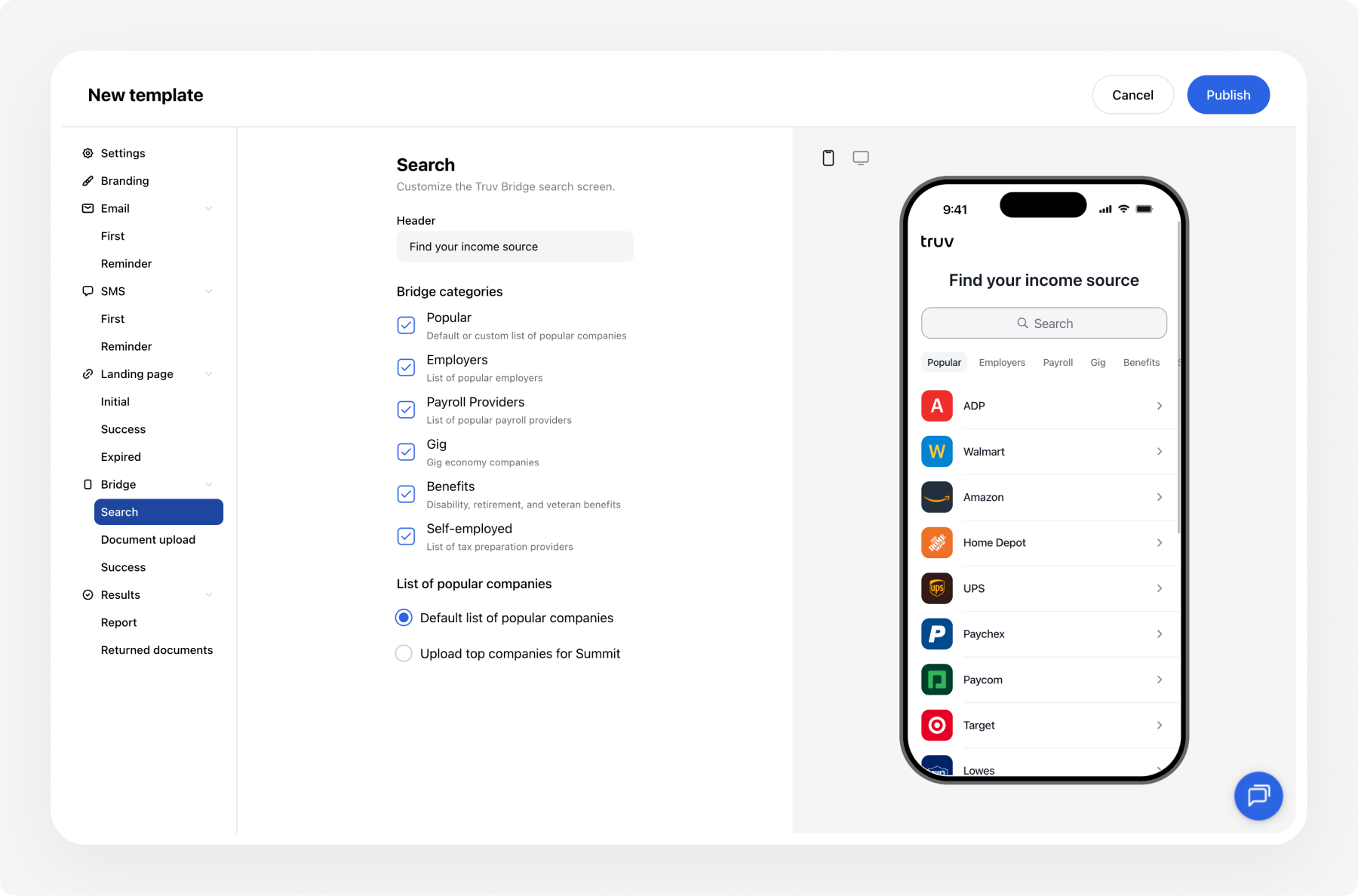 ### Search
Configure the search header for each product and data source combination:
| Field | Max length | Description |
| ---------- | ---------- | ------------------------- |
| **Header** | 34 | Search screen header text |
### Popular companies
Set the list shown to users before they search:
| Field | Description |
| ----------------------------- | ------------------------------------------------------------------------------------------- |
| **List of popular companies** | Use the default list or upload a custom CSV (company name + domain, max 15 rows) |
| **List of popular providers** | Use the default list or upload a custom CSV for payroll providers or financial institutions |
| **Bridge categories** | Select which provider categories are visible in Bridge. At least one must be active. |
### Document upload
Configure which document types are accepted:
| Field | Description |
| -------------------------- | -------------------------------------------------------------------------------------------------------------------------------------------------------------------- |
| **Document upload toggle** | Enable or disable document upload as a fallback |
| **Document types** | Enable individual document types: Paystubs, W-2, 1099, 1040. For each: set mandatory/optional, minimum and maximum number of documents, and the upload button label. |
### Success screen
Customize what the end user sees after a successful connection:
| Field | Max length | Description |
| ---------- | ---------- | -------------------------------------------------------------------------------- |
| **Title** | 500 | Success screen headline |
| **Body** | 500 | Supporting text. Use `{data_provider}` to display the connected provider's name. |
| **Button** | 26 | Button text shown after connection |
***
## Customize the order flow
Customize the communication and landing pages users see when they receive an order via [Hosted Orders](/developers/integration/hosted-orders/new-user) or [Manual Orders](/developers/integration/manual-orders/new-user).
### Email
### Search
Configure the search header for each product and data source combination:
| Field | Max length | Description |
| ---------- | ---------- | ------------------------- |
| **Header** | 34 | Search screen header text |
### Popular companies
Set the list shown to users before they search:
| Field | Description |
| ----------------------------- | ------------------------------------------------------------------------------------------- |
| **List of popular companies** | Use the default list or upload a custom CSV (company name + domain, max 15 rows) |
| **List of popular providers** | Use the default list or upload a custom CSV for payroll providers or financial institutions |
| **Bridge categories** | Select which provider categories are visible in Bridge. At least one must be active. |
### Document upload
Configure which document types are accepted:
| Field | Description |
| -------------------------- | -------------------------------------------------------------------------------------------------------------------------------------------------------------------- |
| **Document upload toggle** | Enable or disable document upload as a fallback |
| **Document types** | Enable individual document types: Paystubs, W-2, 1099, 1040. For each: set mandatory/optional, minimum and maximum number of documents, and the upload button label. |
### Success screen
Customize what the end user sees after a successful connection:
| Field | Max length | Description |
| ---------- | ---------- | -------------------------------------------------------------------------------- |
| **Title** | 500 | Success screen headline |
| **Body** | 500 | Supporting text. Use `{data_provider}` to display the connected provider's name. |
| **Button** | 26 | Button text shown after connection |
***
## Customize the order flow
Customize the communication and landing pages users see when they receive an order via [Hosted Orders](/developers/integration/hosted-orders/new-user) or [Manual Orders](/developers/integration/manual-orders/new-user).
### Email
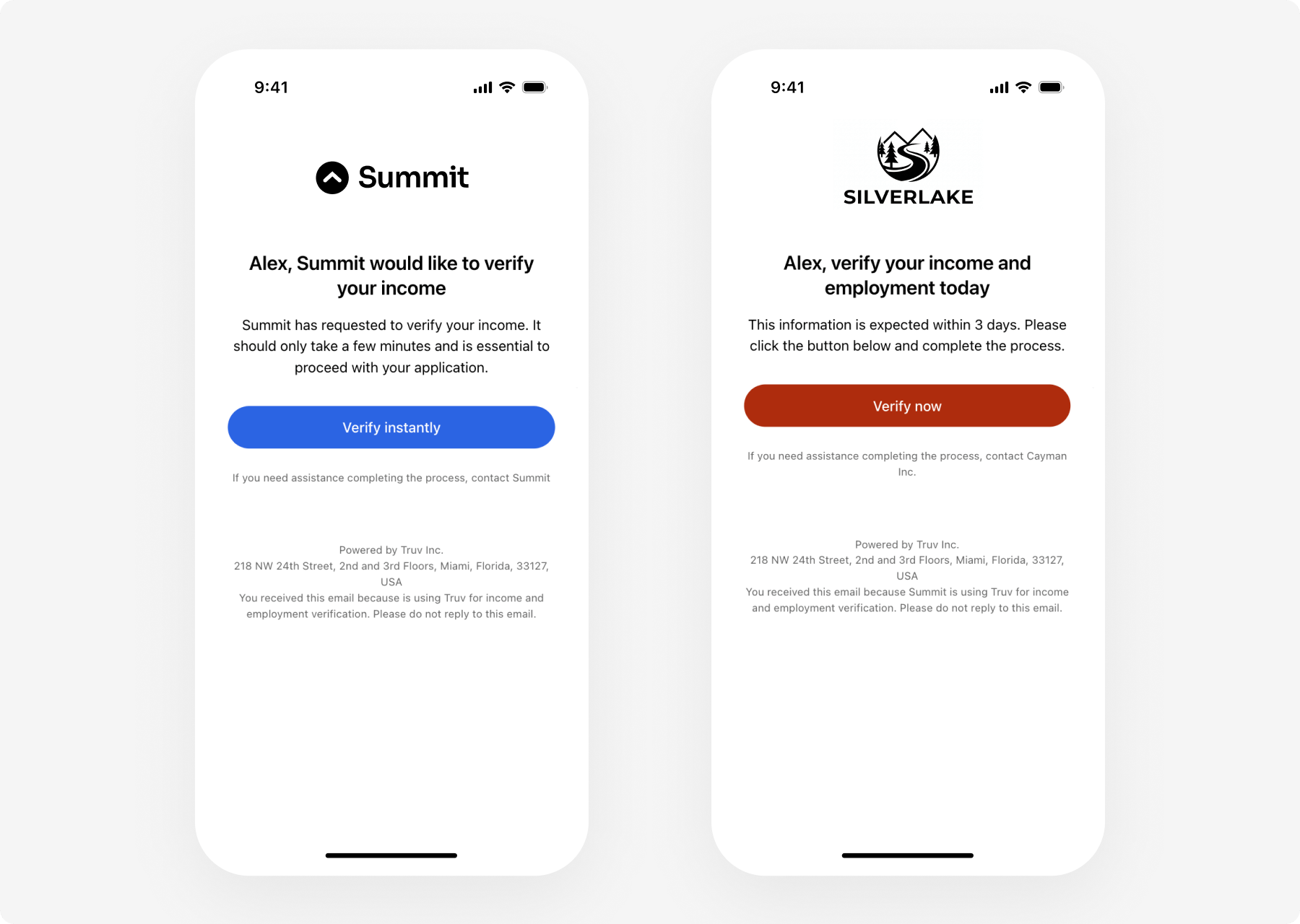 Customize the emails sent to applicants. Each section has a **First email** and **Reminder email** sub-tab. Text applied to the first email can optionally be copied to the reminder.
| Field | Max length | Description |
| ---------------------- | ---------- | ------------------------------------- |
| **Subject and header** | 2000 | Email subject line and header text |
| **Body** | 2000 | Main body of the email |
| **Button** | 26 | Call-to-action button text |
| **Caption** | 2000 | Small text displayed below the button |
### SMS
* Custom message text within a **120-character limit**
* Configurable follow-up SMS timing
* The `{link}` variable is required and must be included in the message
| Field | Max length | Description |
| -------- | ---------- | ---------------------------------------- |
| **Text** | 120 | SMS message body. Must include `{link}`. |
SMS reminders are only sent between 10am–6pm ET. Contact [support@truv.com](mailto:support@truv.com) to enable SMS for your account.
### Landing Pages
Customize the emails sent to applicants. Each section has a **First email** and **Reminder email** sub-tab. Text applied to the first email can optionally be copied to the reminder.
| Field | Max length | Description |
| ---------------------- | ---------- | ------------------------------------- |
| **Subject and header** | 2000 | Email subject line and header text |
| **Body** | 2000 | Main body of the email |
| **Button** | 26 | Call-to-action button text |
| **Caption** | 2000 | Small text displayed below the button |
### SMS
* Custom message text within a **120-character limit**
* Configurable follow-up SMS timing
* The `{link}` variable is required and must be included in the message
| Field | Max length | Description |
| -------- | ---------- | ---------------------------------------- |
| **Text** | 120 | SMS message body. Must include `{link}`. |
SMS reminders are only sent between 10am–6pm ET. Contact [support@truv.com](mailto:support@truv.com) to enable SMS for your account.
### Landing Pages
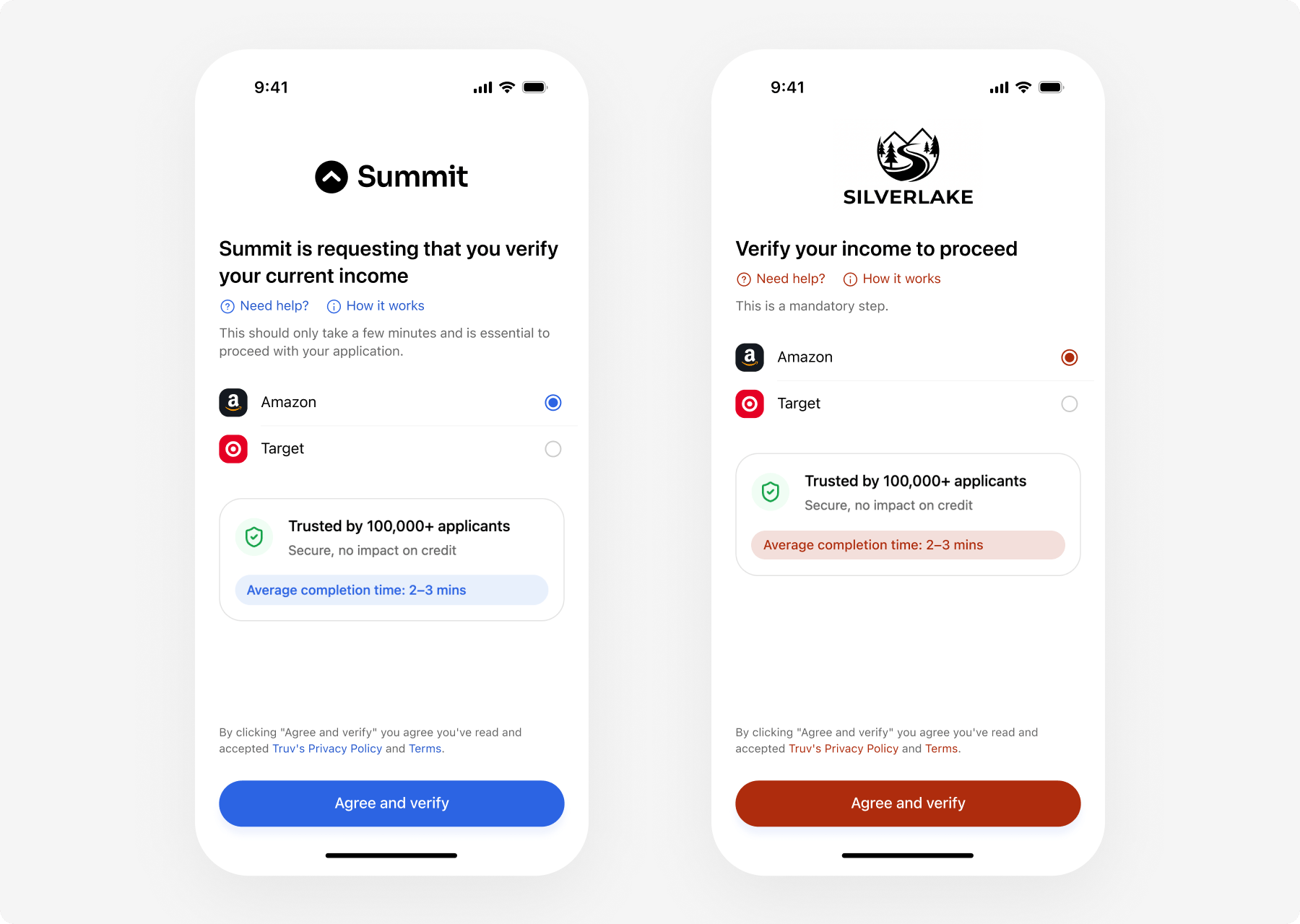 ### Initial landing page
Shown before the applicant starts verification:
| Field | Max length | Description |
| ----------------------------------- | ---------- | ----------------------------------------- |
| **Header** | 500 | Headline text on the initial landing page |
| **Body** | 500 | Supporting body text |
| **Hide frequently asked questions** | — | Toggle to show or hide the FAQ section |
### Success landing page
Shown after a successful connection:
| Field | Max length | Description |
| ---------- | ---------- | ----------------------------------------- |
| **Header** | 500 | Headline text on the success landing page |
| **Body** | 500 | Supporting body text |
### Expired landing page
Shown when the verification link has expired:
| Field | Max length | Description |
| ---------- | ---------- | ----------------------------------------- |
| **Header** | 500 | Headline text on the expired landing page |
| **Body** | 500 | Supporting body text |
***
## Dynamic text variables
Use variables in emails, SMS, and landing pages to personalize messages with order-specific data.
| Variable | Description | Available in |
| ----------------------------- | ------------------------ | ---------------------------------- |
| `{first_name}` | Recipient's first name | All channels |
| `{last_name}` | Recipient's last name | All channels |
| `{my_company_name}` | Your company name | All channels |
| `{order_number}` | Order tracking ID | All channels |
| `{link}` | Unique verification URL | Email, SMS |
| `{prospective_employer_name}` | Employer name | Employment orders |
| `{target_bank_name}` | Target bank name | Direct Deposit Switch (DDS) orders |
| `{target_account_type}` | Target account type | DDS orders |
| `{custom_field}` | Custom form input values | All channels |
| `{customer_support_email}` | Your support email | All channels |
***
## Results
Control what data is returned and displayed in reports. Fields vary by product type.
### Initial landing page
Shown before the applicant starts verification:
| Field | Max length | Description |
| ----------------------------------- | ---------- | ----------------------------------------- |
| **Header** | 500 | Headline text on the initial landing page |
| **Body** | 500 | Supporting body text |
| **Hide frequently asked questions** | — | Toggle to show or hide the FAQ section |
### Success landing page
Shown after a successful connection:
| Field | Max length | Description |
| ---------- | ---------- | ----------------------------------------- |
| **Header** | 500 | Headline text on the success landing page |
| **Body** | 500 | Supporting body text |
### Expired landing page
Shown when the verification link has expired:
| Field | Max length | Description |
| ---------- | ---------- | ----------------------------------------- |
| **Header** | 500 | Headline text on the expired landing page |
| **Body** | 500 | Supporting body text |
***
## Dynamic text variables
Use variables in emails, SMS, and landing pages to personalize messages with order-specific data.
| Variable | Description | Available in |
| ----------------------------- | ------------------------ | ---------------------------------- |
| `{first_name}` | Recipient's first name | All channels |
| `{last_name}` | Recipient's last name | All channels |
| `{my_company_name}` | Your company name | All channels |
| `{order_number}` | Order tracking ID | All channels |
| `{link}` | Unique verification URL | Email, SMS |
| `{prospective_employer_name}` | Employer name | Employment orders |
| `{target_bank_name}` | Target bank name | Direct Deposit Switch (DDS) orders |
| `{target_account_type}` | Target account type | DDS orders |
| `{custom_field}` | Custom form input values | All channels |
| `{customer_support_email}` | Your support email | All channels |
***
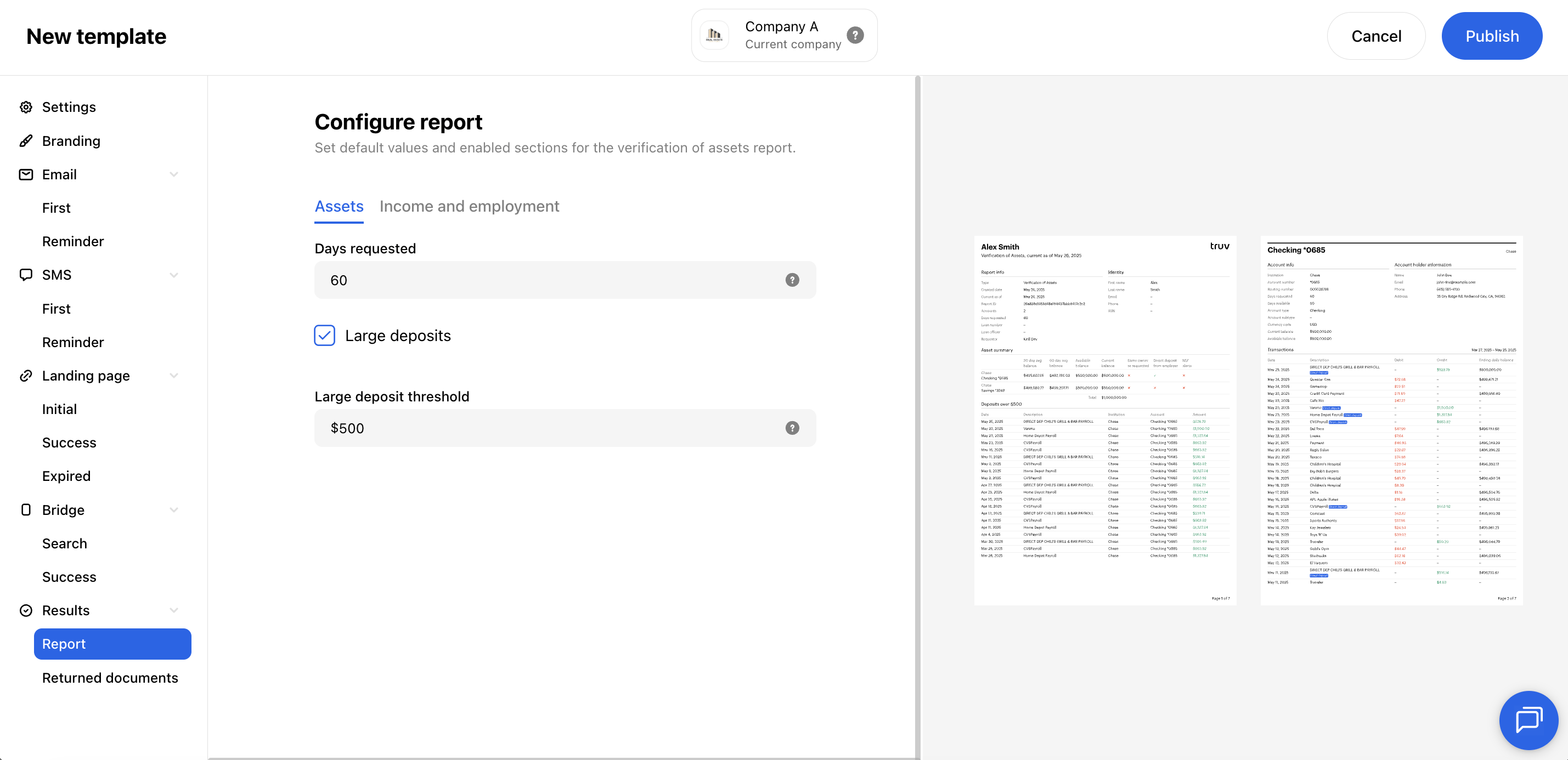
## Results
Control what data is returned and displayed in reports. Fields vary by product type.
 **Income & Employment:**
| Field | Description |
| --------------------------------- | ------------------------------------------------------ |
| **Deposit data** | Show or hide the deposit data section in the report |
| **Historical pay period summary** | Show or hide the historical pay period summary section |
| **Paystubs limit** | Restrict returned paystubs to the most recent 1–6 |
| **W-2 years limit** | Restrict returned W-2s to the most recent 1–3 years |
**Assets:**
| Field | Description |
| --------------------------- | ---------------------------------------------------------------------- |
| **Days requested** | Number of days of transaction history to retrieve (30–730, default 60) |
| **Large deposits** | Show or hide the large deposits section in the report |
| **Large deposit threshold** | Minimum amount ($1–$100,000) for a deposit to be flagged as large |
***
## Next steps
Full API reference for template management
Apply templates when creating orders
The widget you're customizing
Manage templates in the Dashboard UI
**Income & Employment:**
| Field | Description |
| --------------------------------- | ------------------------------------------------------ |
| **Deposit data** | Show or hide the deposit data section in the report |
| **Historical pay period summary** | Show or hide the historical pay period summary section |
| **Paystubs limit** | Restrict returned paystubs to the most recent 1–6 |
| **W-2 years limit** | Restrict returned W-2s to the most recent 1–3 years |
**Assets:**
| Field | Description |
| --------------------------- | ---------------------------------------------------------------------- |
| **Days requested** | Number of days of transaction history to retrieve (30–730, default 60) |
| **Large deposits** | Show or hide the large deposits section in the report |
| **Large deposit threshold** | Minimum amount ($1–$100,000) for a deposit to be flagged as large |
***
## Next steps
Full API reference for template management
Apply templates when creating orders
The widget you're customizing
Manage templates in the Dashboard UI